Contents
1. What are exhibitor users?
In EventHub, users are divided into 2 different categories, 'Attendees' and 'Exhibitors'.
Once the user type is set, it will be displayed as a label next to the participant name on the event page, as shown in the image below. For users registered as exhibitors that are associated with a company, you can click on their name in the upper right corner of the screen to proceed to the company page.
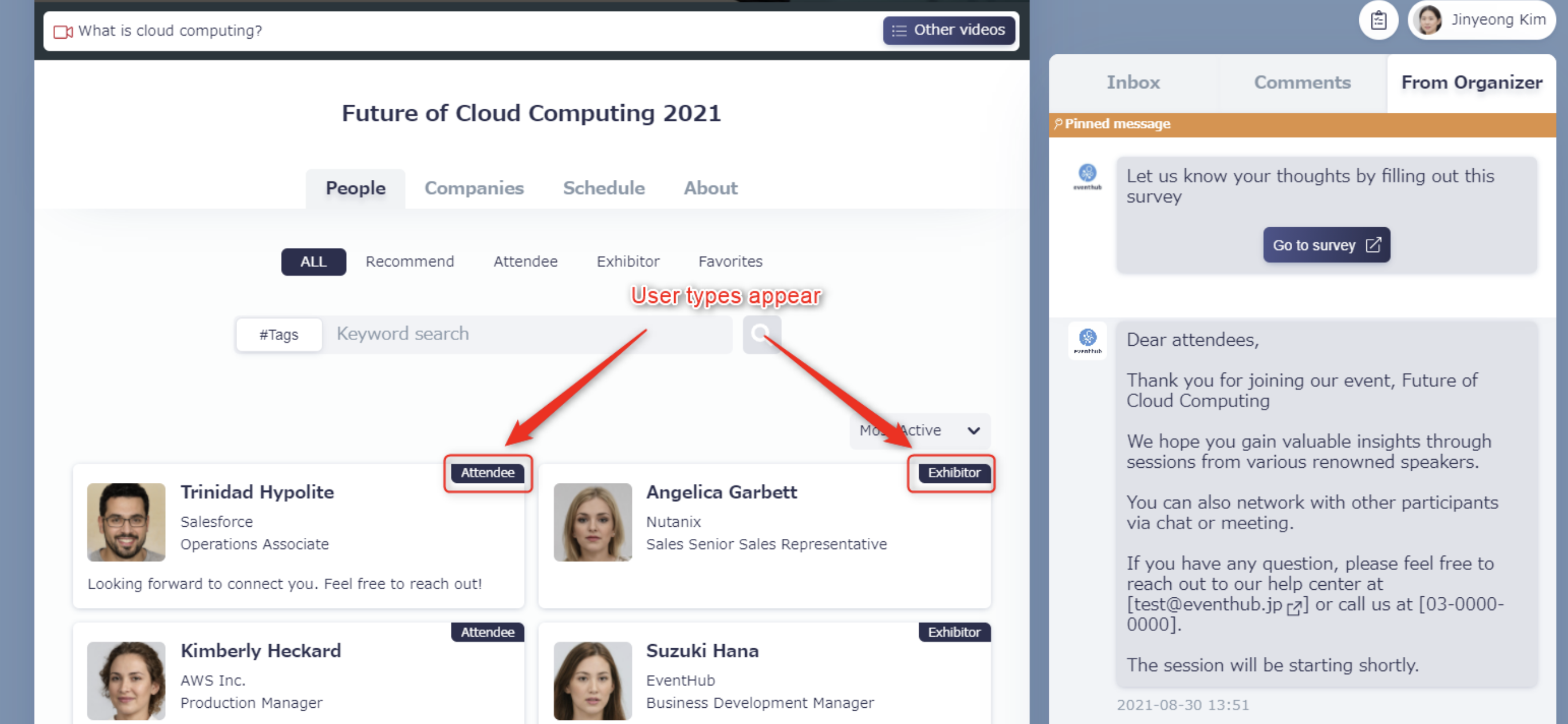
*User type settings can be configured from Ticket/Forms.
In this article, we'll go over the exhibitor user list.
2. How to register exhibitor information
There are 4 ways for an exhibitor to register with EventHub:
- Register as exhibitors themselves from Tickets/Forms.
- Register through a registration form on your company's page that includes an Embedded tag issued by EventHub.
- Register information through an Excel spreadsheet
- Register through email invitation
Registered users will automatically receive an email from EventHub to log in to the event. To learn more about emails, take a look at Send an Email.
3. About registered exhibitor information
All registered user information can be confirmed in the Admin page under 'Exhibitors' > 'User List'.
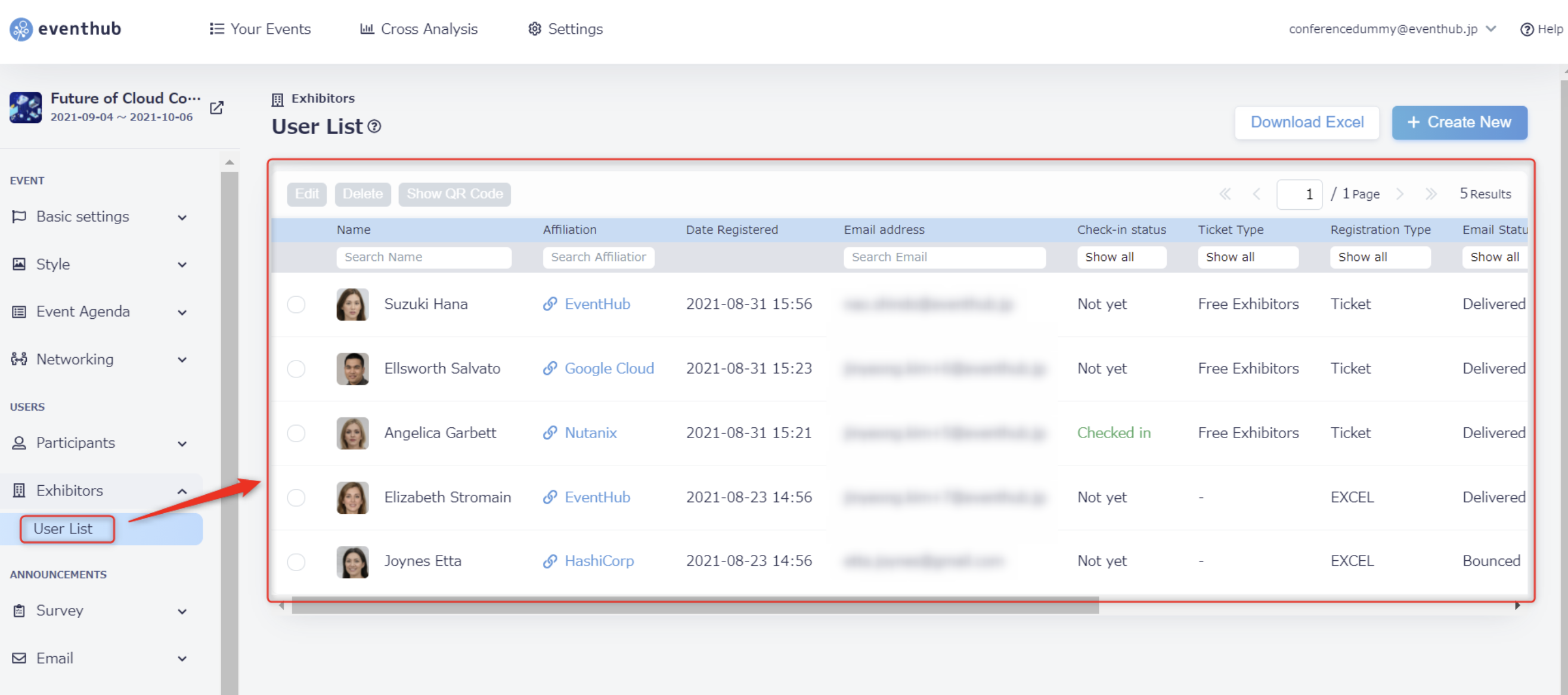
Here is the information displayed on the exhibitor user list:
Exhibitor List Items
| Item Name | Details |
| Affiliation | The user's company affiliation will be displayed. If the company name is displayed in blue, the user is successfully linked with the exhibitor/sponsor page. If it is grayed out, the two have not been linked yet. For details on how to connect users with exhibitors and sponsor pages, please see Link Exhibitors with Companies. |
| Email address | The user's email address will be displayed. |
| Check-in status | The check-in status will be reflected only when a QR code is issued at an offline event. Those who have entered with the QR code will be shown as "Checked-in", while those who have not yet checked-in will be shown as "Not yet". |
| Ticket type | If the user registered through a ticket form or an embedded registration form tag, the ticket name in 'Basic Settings' > 'Tickets/Forms' will be displayed. If user information was uploaded and registered in Excel, it will be displayed as "-" and cannot be edited. |
| Registration type | If the user registered through a ticket form or embedded registration form tag, registration type will be displayed as "Ticket". If user information was uploaded and registered in Excel, it will be displayed as "EXCEL". |
| Email status | 'Delivered' - the invitation email has successfully arrived in the participant's inbox. 'Bounced' - the email status will be shown as this if, for any reason, the email has not been delivered. 'Unsent' - displayed if the email has not been sent. (To send invitations, please click the button in the upper right hand corner labeled 'Send Invitation Email'.) |
| Matching | When the matching function is turned on, you will see "ON" displayed here. When the matching function is turned off, you will see "OFF" displayed here. |
| Language |
If the user registered in Japanese, "ja" will be displayed. This language setting determines the language of emails sent from EventHub. As a paid option, EventHub can cater to events both in Japanese and English. If your event supports both English and Japanese, you will need to send emails in Japanese to those whose language is set to "ja", and emails in English to those whose language is set to "en". Please note that the language displayed on the event page is dependent on the language settings of the participant's browser, and are not related to our page's language settings. For users uploaded through Excel: Language is set at the time of registration (ja & en) For users who registered via registration form or invitation: Browser language will be automatically confirmed at the time of registration (all languages except Japanese will be set to "en") |
| Search group name | The name of the search group to which the user belongs will be displayed. This can be configured from 'Advanced Settings' > 'Search Group'. |
| Meeting location user group | Any meeting groups you have created/assigned will be shown here. Please note, this feature is only for in-person events and may not be used for online events. |
| Staff settings | This is set by the event organizer. You can arrange a rehearsal session for your team to double-check your video streaming settings. Any users who have 'Staff Settings' set to 'On' will be able to see the video during the rehearsal session. You can see more information on this in the Hold a Rehearsal section of the Help Centre. |
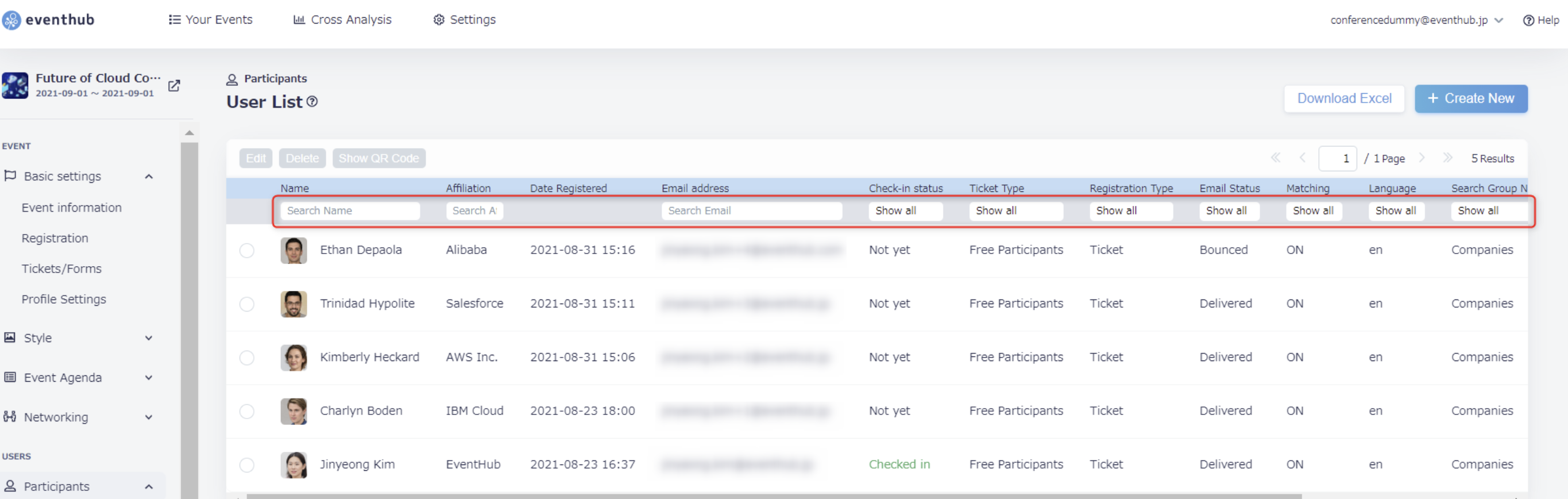
For all of the above items, you can search by keyword from the section marked below: