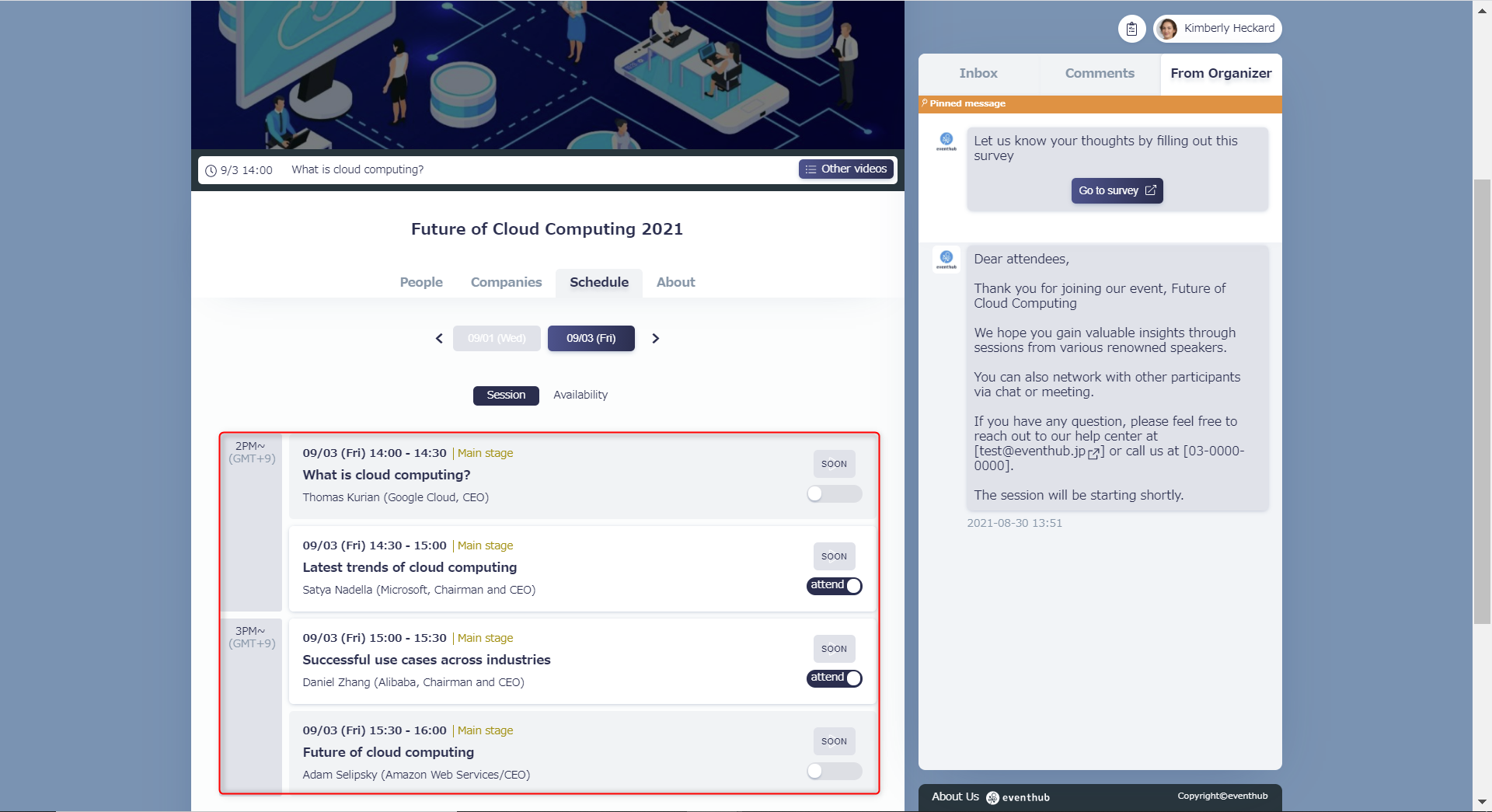
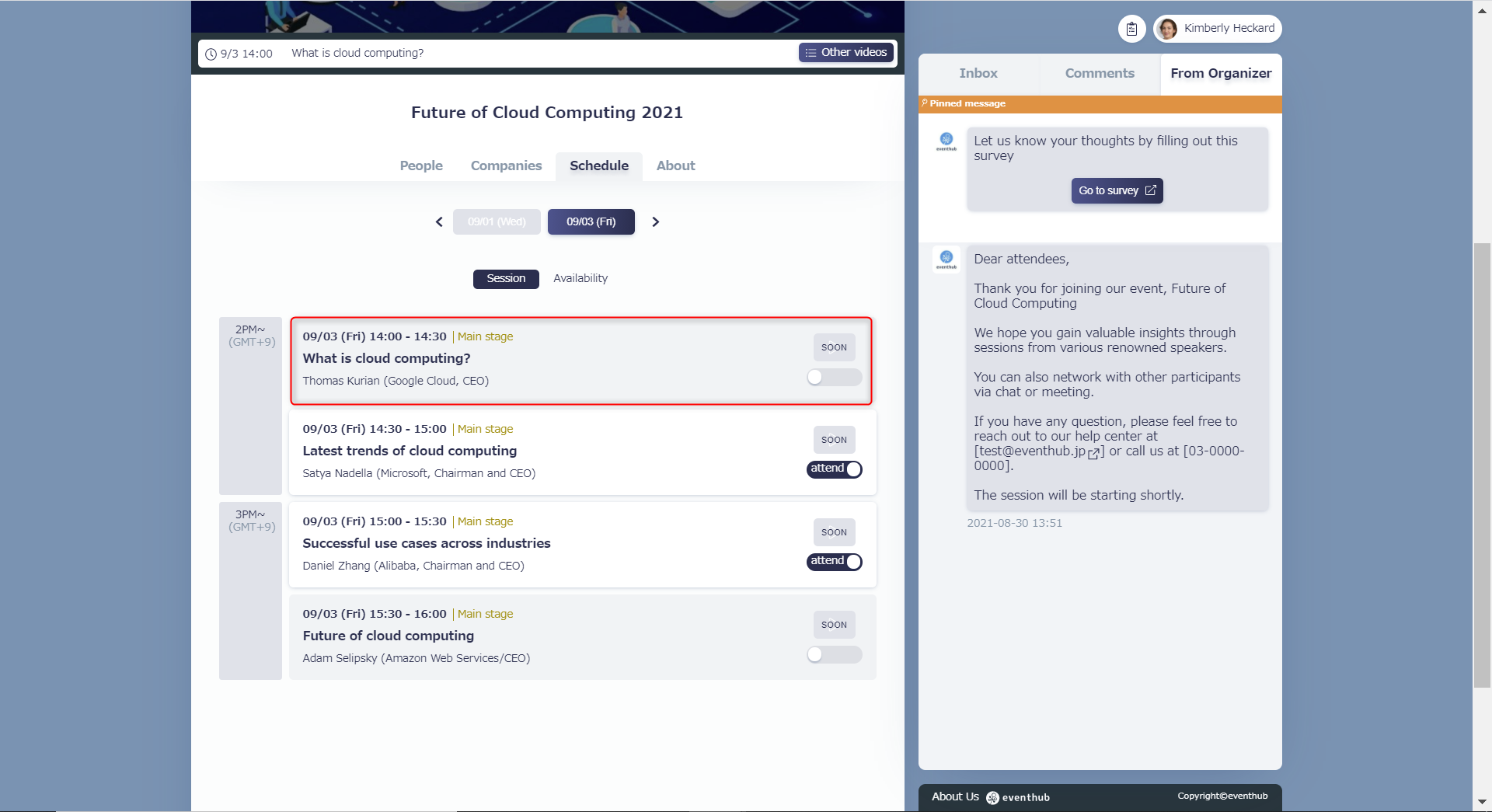
You can set up your event program (sessions, seminars, etc.) and it will be displayed under the 'Schedule' tab on the event page. If your particular event doesn't need to have an event program, this step can skipped.
You can also connect a video with the sessions you create. By doing this, participants will be able to watch the video from that session's tab on the event page. Please refer to Connecting Sessions with Video for more information on how to do this.
1. Setting up the event schedule
Under 'Event Agenda' > 'Sessions' click 'Create New'.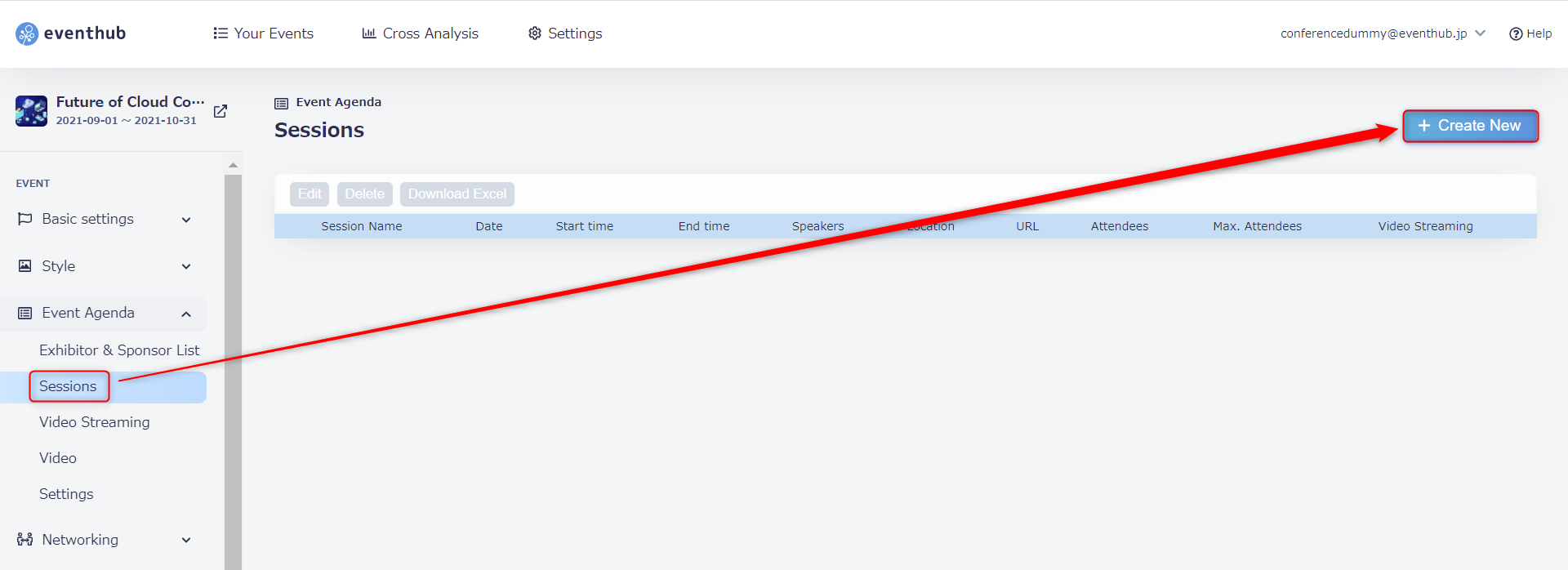
2. Fill in the required information and click 'Add'.
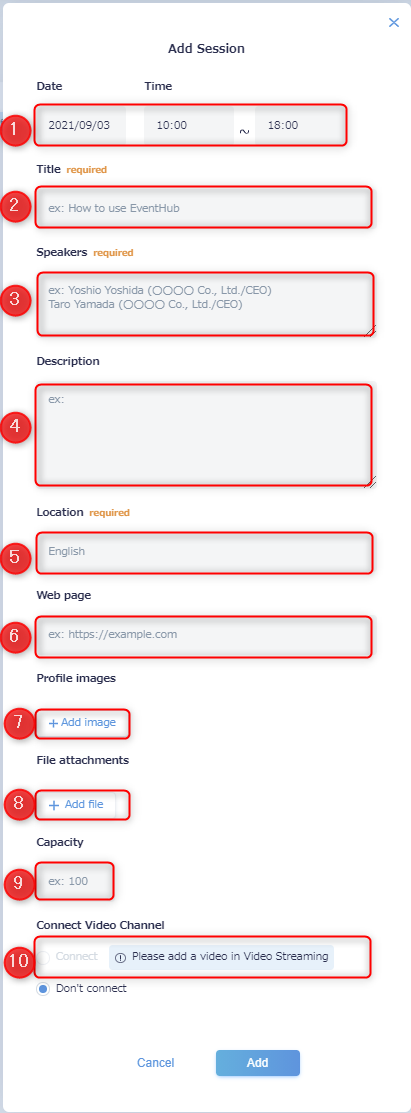
| Field name | Required/ Optional |
Character/ File limits |
Description |
|
Date and time |
Required | Set the date time for the session to begin. Sessions will be listed in the order of the date/time you set. Multiple events set for the same time will be randomly ordered. |
|
| Title | Required | Up to 256 characters | Enter the name of the session. |
| Speakers | Optional | Up to 256 characters | Enter the name of the speakers who will be appearing. Please separate names by a line if there are multiple people. |
| Description | Optional | Up to 2048 characters | Give details on what the session will be about. |
| Location | Required | Up to 256 characters | You don't have to enter an actual location. It can also be a topic such as "Marketing", "Technology", etc. |
| Web page | Optional | Up to 2048 characters | Enter the link to relevant websites where participants can see more information about the speaker or session. |
| Profile Images | Optional | Recommended size: Height 128px x width 128px Up to 5 files |
Upload a photo of the speakers. |
| File attachments | Optional | Up to 50MB for 1 file File format: Any Up to 3 files Thumbnail/photo: Heigh 250px x Width 250px Thumbnail/photo format: jpeg/png is recommended Caption: We recommend keeping them below 100 characters |
You can upload the session slides or related material here. |
| Capacity | Optional | Set the maximum capacity for this session. Participants will be shown when the event is full, but the session can still be viewed. You can skip this if you don't have a participant limit. | |
| Connect video channel | Optional |
Please see this article |
2. Editing/Deleting sessions
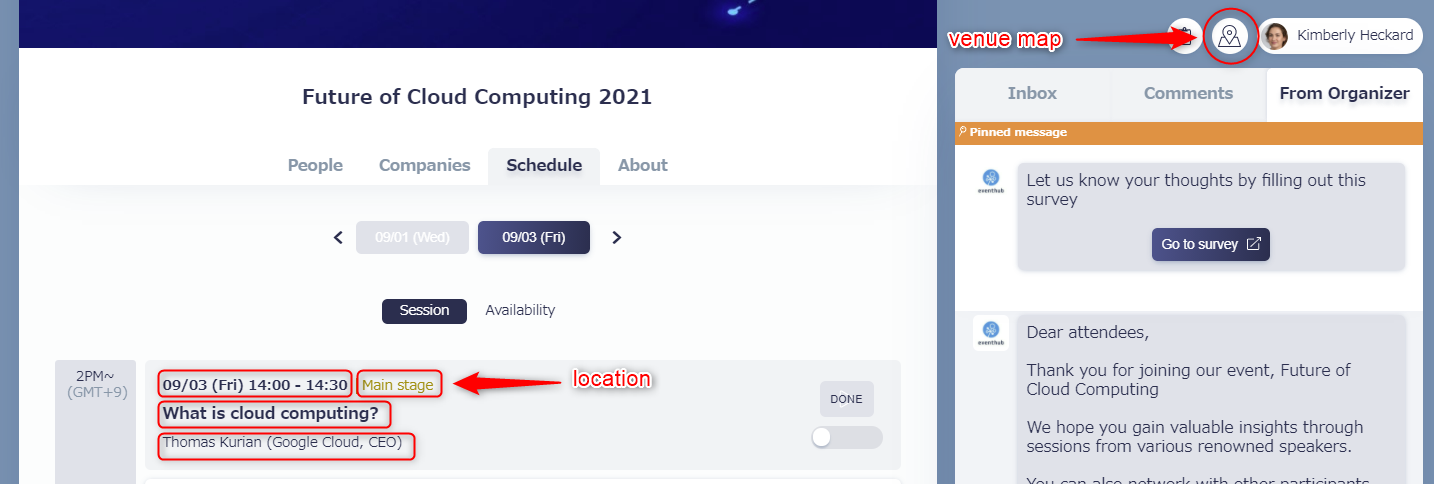
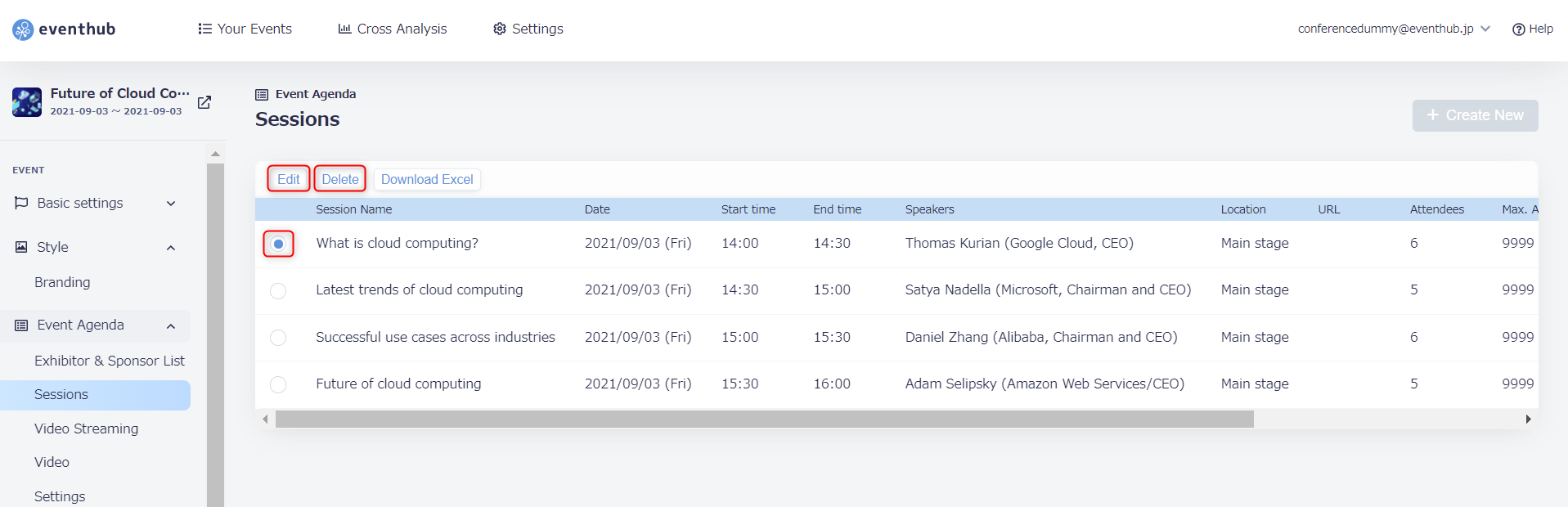
Choose the relevant session and click 'Edit' or 'Delete' found in the top left of the screen.
 <attention> Please note: Deleted sessions cannot be recovered. </attention>