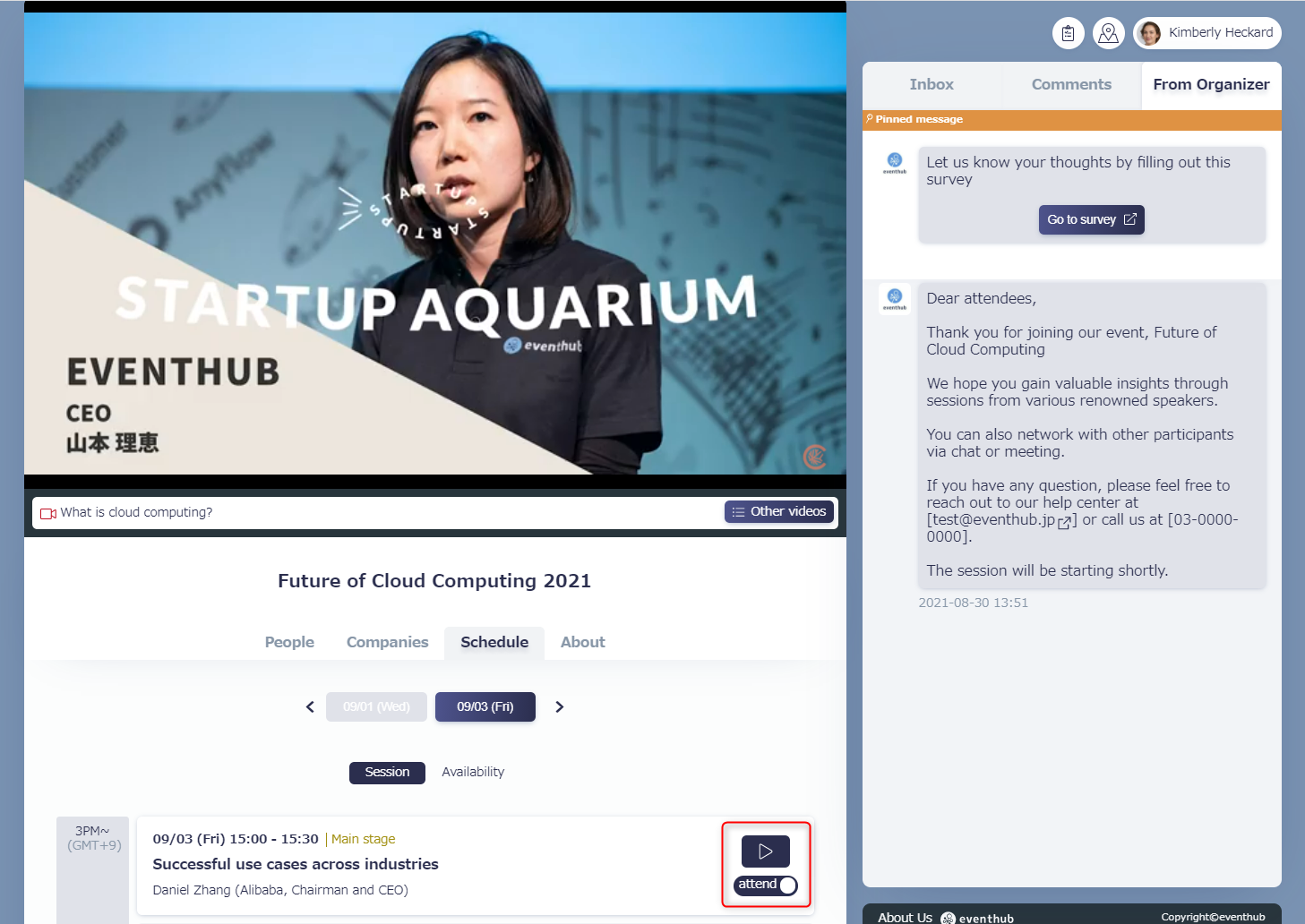
By connecting a video channel to a session, participants will be able to play the video stream by clicking on the play button in the session information under the Schedule tab. Enabling this feature will also allow you to extract a list of users who clicked 'Attend' on the session.
Contents
1. About this feature
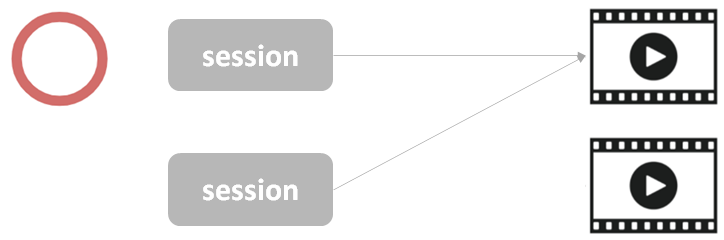
In order to set a play button for the video stream in the session information, you will need to connect the video channel to the session.
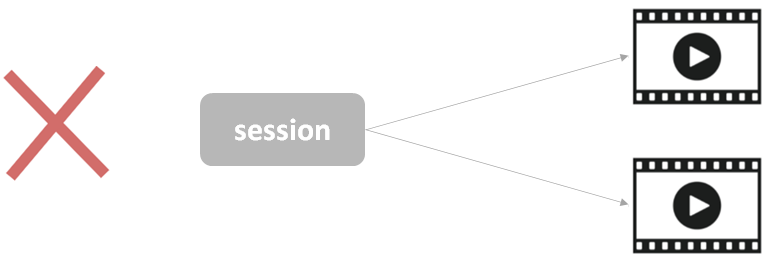
You can connect only one video for each session.

Multiple video channels cannot be connected.
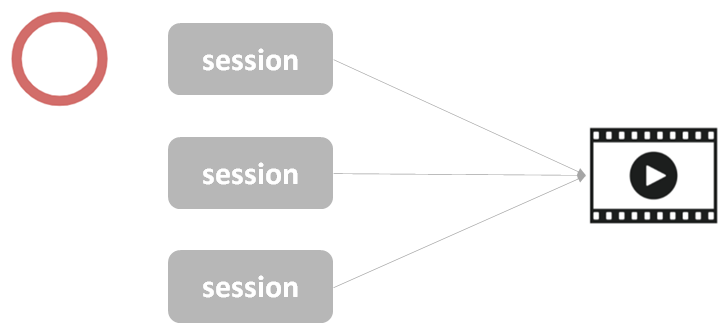
However, you can connect multiple sessions to the same video channel, and there is no limit to how many you can connect.
For example, if you have multiple sessions but just one video stream, you could connect that stream to each of the sesssions.
You don't have to connect every channel to a session.
2. How to connect
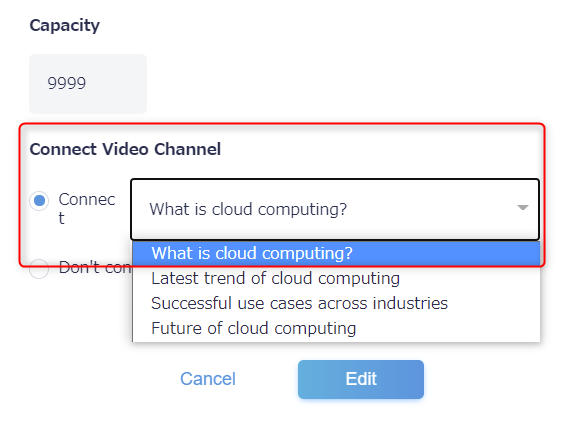
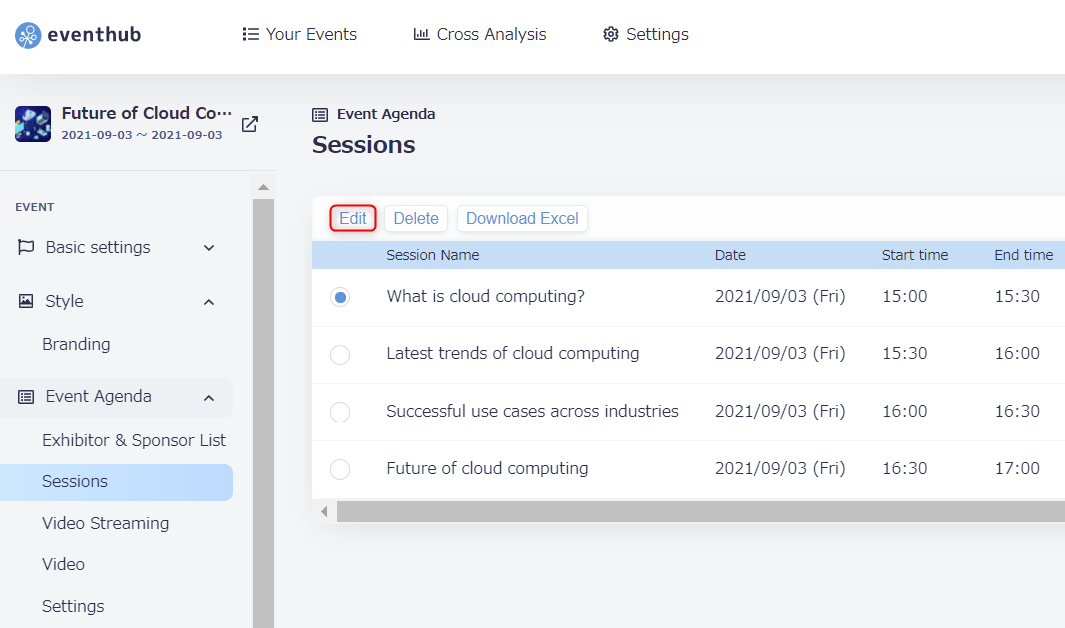
1. Under 'Event Agenda' > 'Sessions', choose the session you wish to connect and then click 'Edit'. On the editing screen, choose which channel you wish to connect under 'Connect Video Channel'.
2. Click 'Edit' to save your settings.
*The viewing permissions for the video won't be limited, and anyone will be able to watch it from the video channel.
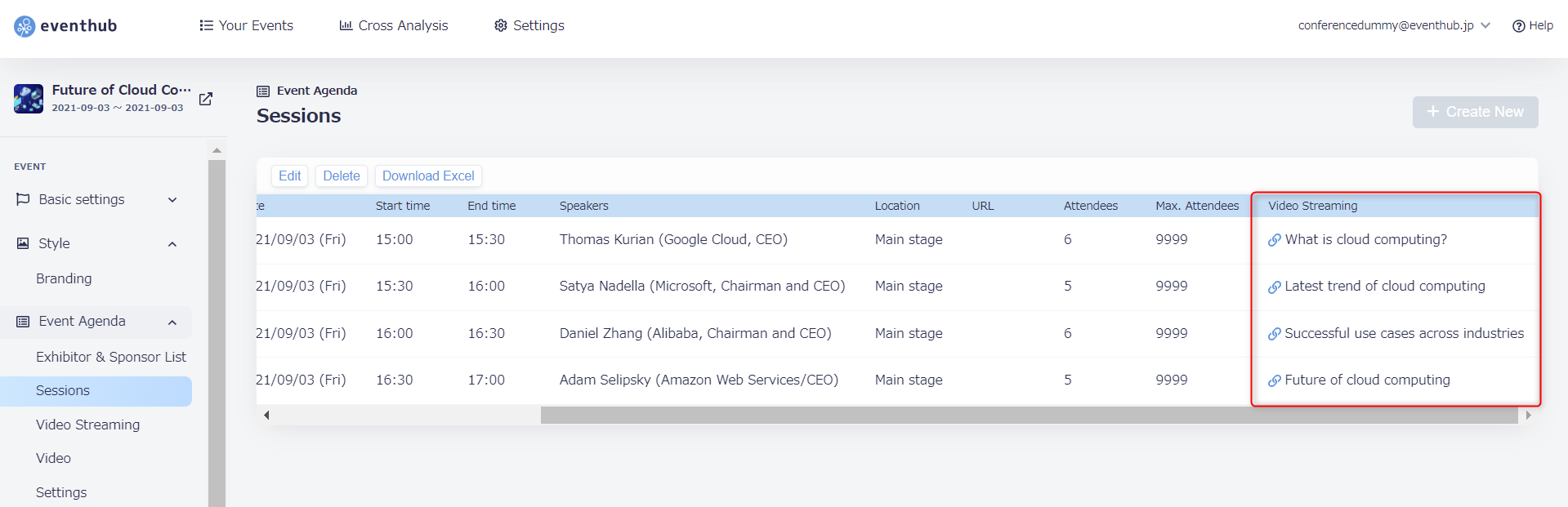
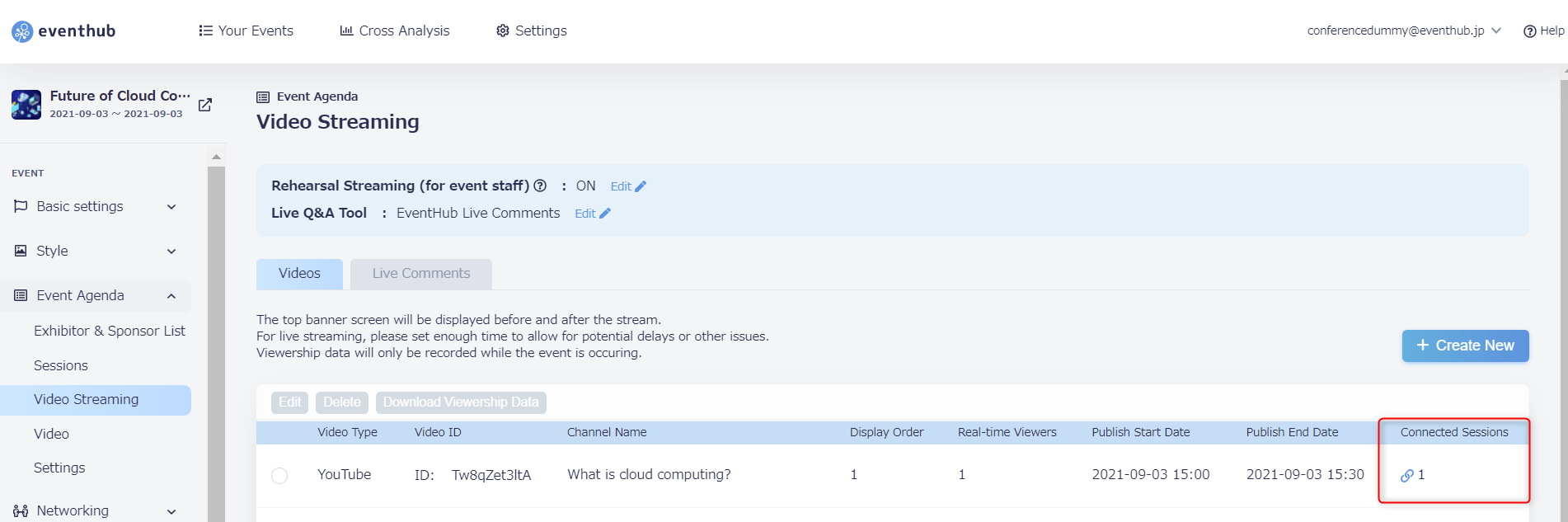
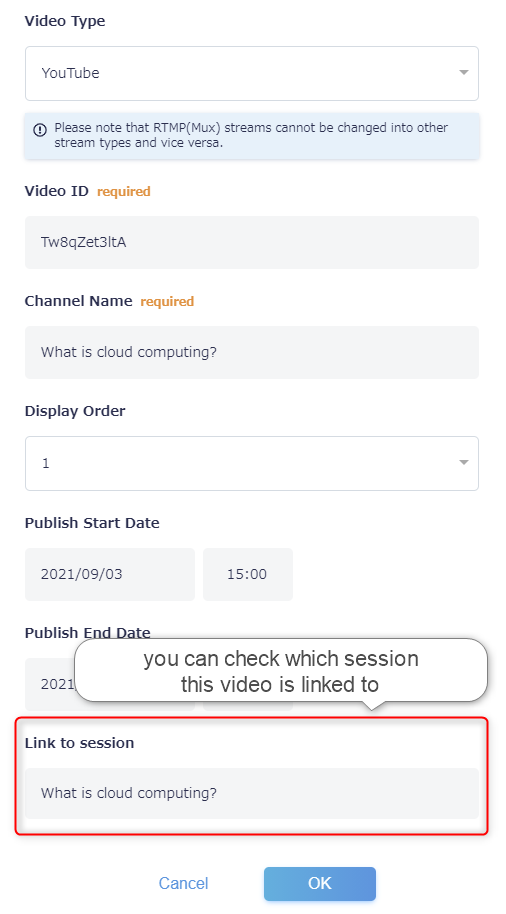
You will be able to see how many sessions are connected to a channel on the video list in 'Event Agenda' > 'Video Streaming'. You can check specifically which session has been connected by selecting the video and then clicking 'Edit'.
3. What participants will see
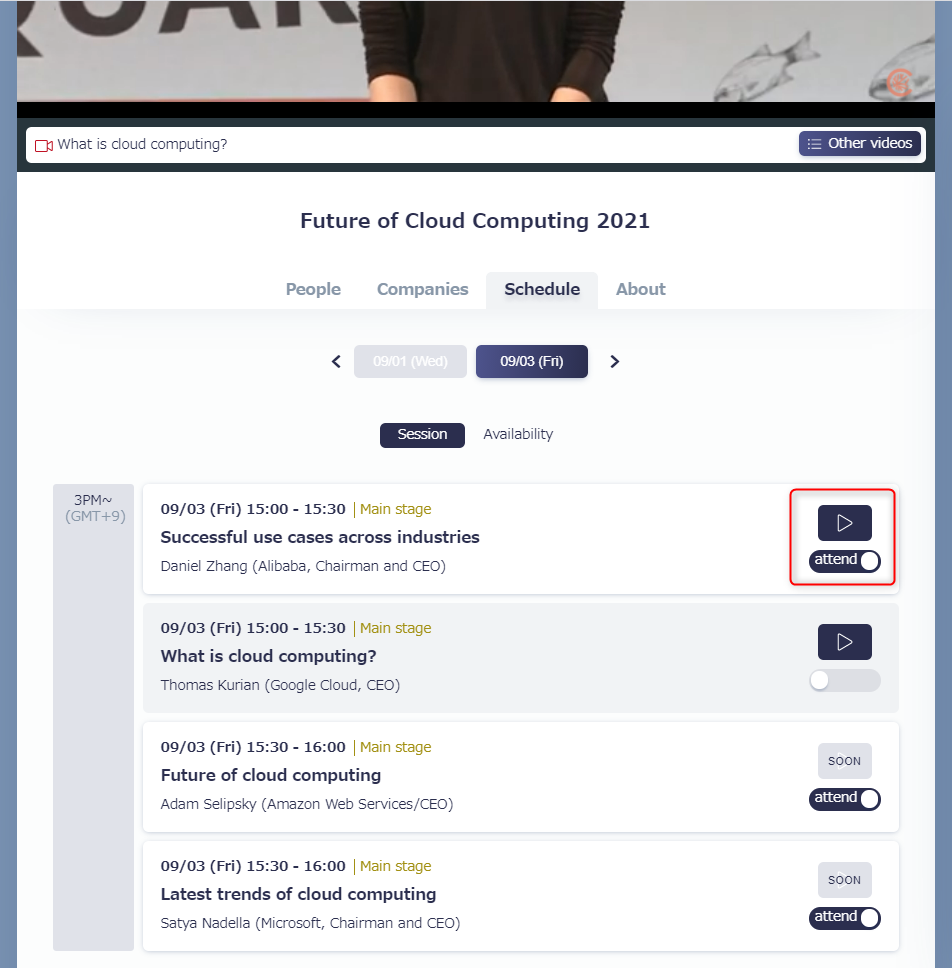
- Once connected, a play button for the video will appear next to the session on the event page.
- The "attend" toggle cannot be removed.
- Participants can manage their own session schedule by clicking 'attend' on a session.
- Even if they haven't clicked 'attend' for that session, participants can still attend.
-
4. Checking session attendance
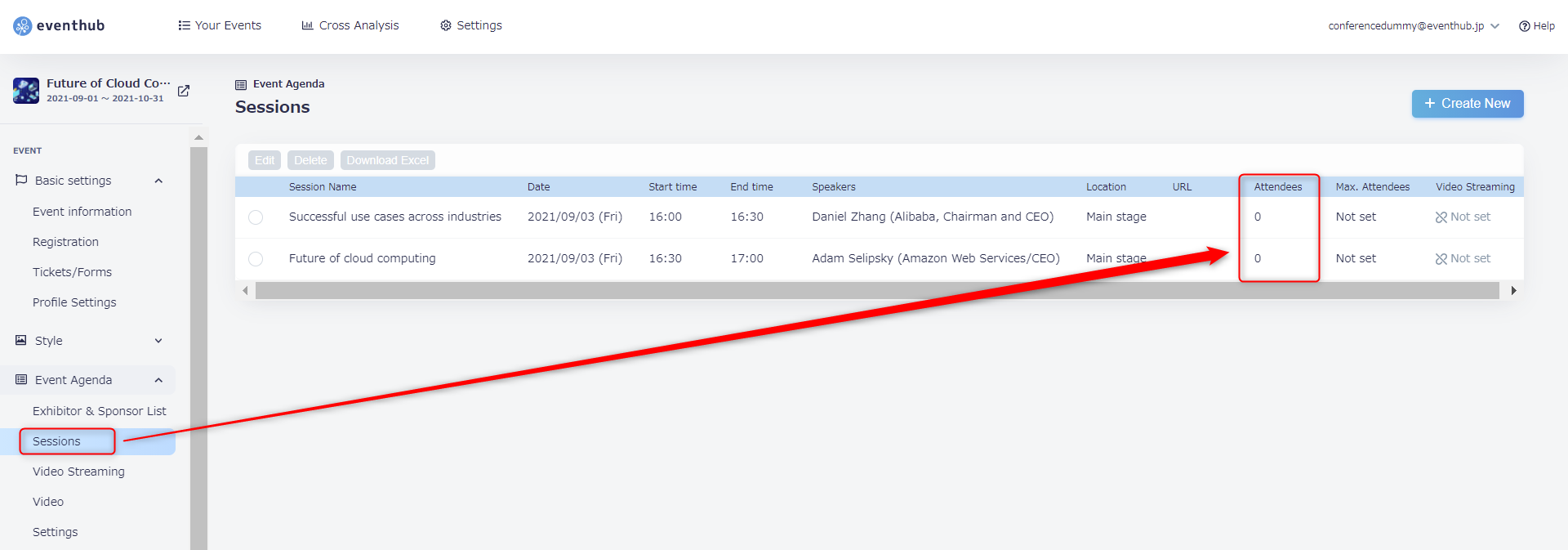
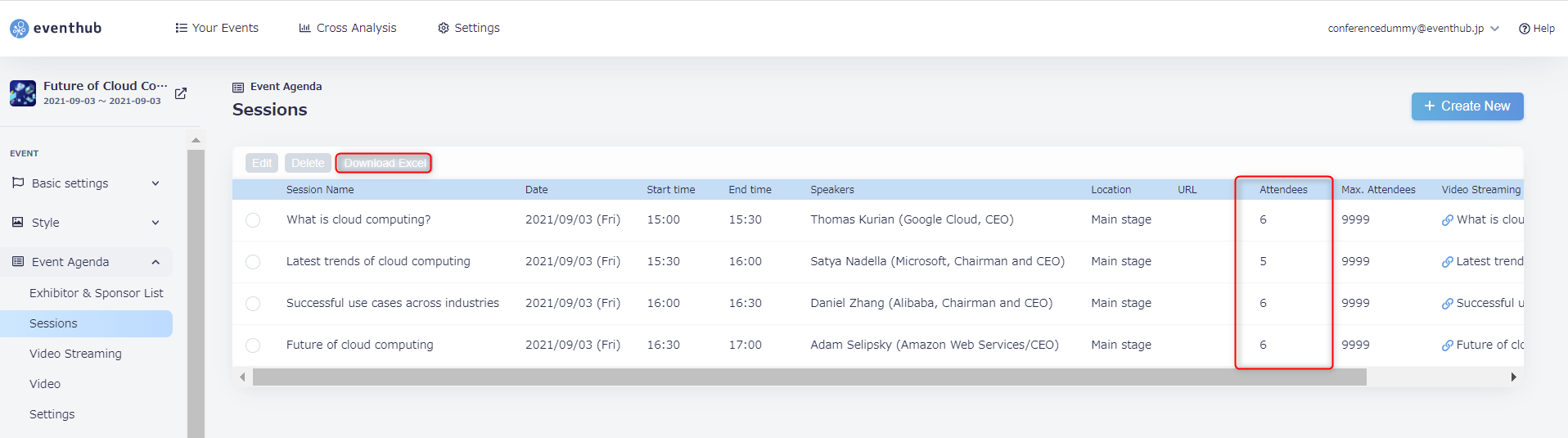
Under 'Event Agenda' > 'Sessions' you will be able to see the total number of participants who have clicked 'attend' on the event. You can also download a breakdown of attendance information for each session by selecting the session and then clicking 'Download Excel'.
5. Other points to note
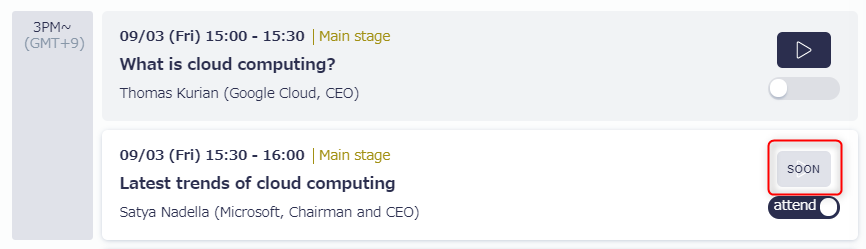
Before the video has been published, participants will see a message reading 'Soon'.
While the video is published, participants will be able to click on the play button to watch it.
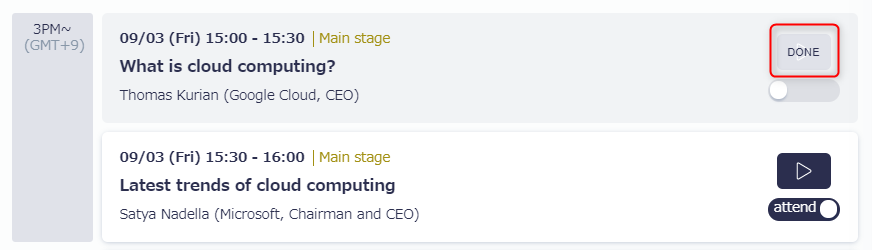
The status will change automatically, participants won't have to refresh their browser.
If you haven't connected a video channel to a session, the play button will not appear.
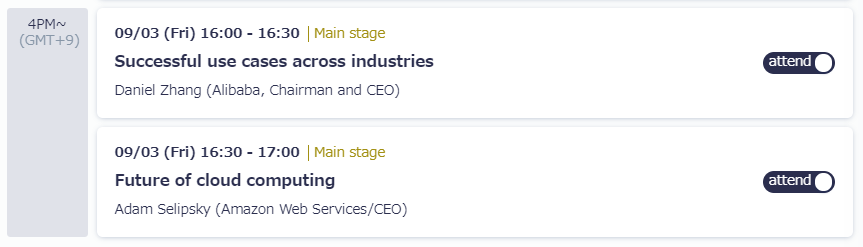
However, participants will still be able to click 'attend' for sessions, and the attedance will be shown on the 'Sessions' tab of the admin page.