1. Setting up your YouTube account
When creating your Youtube account, please also apply for YouTube Live.
Live streaming on YouTube takes around 24 hours to be activated, so make sure you set up your account and live streaming in advance.
Enabling YouTube Live
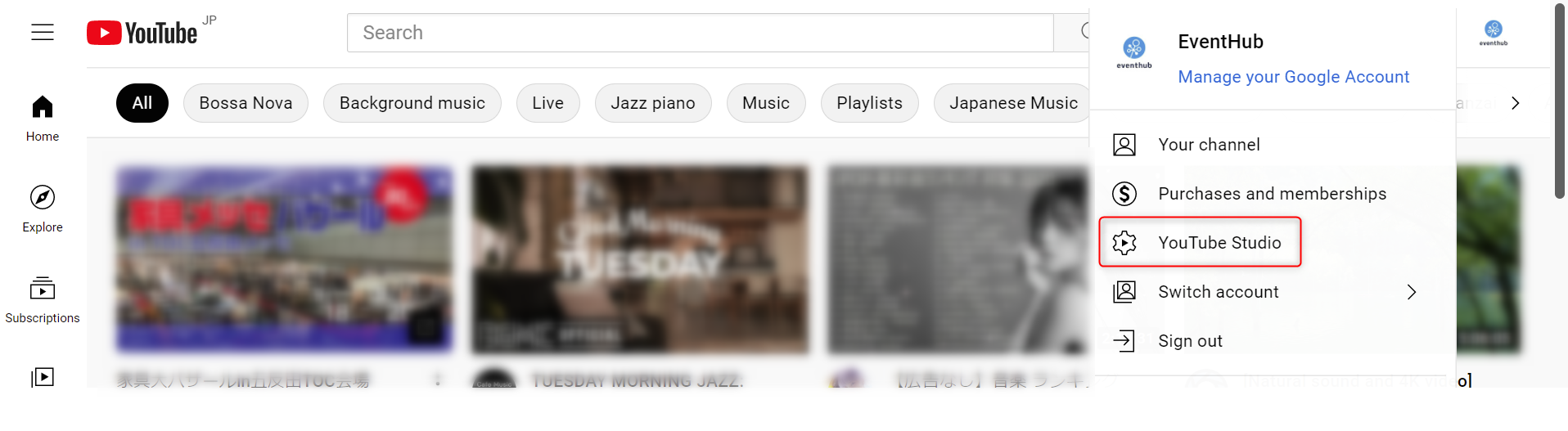
1. Click on Youtube Studio under your account name in the top right of YouTube's homepage.
2. Go to Channel > Feature eligibility.
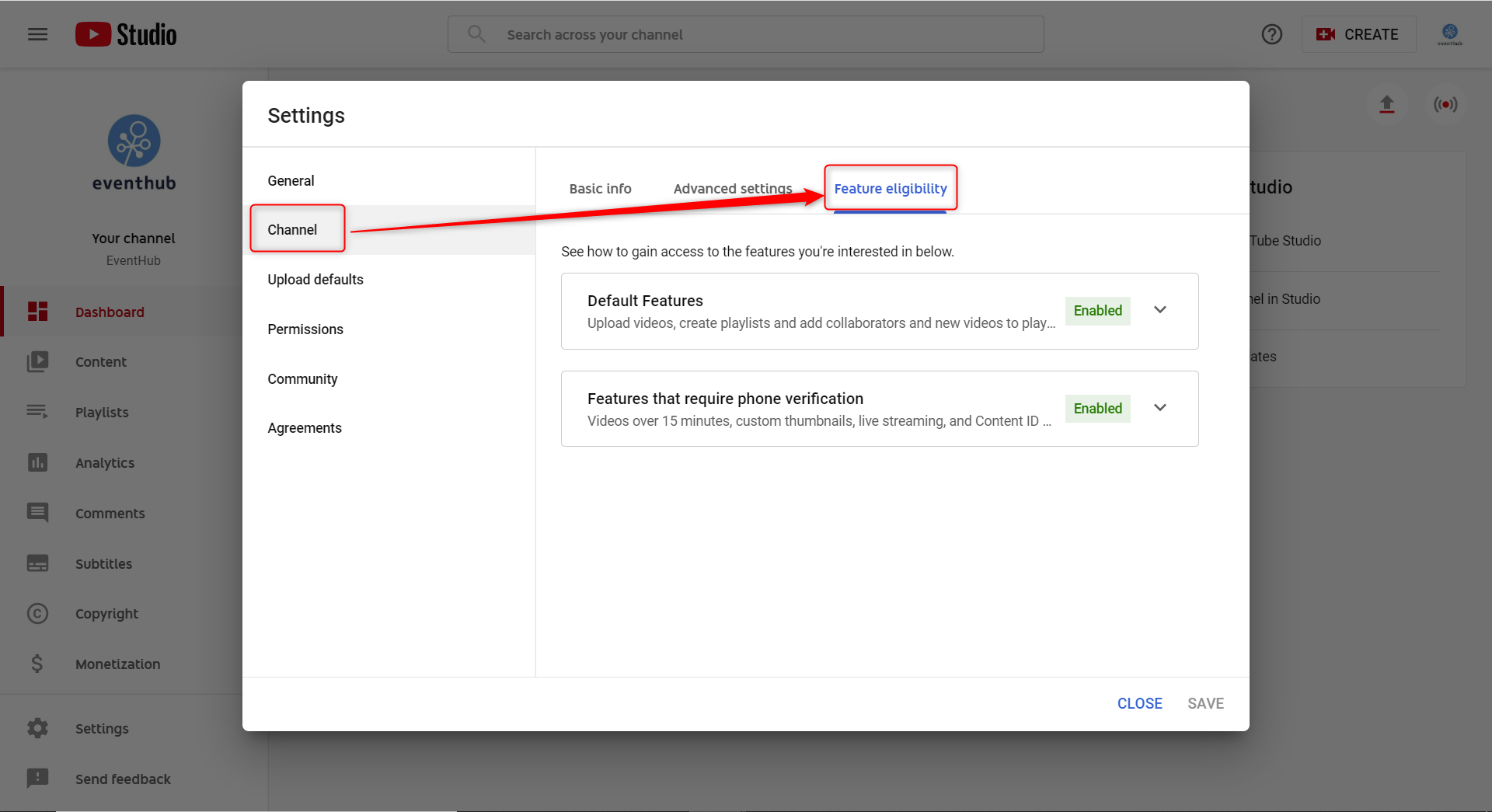
3. If you'll be using features that require phone verification, click on the drop down menu and select VERIFY PHONE NUMBER.
4. Then take the following steps to verify your account:
- Choose your country
- Choose verification method (voice message or SMS)
- Enter your phone number
- Enter the code you received.
5. Live streaming should be available to you after your account has been verified.
6. After 24 hours, double-check that you features that require phone verification have successfully been enabled.
<attention>The above settings and methods are subject to change. Always refer to the official site for up-to-date information.</attention>
Allow embedding
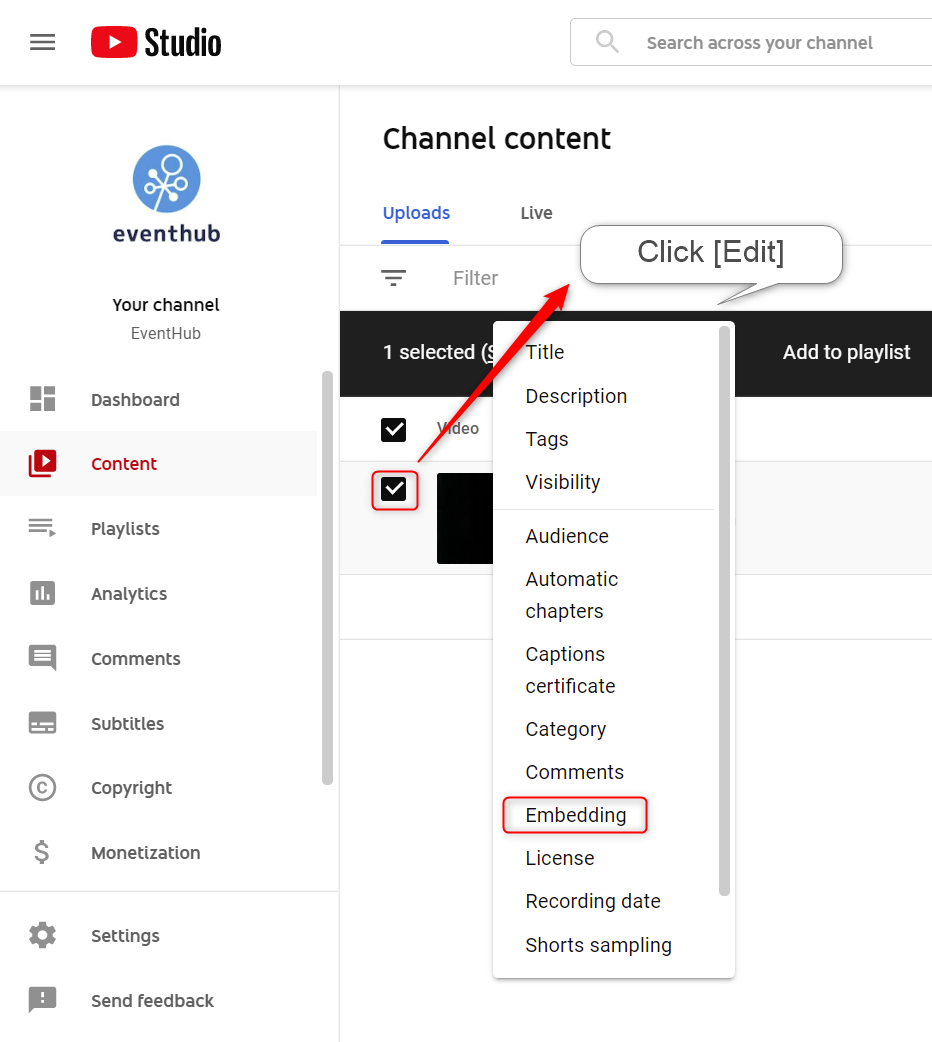
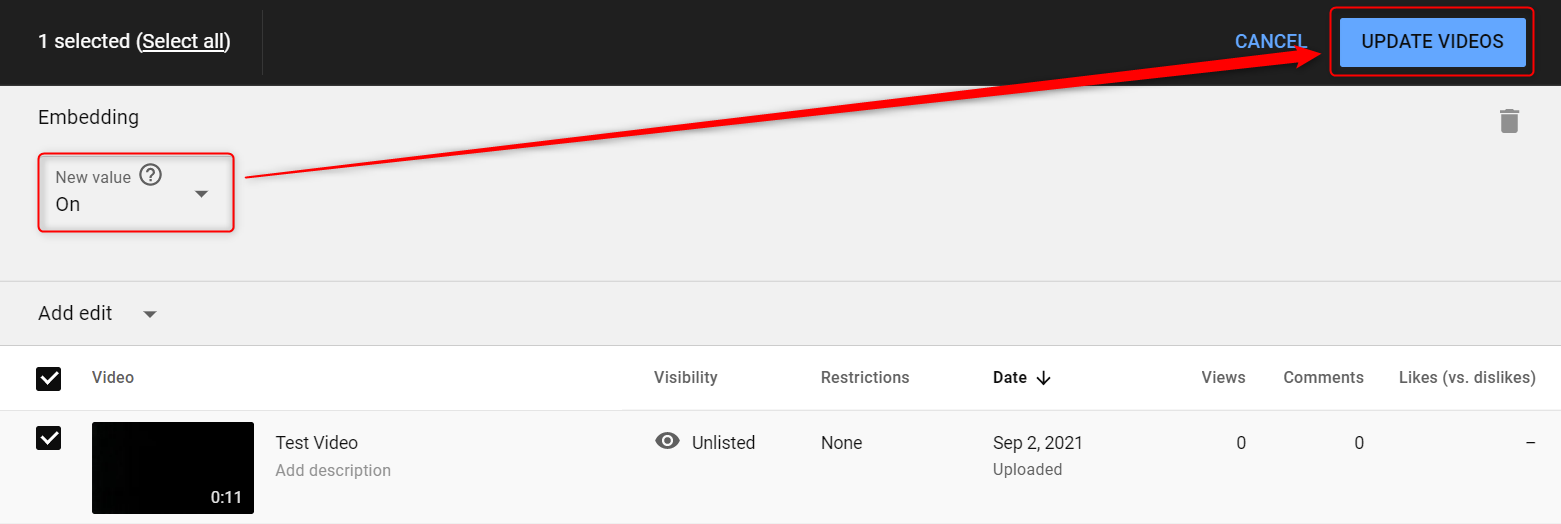
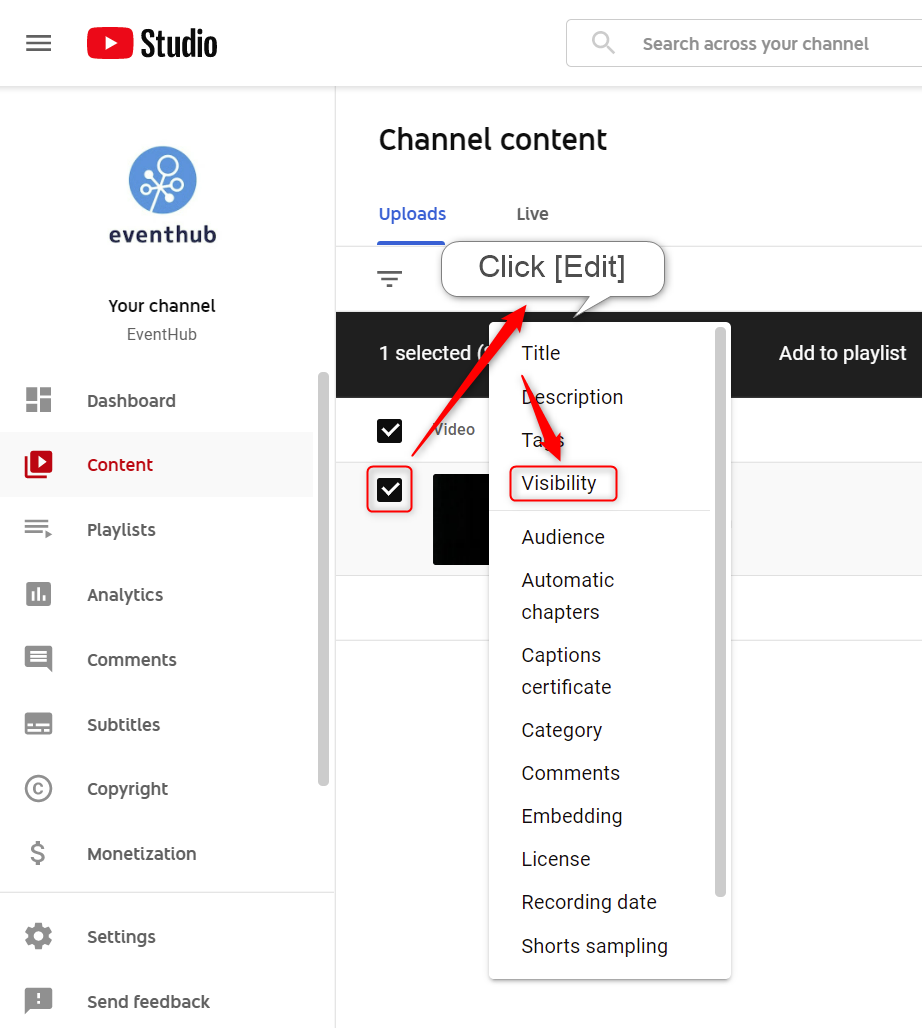
On YouTube, go to Content > Select the video > Edit > Embedding > On > Update Video. You must follow this step in order to stream on EventHub.
Set your video as 'Unlisted'
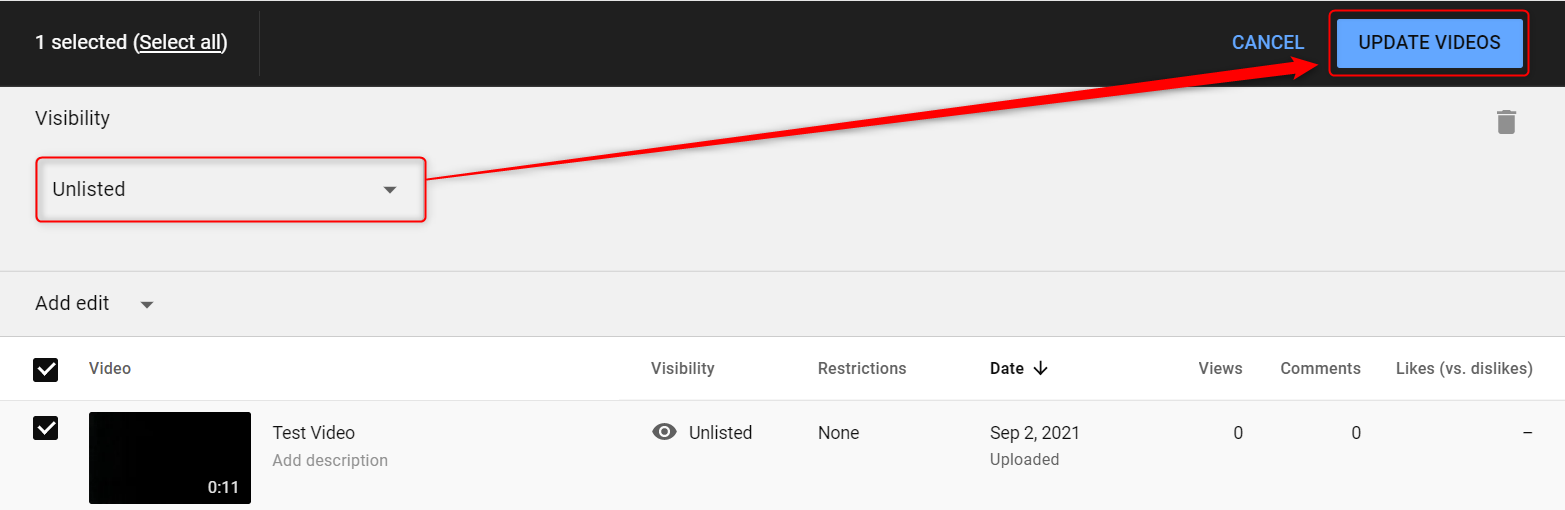
On YouTube, go to Content > Select the video > Edit > Visibility > Unlisted > Update Videos. If set to Unlisted, Anyone who knows the specific URL of your video will be able to view it, however the video will not appear in a search or on YouTube listings. If your video is set to 'Private', you will not be able to embed it, so please avoid this.
2. Streaming YouTube from Zoom
<attention> Before proceeding, make sure you have first completed the steps outlined above on YouTube. Your video must be set as 'unlisted' and embedding permissions must be on. </attention>
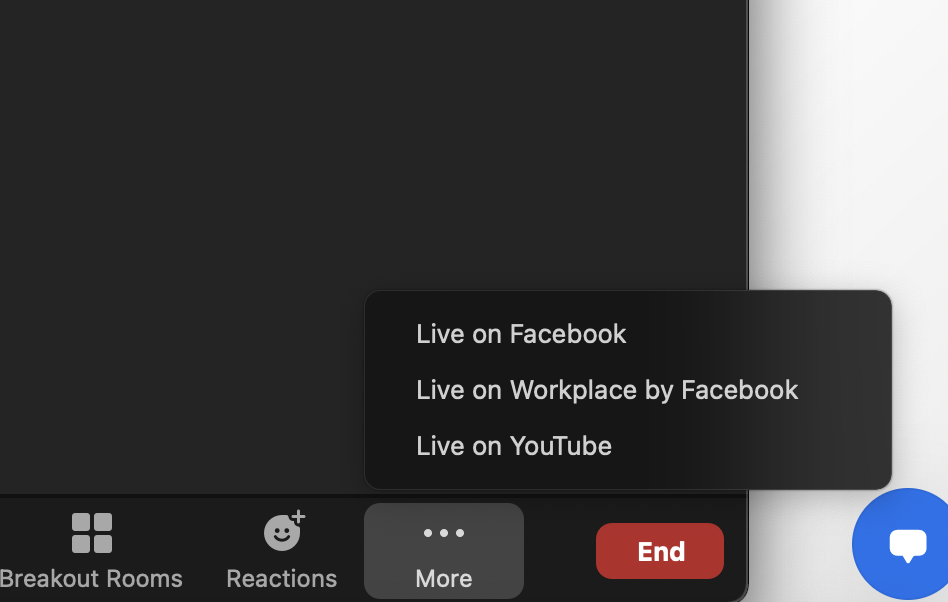
1. On Zoom, go to Webinar > Schedule a webinar (or choose an event that has already been scheduled) > Start and then click on Live on YouTube found in the bottom right of the Zoom webinar tool bar.
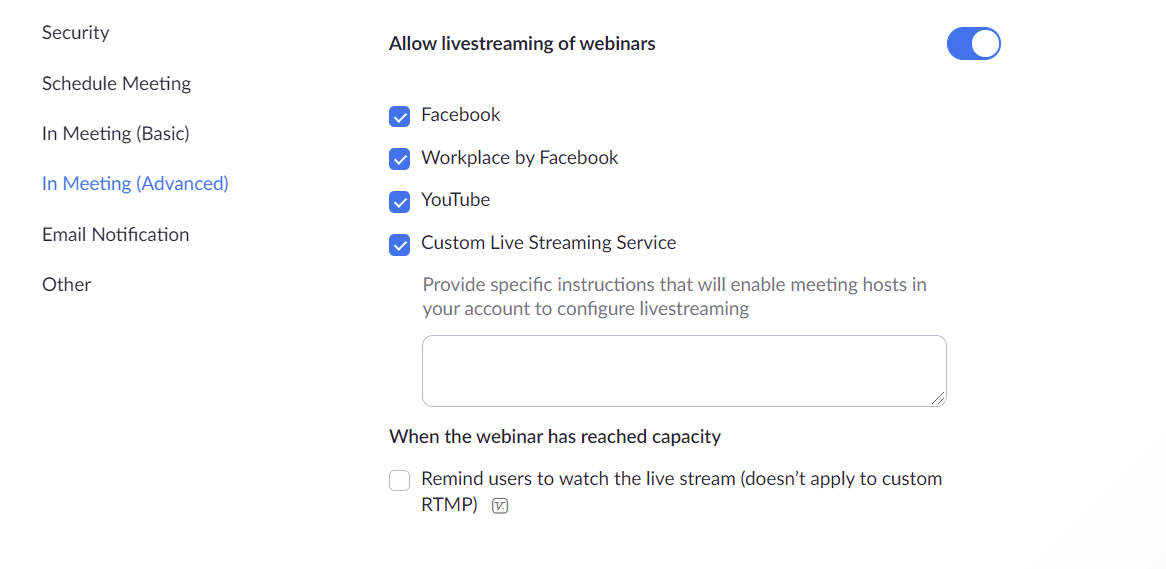
*If this option doesn't appear in the toolbar, you will need to configure your Zoom settings. Please go to My account > Settings > In Meeting (Advanced) > Allow livestreaming of webinars > Custom Live Streaming Service and switch the toggle to on.
2. Zoom→YouTube: Set up your Youtube account.
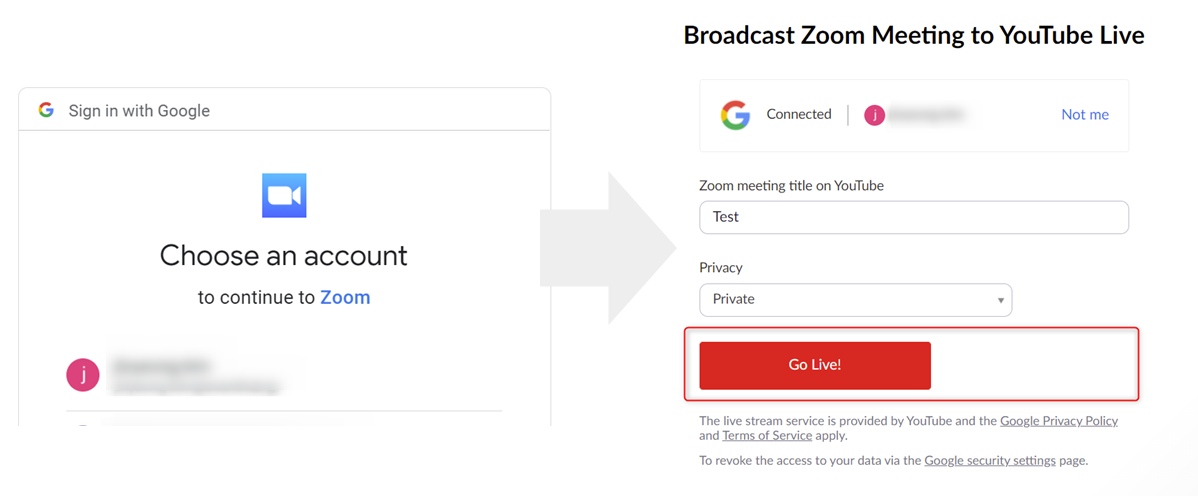
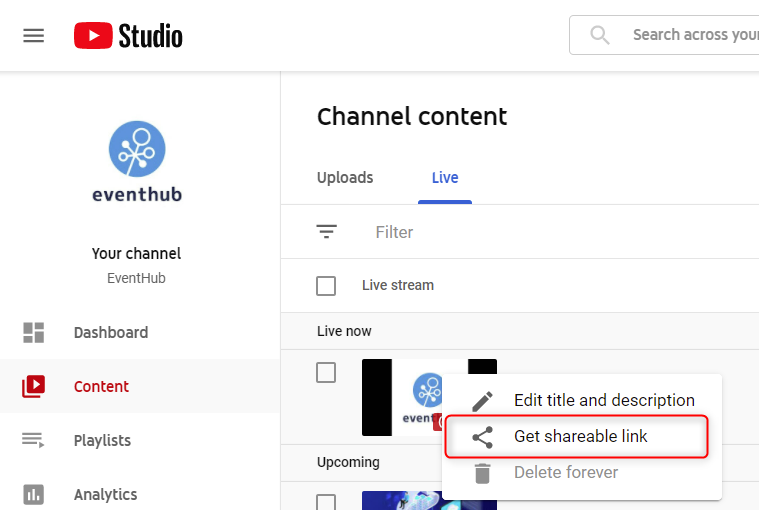
3. On YouTube, go to Your channel > Content > Live > Get shareable link. This will allow you to copy the video ID.
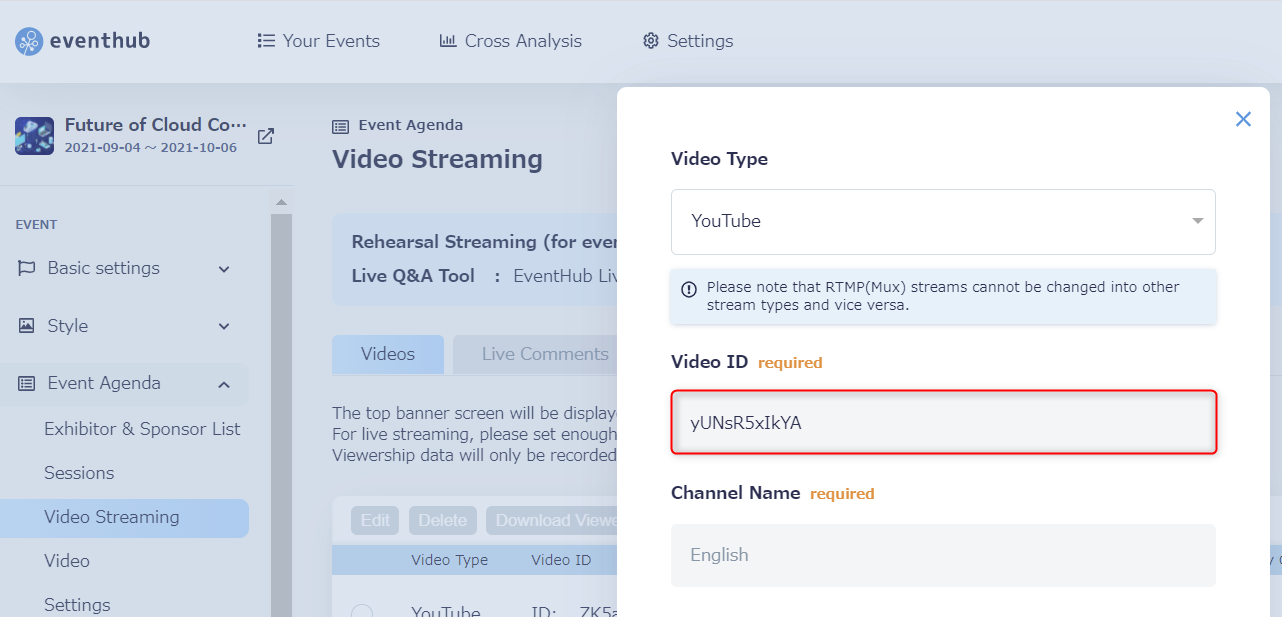
4. On EventHub go to 'Event Agenda' > 'Video Streaming' > 'Create New' and then enter the Video ID you copied earlier (The video ID is the code found at the end of the YouTube video URL. EG. https://youtu.be/XXXXXX).
<attention> When live streaming from YouTube, you may also need to start the live from YouTube after you have started it on Zoom. </attention>
3. Points to note when using Zoom
- Ensure that all speakers have their mics set up and switched on when using Zoom.
- Make sure you assign a co-host when operating Zoom. If the organizer loses hosting permissions, they will not be able to mute/unmute participants. When speakers are presenting on full-screen, they may not be able to see whether their microphone is on. Furthermore, if the host leaves the meeting for whatever reason, the entire meeting will end. Therefore, it is good practice to have multiple hosts for your Zoom meeting.