1. Setting up live streaming on Zoom
<attention> You can only live stream up to 3 videos at the same time from Vimeo, so please be aware of this if you are intending to stream multiple sessions simultaneously. If this limit is exceeded, it's possible that your videos will not stream properly. See more information on this here. </attention>
On Vimeo, go to 'New video' > 'Create live event'.
Under Privacy settings, choose 'Hide from Vimeo'. See more information on this in Vimeo Help Center.
Under scheduling, choose 'One Time'.
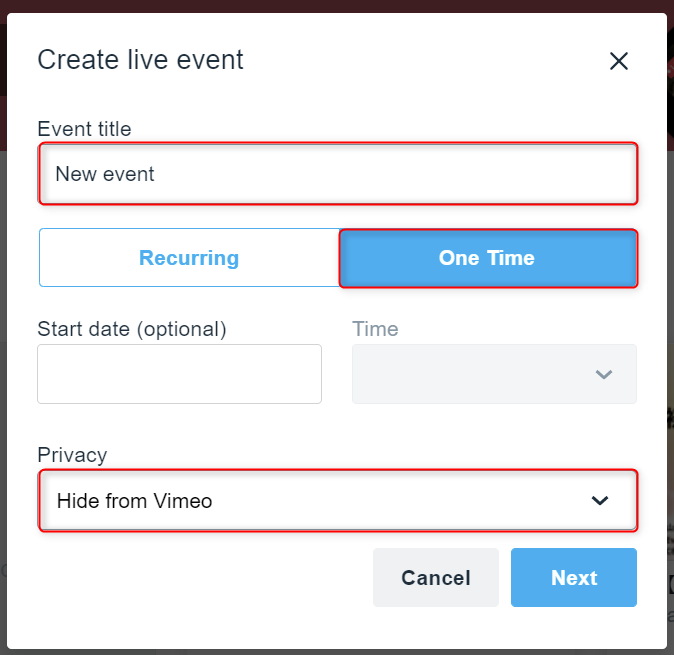
- We recommend setting your video as 'one time' to ensure your watch logs and viewership information is accurate. EventHub utilizes Vimeo's official library to collect viewership data during video playback. However, this does not work effectively for recurring videos on Vimeo. Essentially, even if the organizer stops the stream, the watch log will not recognize it as having been ended, leading to potentially inaccurate information.
- However, if you choose the 'one time' option, the video will automatically be archived. Please note that videos used for streaming tests will also be archived after they are stopped, so you will need to create the session or video again.
2. Streaming Vimeo from Zoom
1. On Vimeo, select your event under Live events and check the Stream key and RTMPS URL.
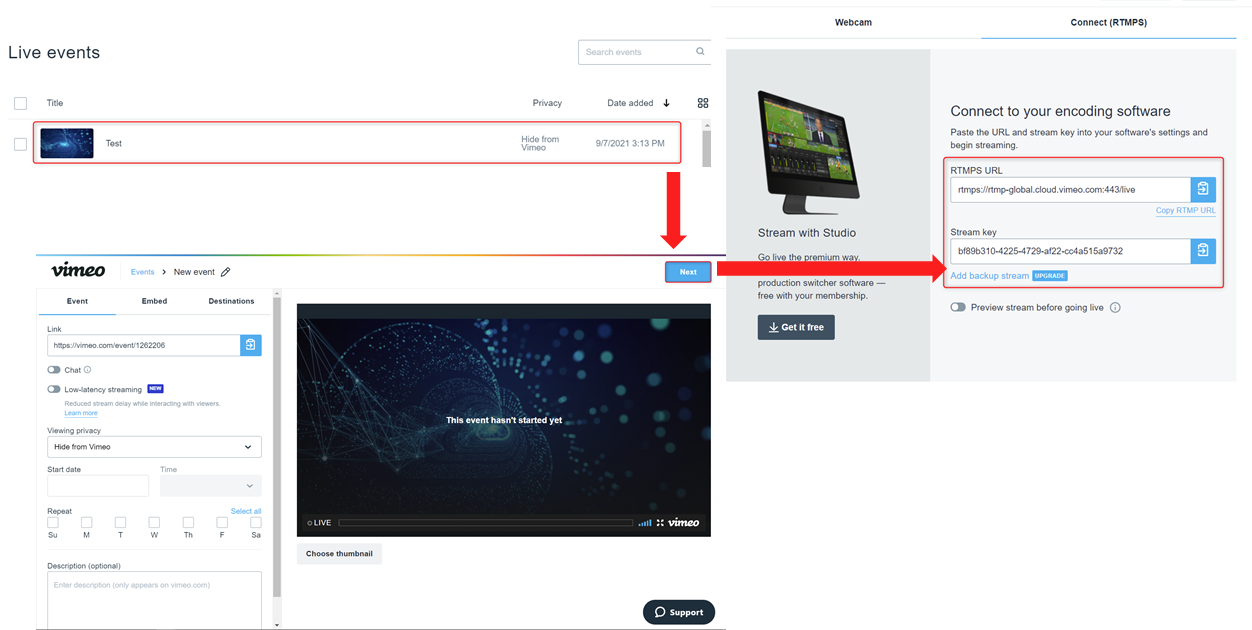
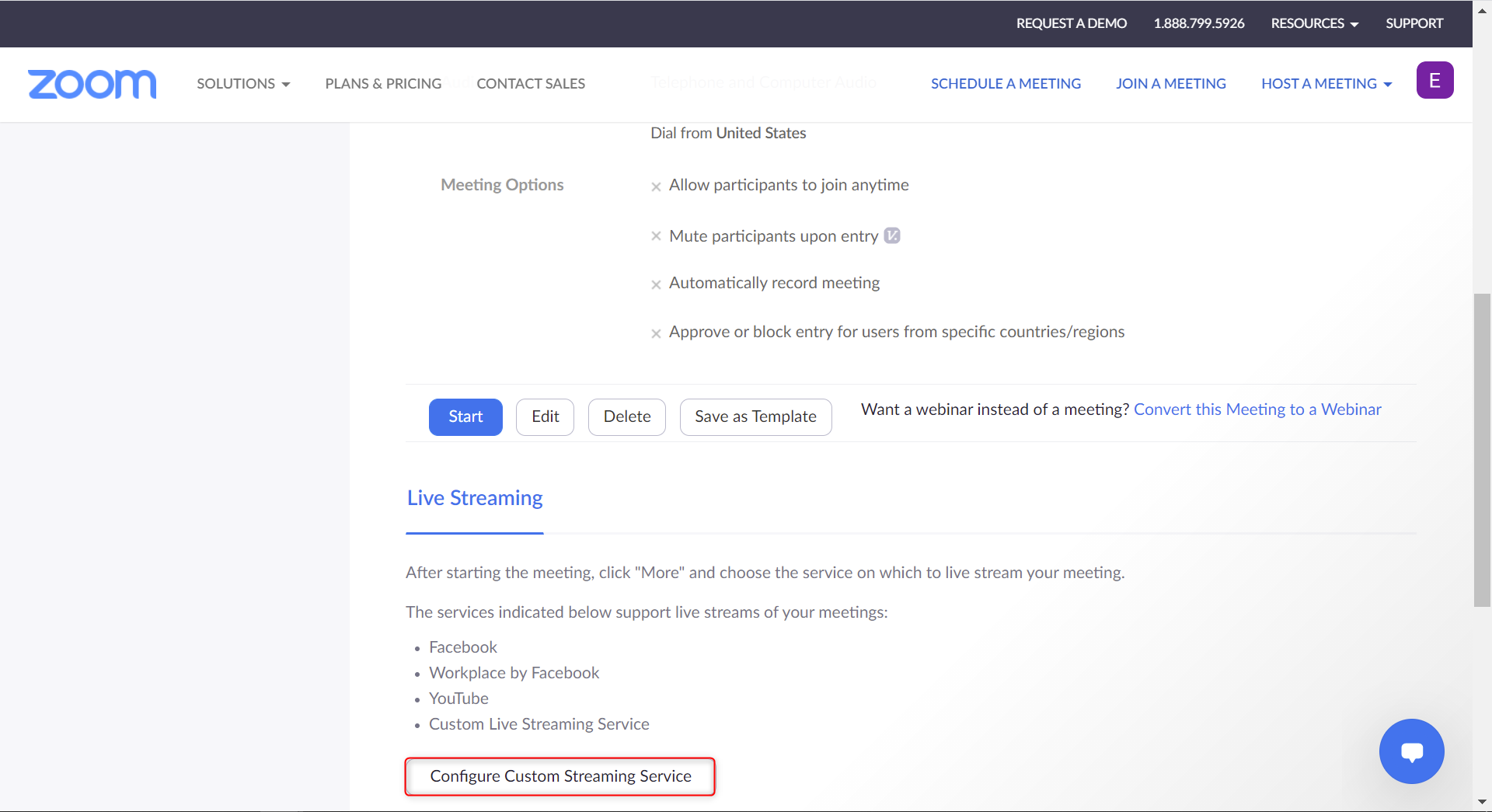
2. On Zoom, schedule your webinar or meeting and click save. After this, streaming options should appear at the bottom of the screen.
Click on Configure Custom Streaming Service
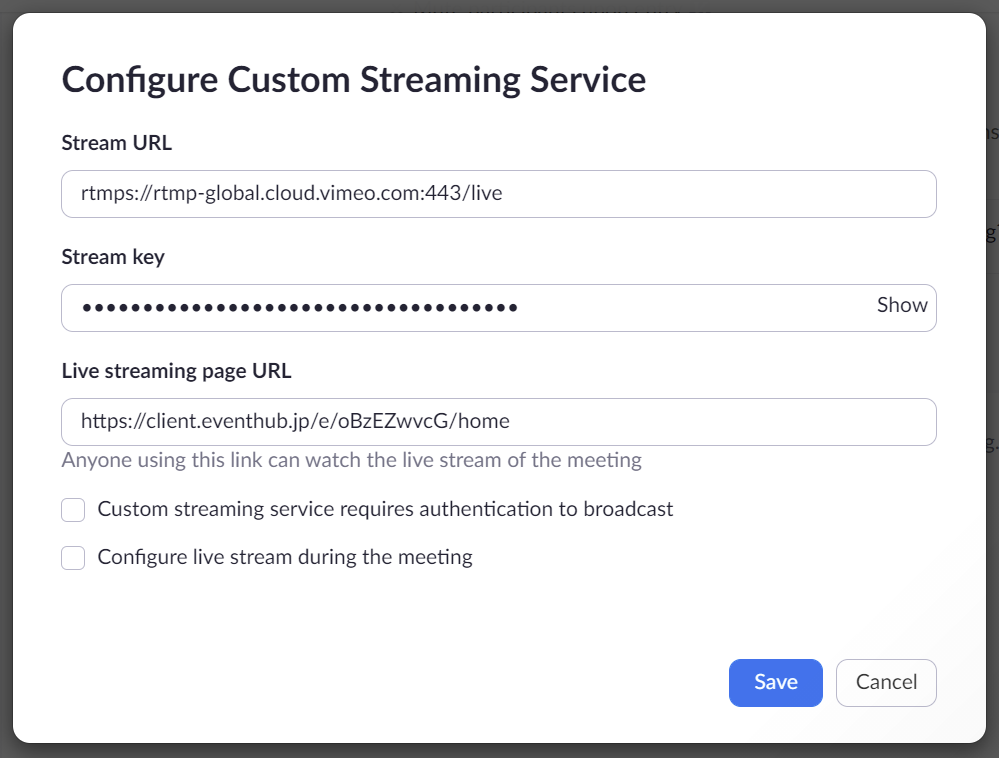
3. Add the streaming service
Click on Add Live Stream Service and enter the information (stream key and URL) that you copied earlier.
4. After starting the webinar, click on More on the bottom right of the webinar toolbar and then select Live on Custom Live Streaming Service.

5. Once loading has finished, streaming will begin from Vimeo.
*If you have a Zoom Pro account without a webinar option, you will need to configure your Zoom settings.
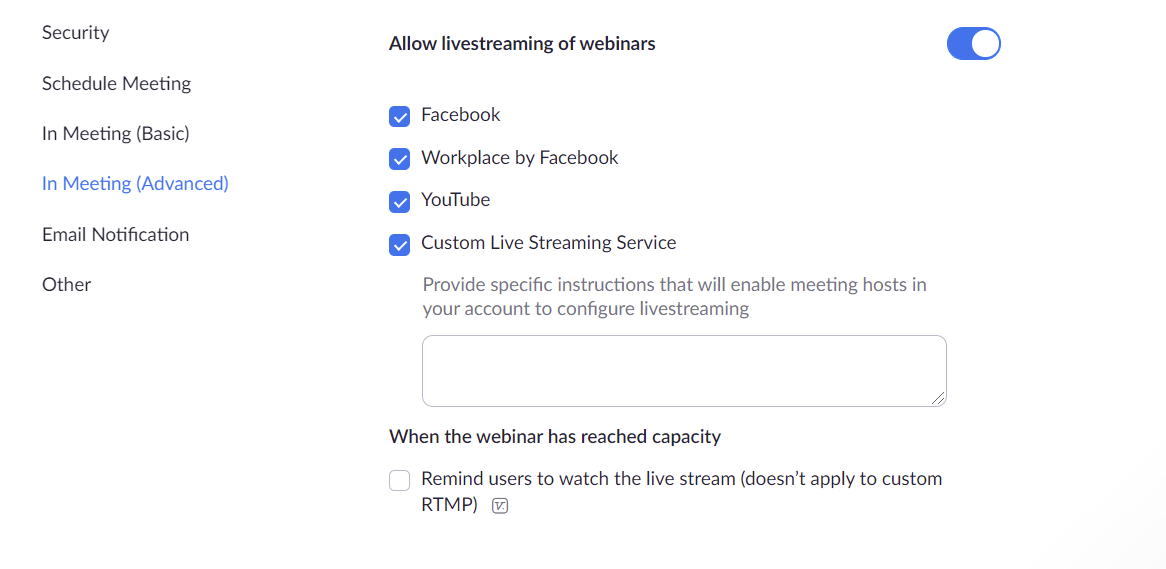
Please go to My account > Settings > In Meeting (Advanced) > Allow live streaming of webinars > Custom Live Streaming Service and switch the toggle to on.
3. Points to note
- When integrating Zoom with Vimeo, make sure to press Custom live streaming service from Zoom to start the stream. If you start the live session from Vimeo, you will not be able to stream to Zoom. Once you start playing from Zoom, it will automatically begin on Vimeo as well.
- If a Vimeo live stream has been set as a 'one time' video, it will automatically be archived once stopped. Due to this, if you wish to resume the stream, you will need to configure the live streaming settings on Vimeo again. Should this occur, please don't forget to re-enter the embed code into Vimeo again, and update the URL on EventHub.
- Ensure that all speakers have their mics set up and switched on when using Zoom.
- Make sure you assign a co-host when operating Zoom. If the organizer loses hosting permissions, they will not be able to mute/unmute participants. When speakers are presenting on full-screen, they may not be able to see whether their microphone is on. Furthermore, if the host leaves the meeting for whatever reason, the entire meeting will end. Therefore, it is good practice to have multiple hosts for your Zoom meeting.
You can only live stream up to 3 videos at the same time from Vimeo, so please be aware of this if you are intending to stream multiple sessions simultaneously. If this limit is exceeded, it's possible that your videos will not stream properly. See more information on this here.