Along with YouTube and Vimeo, you may also stream from Zoom easily using RTMO (Mux).
You will require a Zoom Pro plan or above to use this feature. See the plan details on Zoom for more information.
1.EventHub Settings
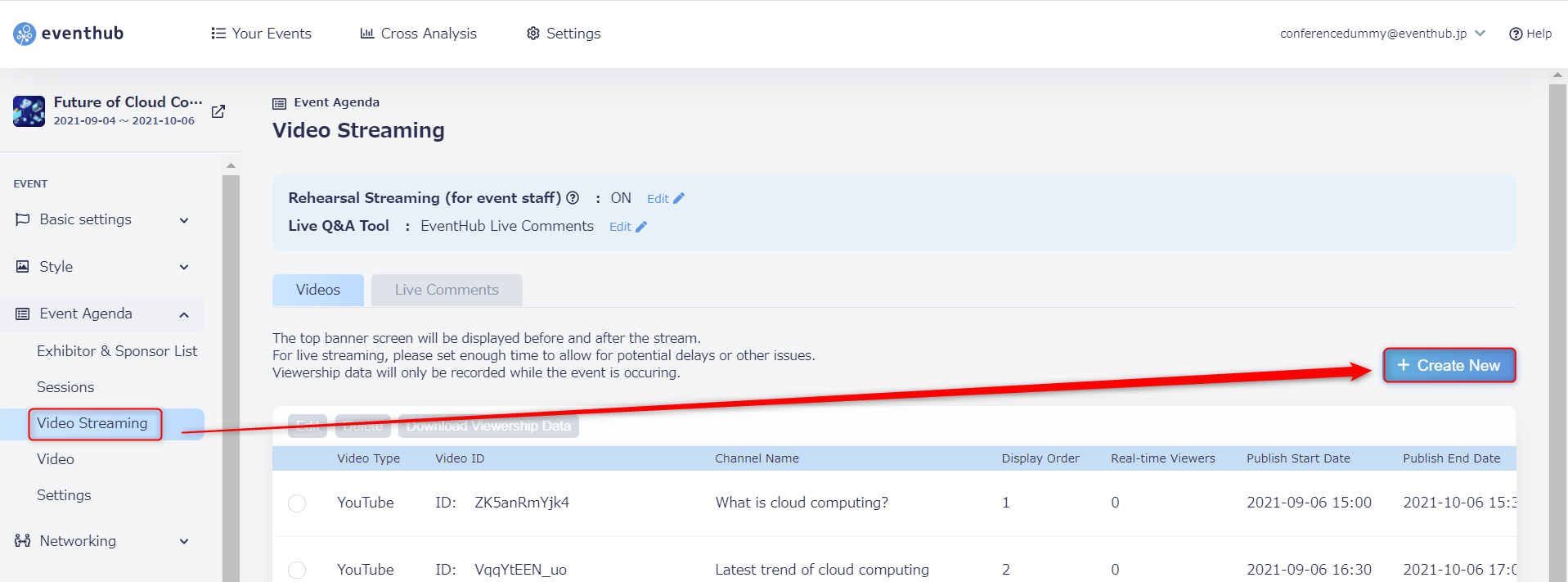
1. On the admin page go to 'Event Agenda' > 'Video Streaming' > 'Create New'.
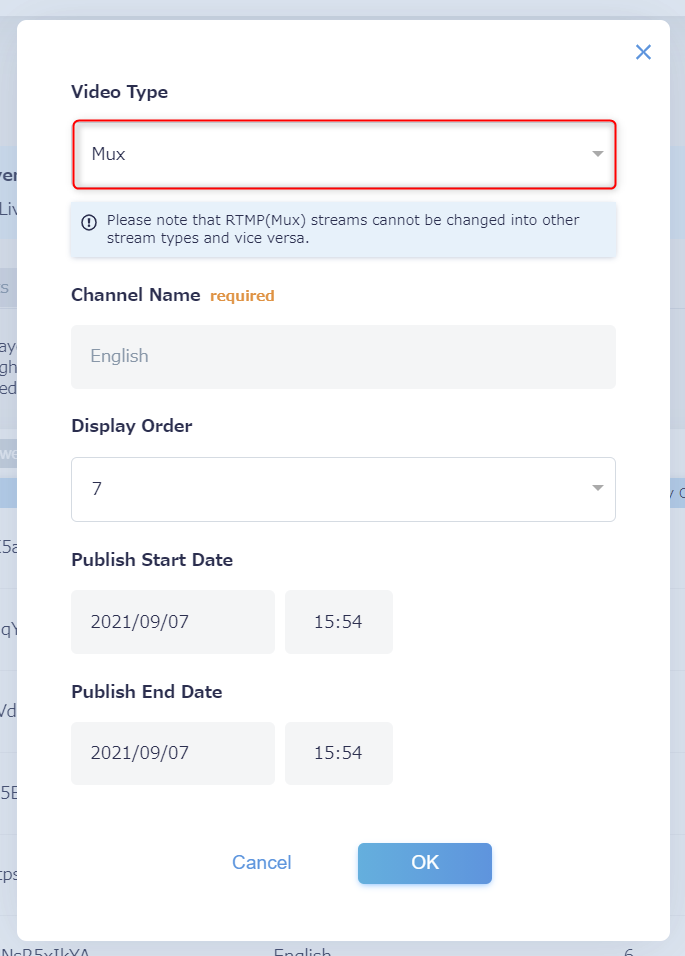
2. Choose 'Mux' for the video type, and enter the other required information. Then click 'OK' to save your settings.
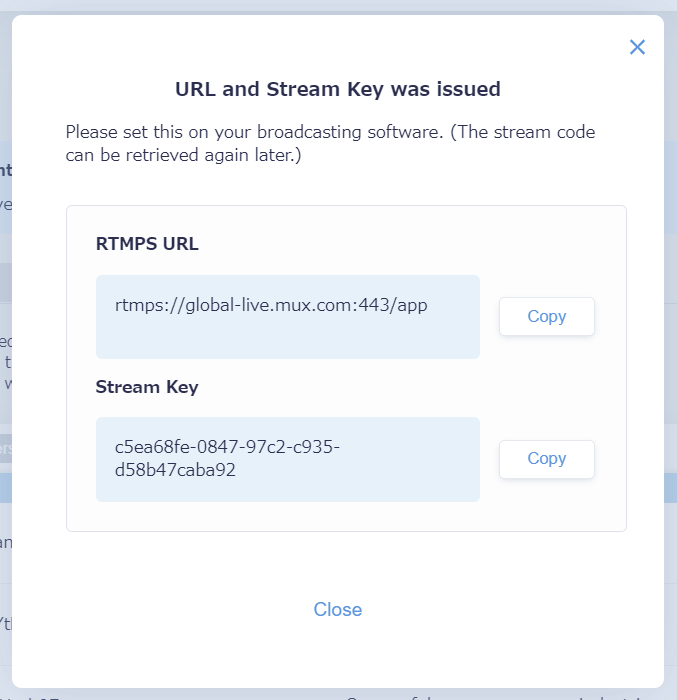
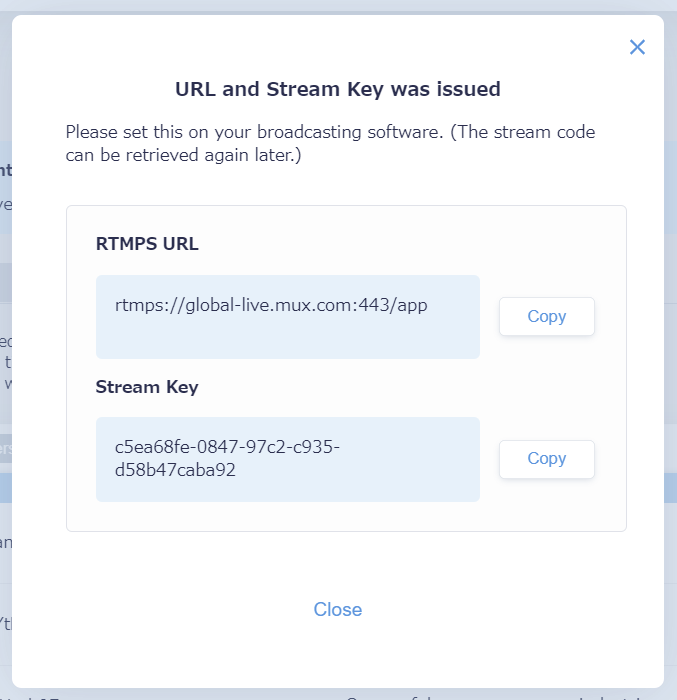
3. An RTMPS URL and a Stream Key will be generated. This information will be needed later when setting up Zoom.
2. Zoom Settings
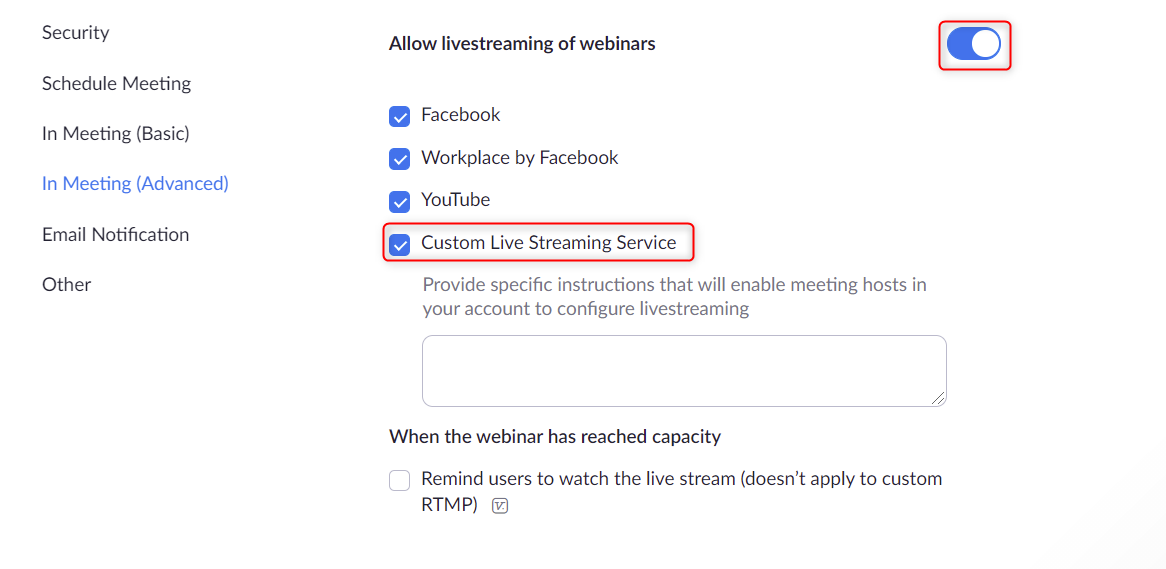
1. Log in to your Zoom account, then go to Settings > In Meeting (advanced) > Allow livestreaming of webinars and switch this to On. Please also check the box for Custom Live Streaming Service.
*If this hasn't been checked, you will not be able to live stream.
2. Schedule a new webinar on Zoom. *It's also possible to stream if you schedule a meeting as opposed to a webinar. See Zoom's help center for a comparison of the two options.
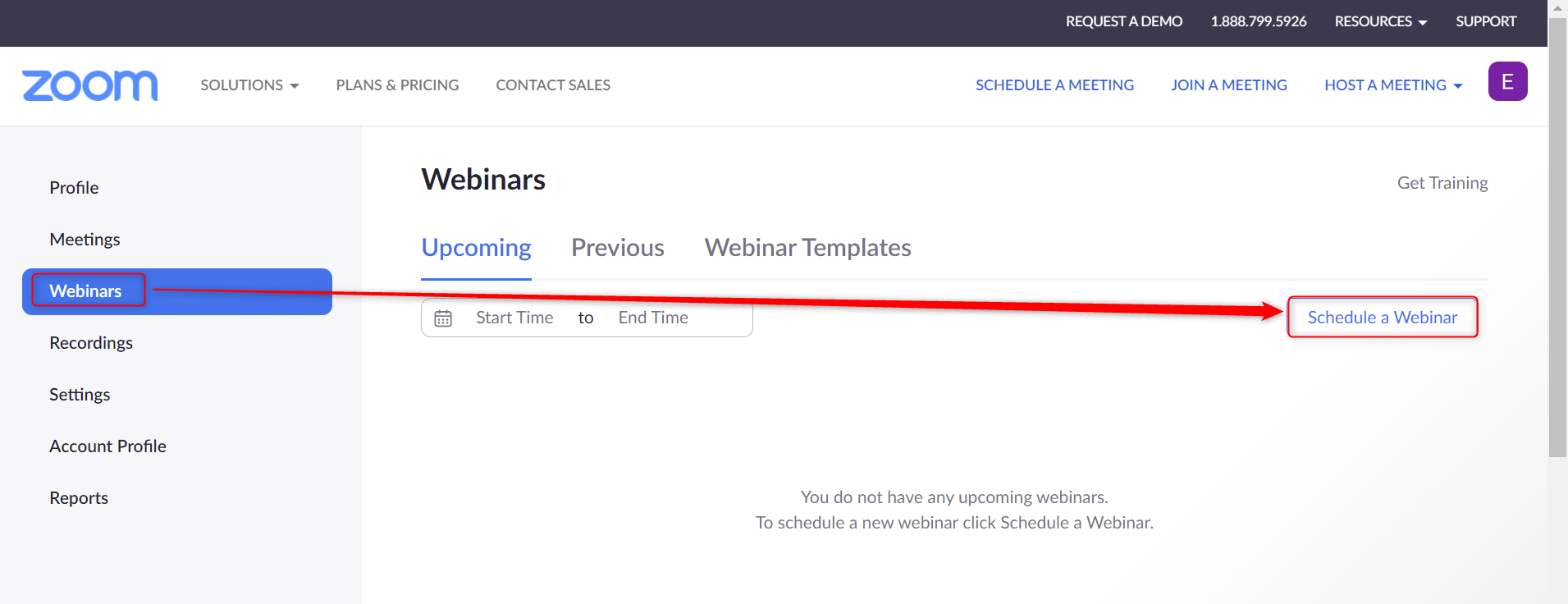
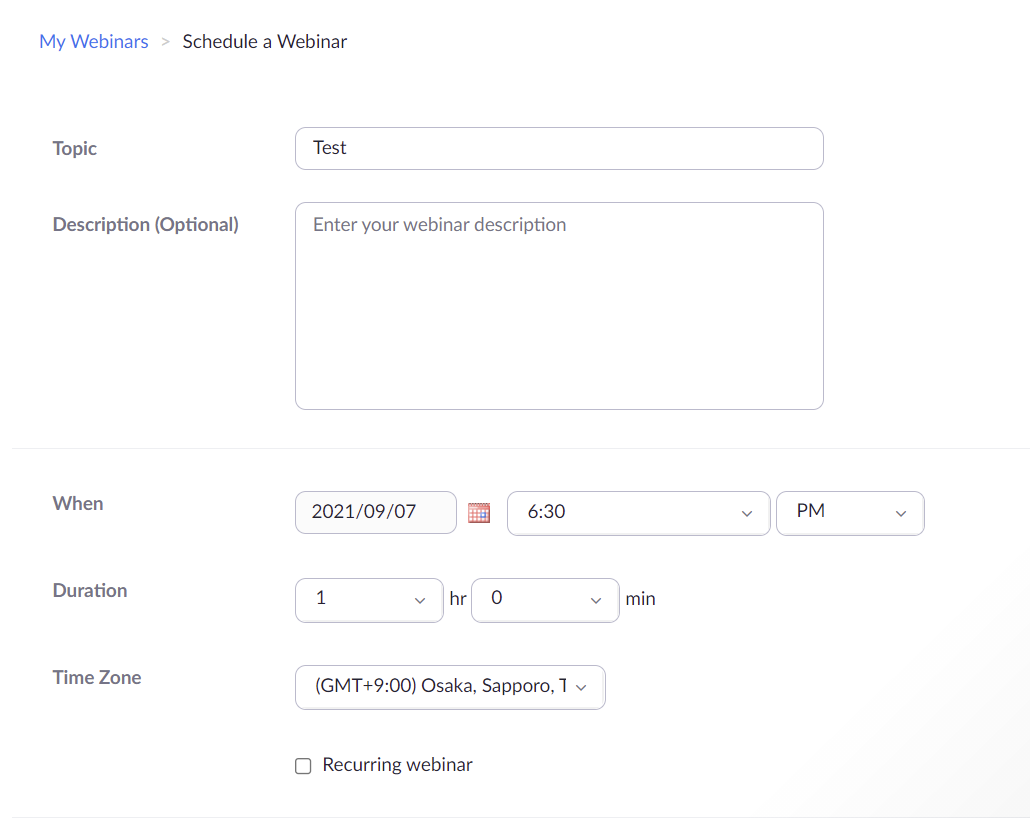
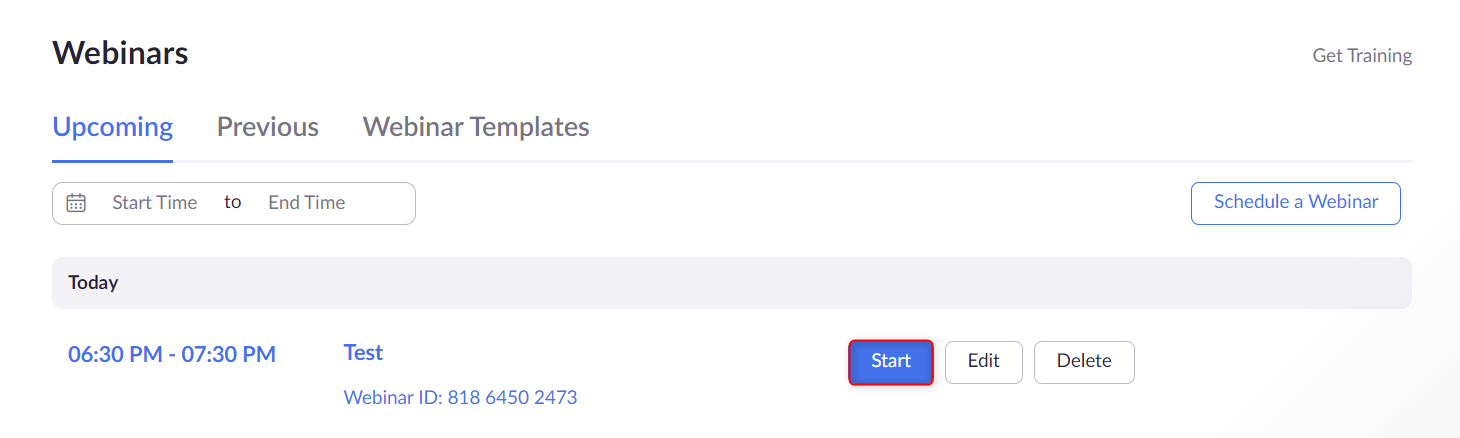
3. Start the webinar and launch Zoom.
4. Click on the three option dots found on the webinar toolbar, and select Live on Custom Live streaming service.

5. You will need to enter the RTMPS URL and Stream Key you copied from EventHub. Then click Go Live!
For Live streaming page URL, please enter the URL for the event page (eg. https://client.eventhub.jp/e/xxxxxx/home)
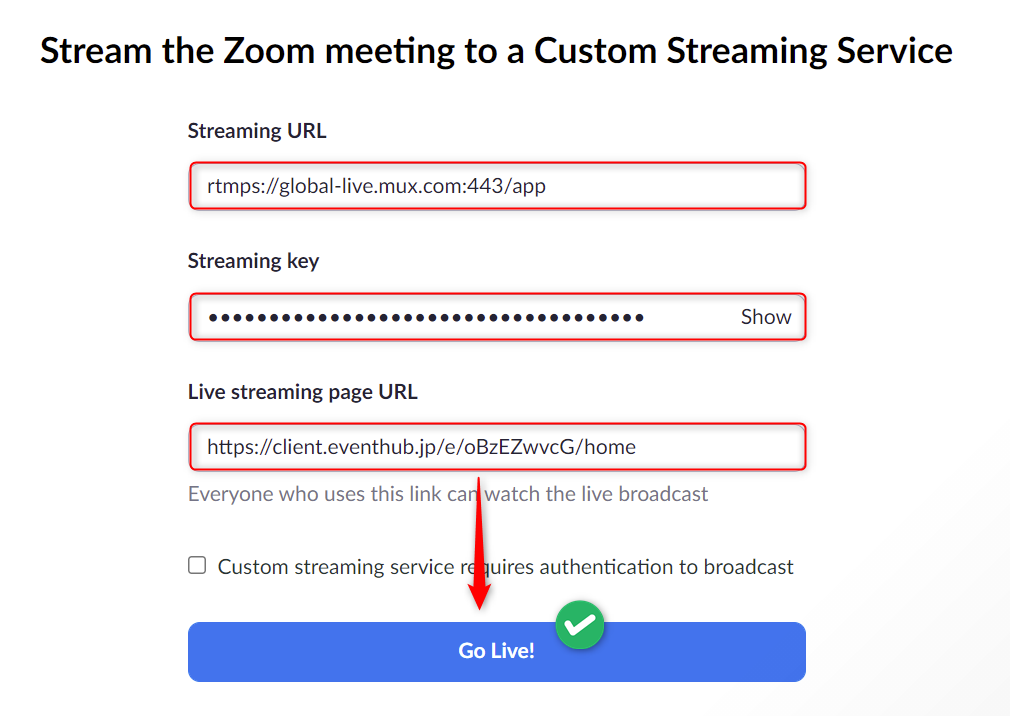
After clicking Go Live! you will be shown the following screen. Once it has loaded, you will be directed to the live streaming page.
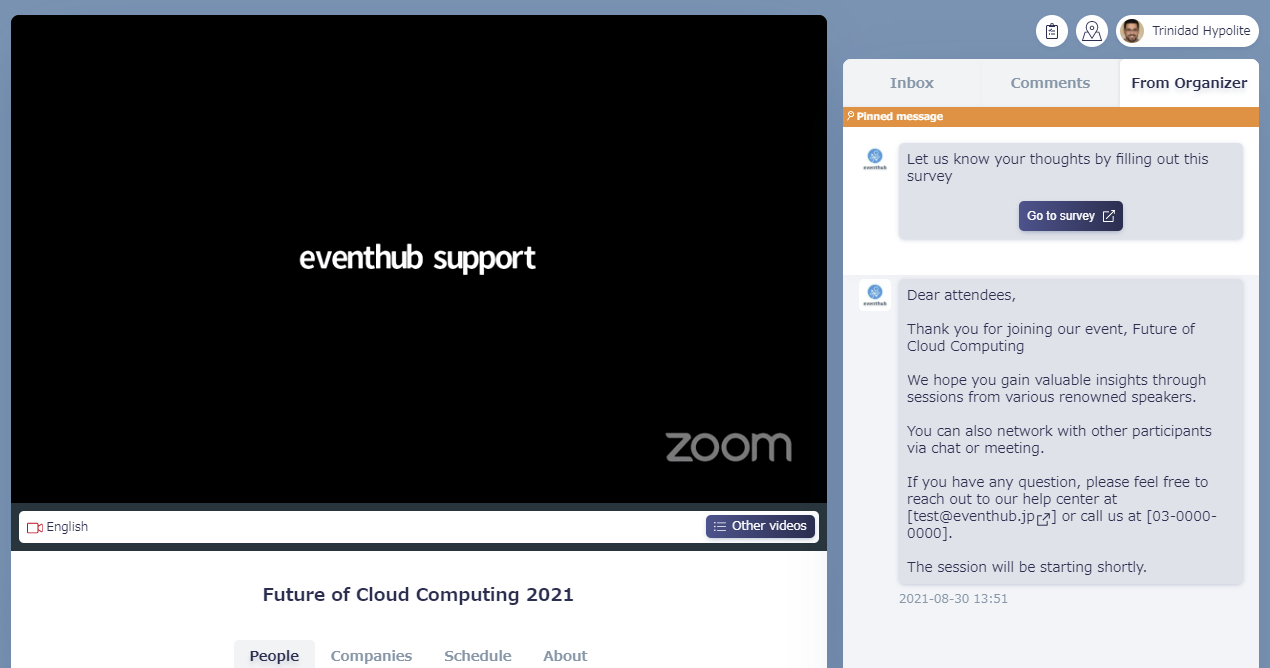
6. The video will be streamed to the event page.
3. Things to note when using Zoom
- In general, viewers will need to manually start the stream by clicking the play button. However, the stream will automatically begin in the following situations:
- When the participant has been directed to the event page from the log in screen or registration form.
- When the video channel has been switched.
- When the MEI score of the browser reaches or exceeds a certain level.
On EventHub, your video will only be streamed on the event page during the window of time you have set.
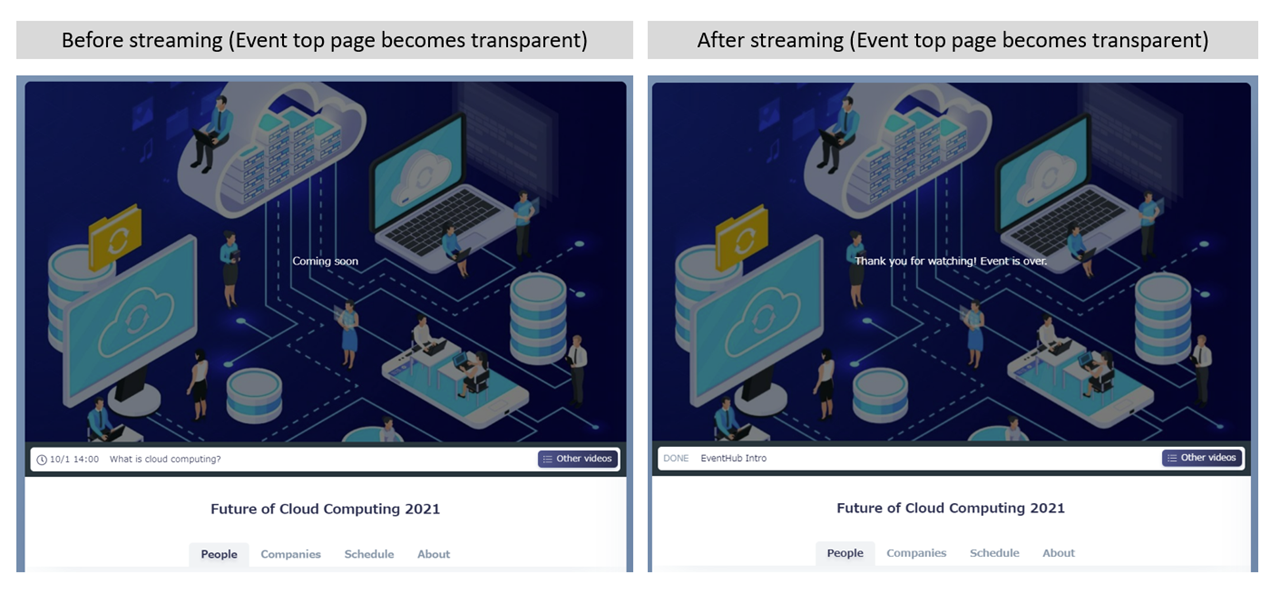
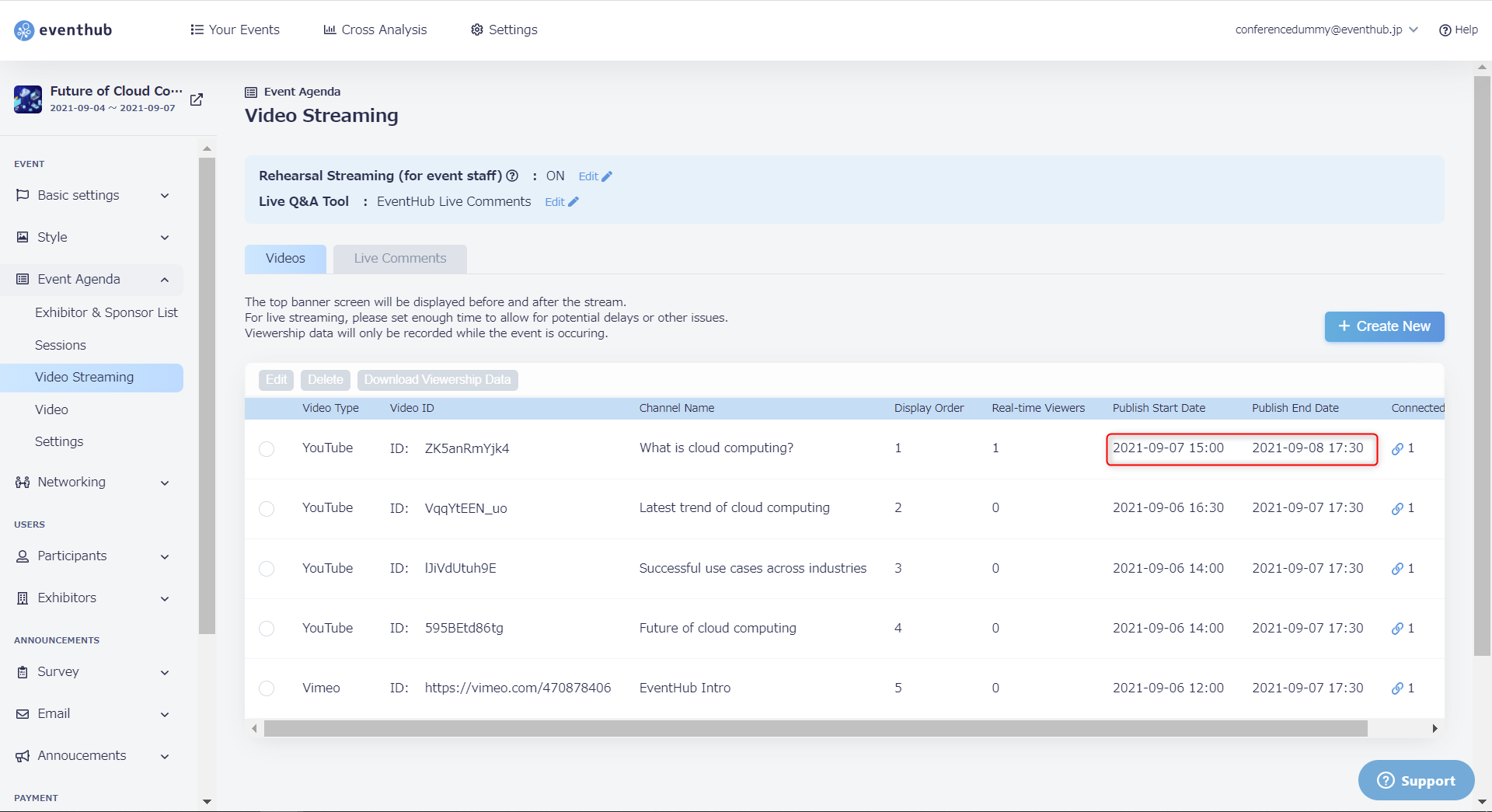
If streaming begins after the set publish start date and time, the video thumbnail will be displayed and participants will see a messaging reading "Coming Soon".
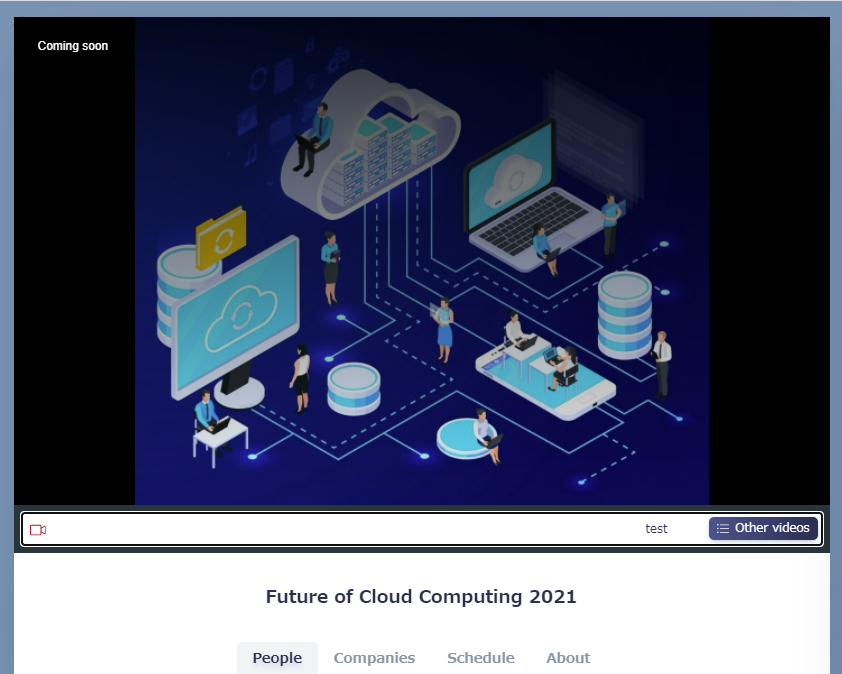
If the stream ends before the set publish end date and time, participants will be able to replay the 20~30 seconds before the stream ended. Please note that this cannot be changed.
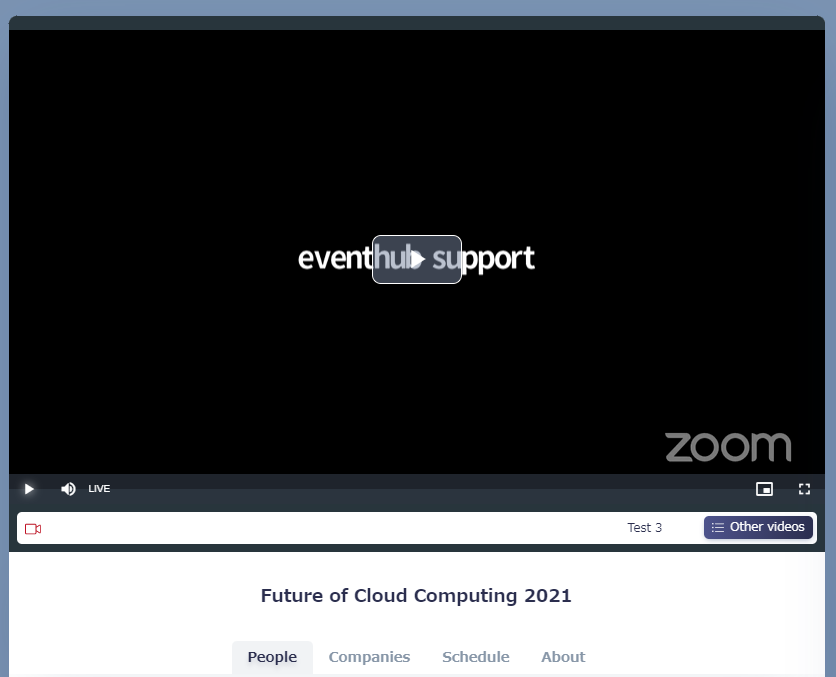
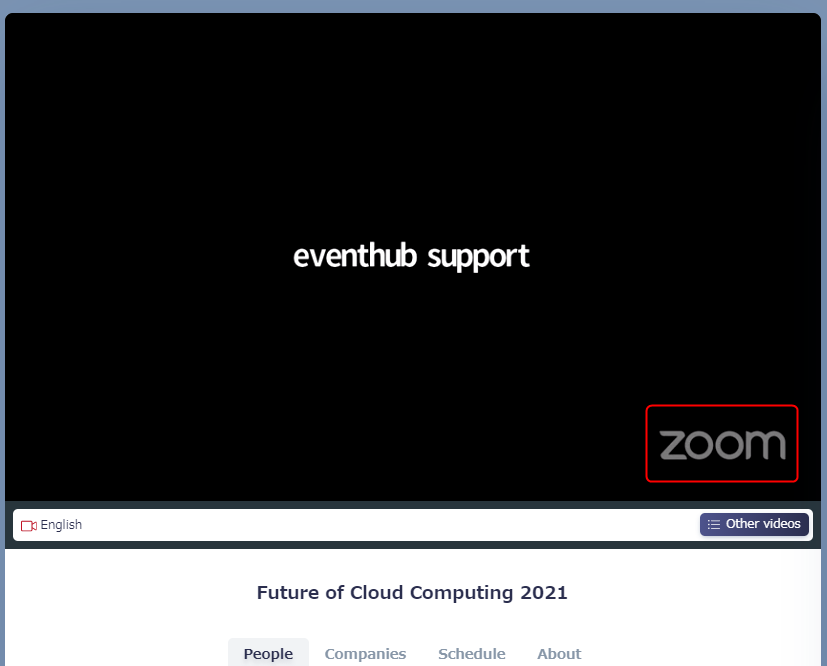
- The "Zoom" watermark displayed in the bottom right of the stream cannot be removed.
- Make sure you assign a co-host when operating Zoom. If the organizer loses hosting permissions, they will not be able to mute/unmute participants. When speakers are presenting on full-screen, they may not be able to see whether their microphone is on. Furthermore, if the host leaves the meeting for whatever reason, the entire meeting will end. Therefore, it is good practice to have multiple hosts for your Zoom meeting.