1. Uploading a video on Vimeo
1. Click on 'New video' in the top right corner of Vimeo's main screen.
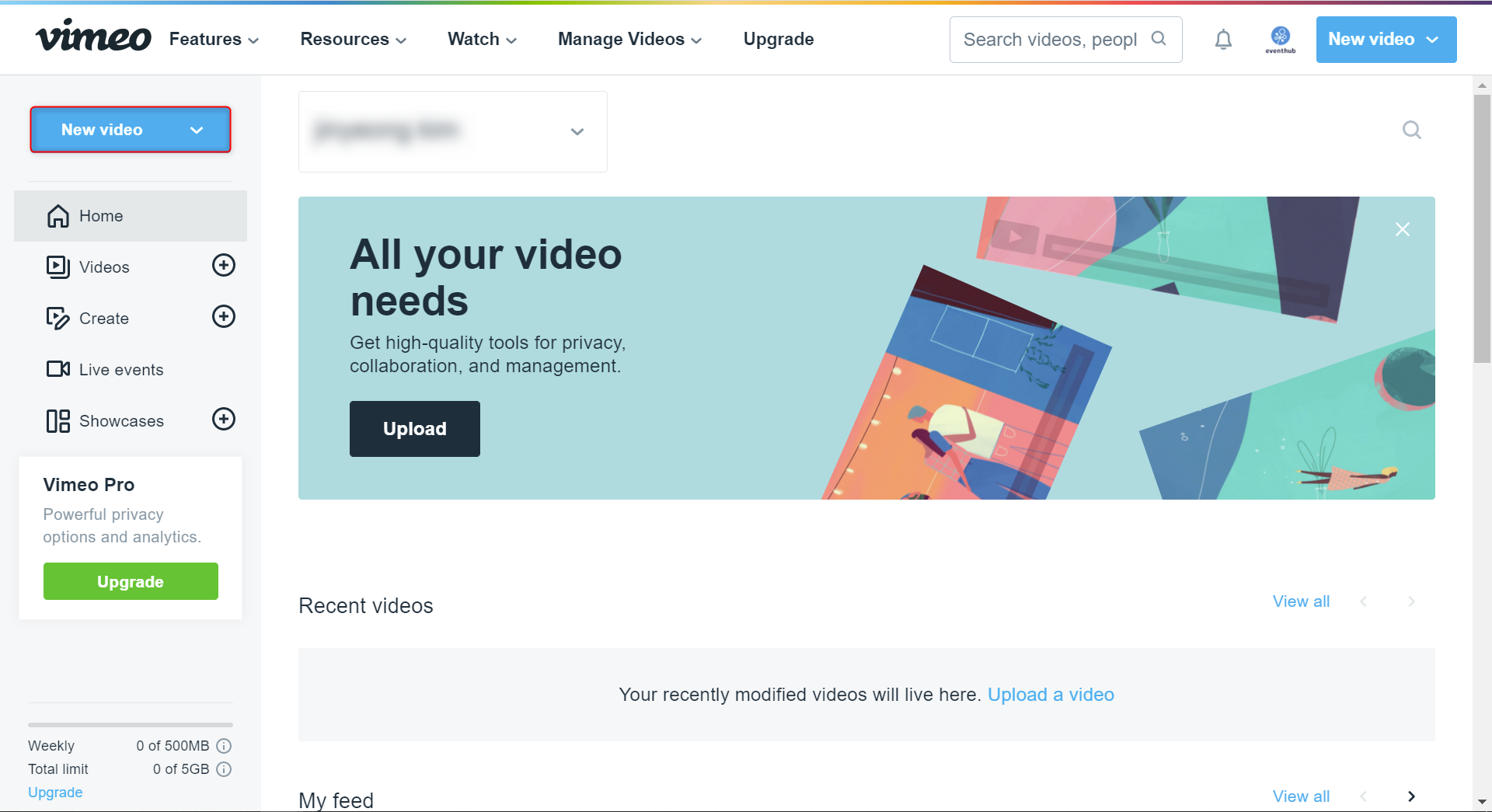
2. Then click 'Upload' and choose the video file.
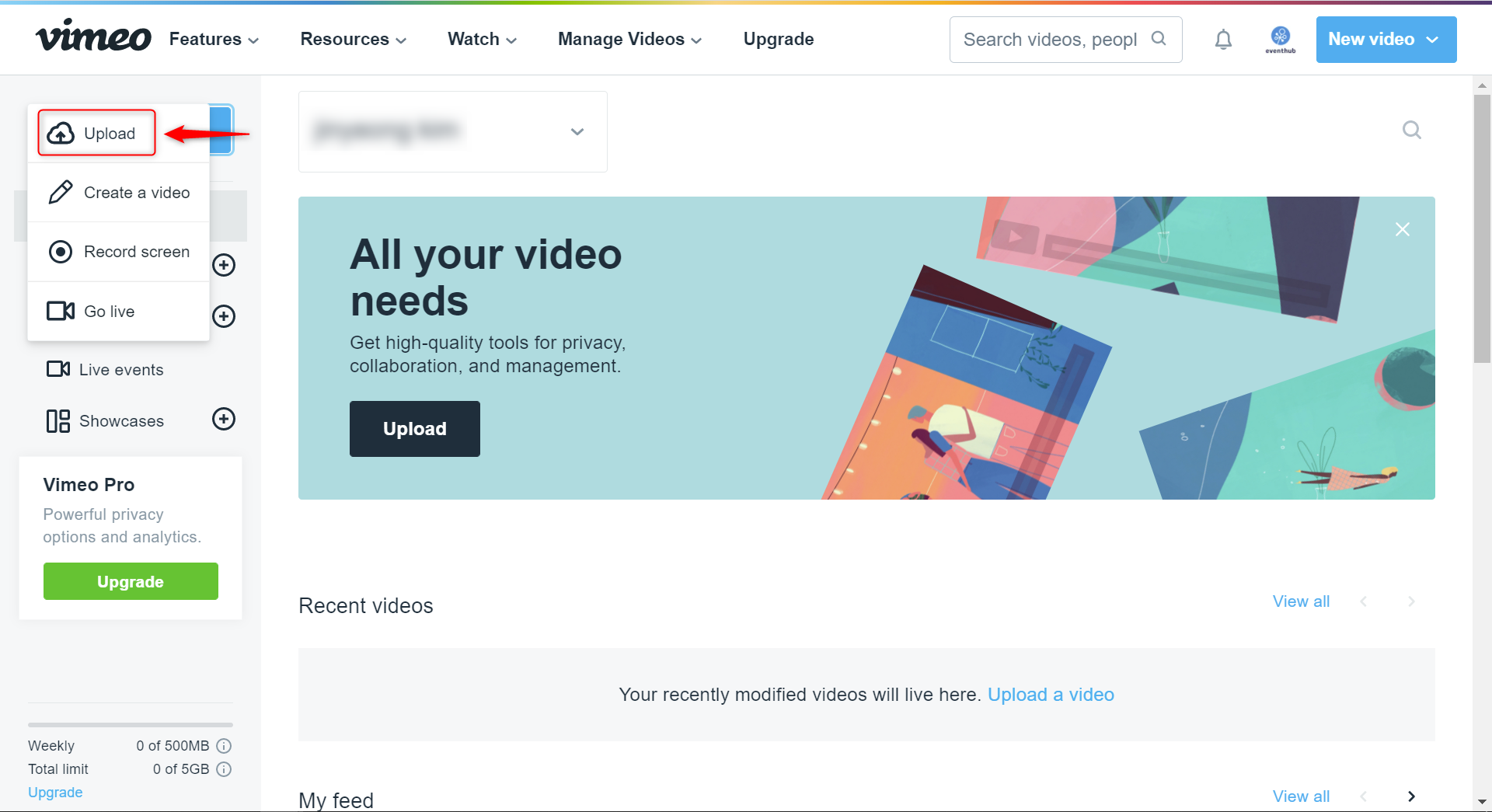
3. Click on the link icon for your uploaded video and then click 'Copy video link'. You can connect your video by entering this URL into EventHub.
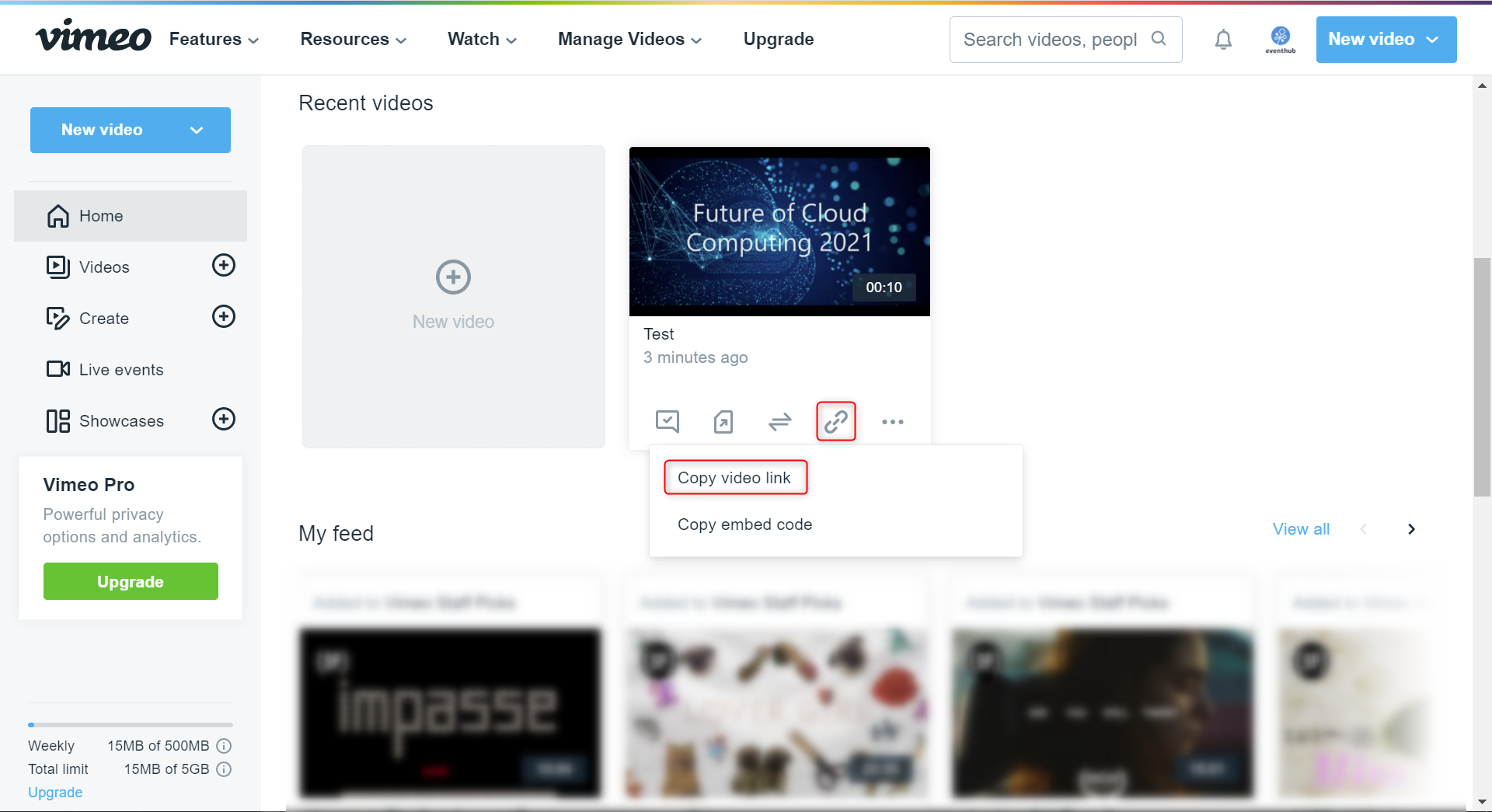
Please note:
Make sure the replay button and volume control are displayed.
With Vimeo, you can decide whether or not to display the play bar and volume for your video. It may cause trouble or confusion for participants if they are hidden, so please make sure they have been set to be displayed. Below we will run through how to do this:
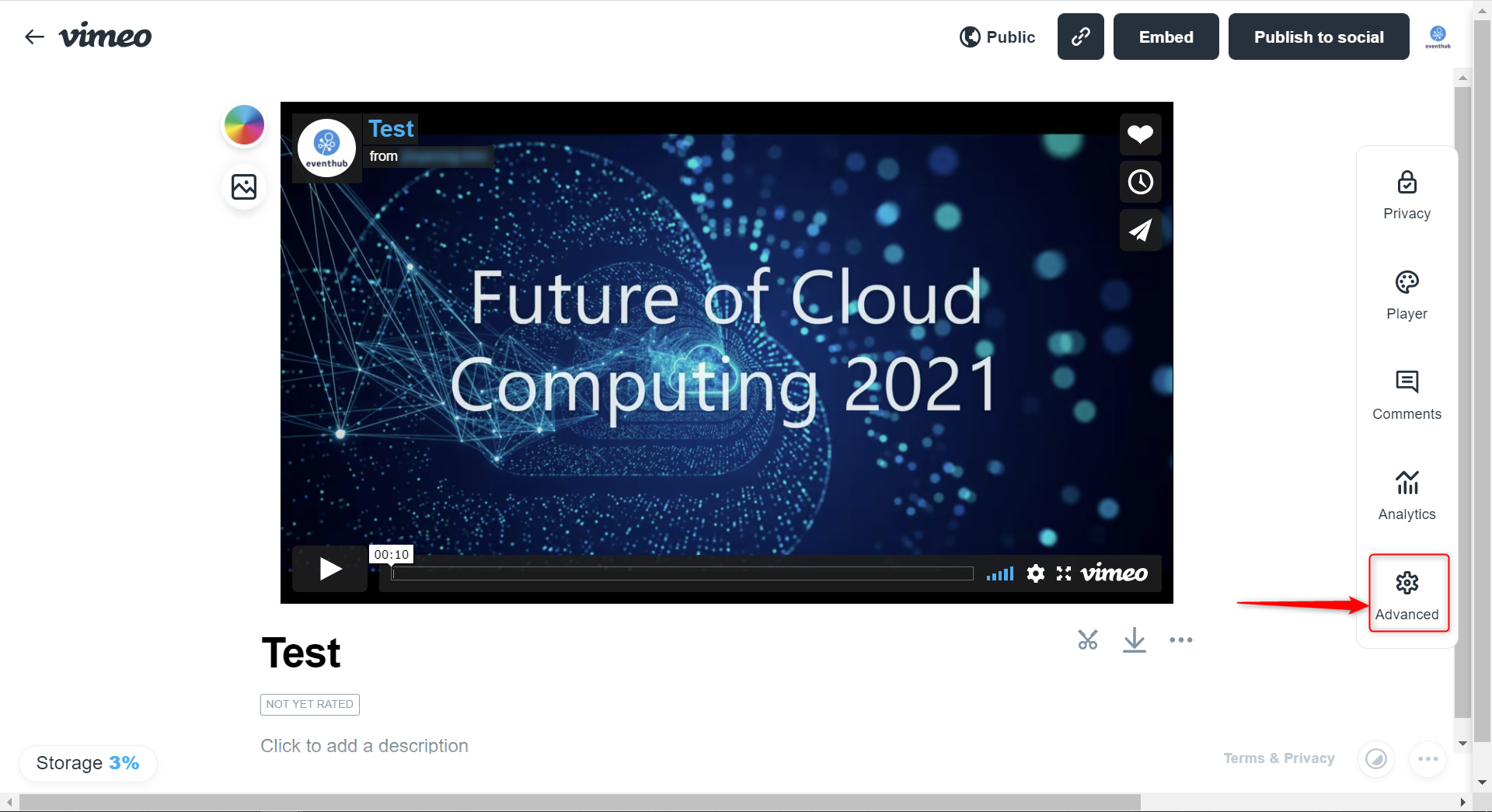
1. Click on the video you have just uploaded.
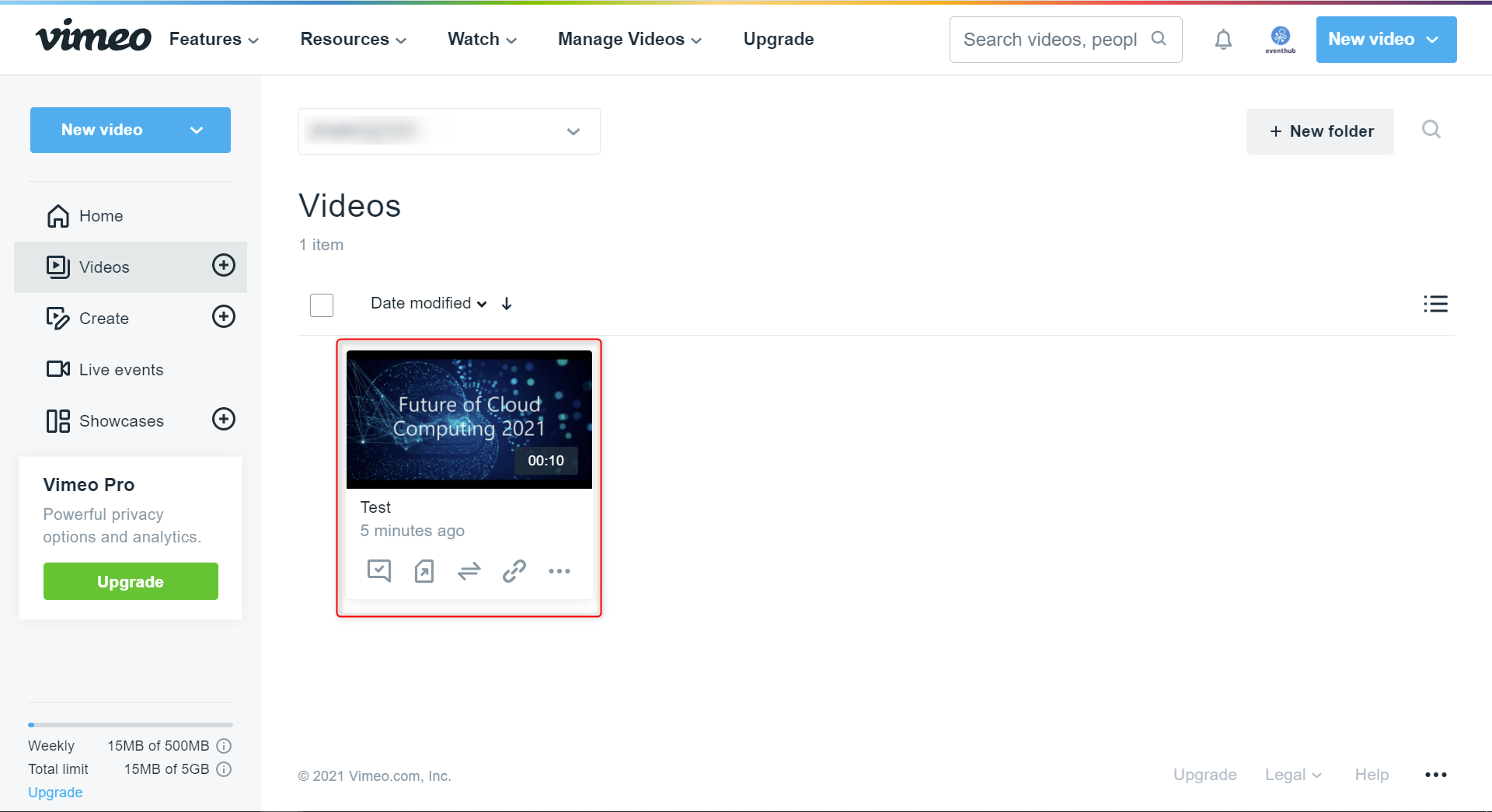
2. Then click 'Advanced'.
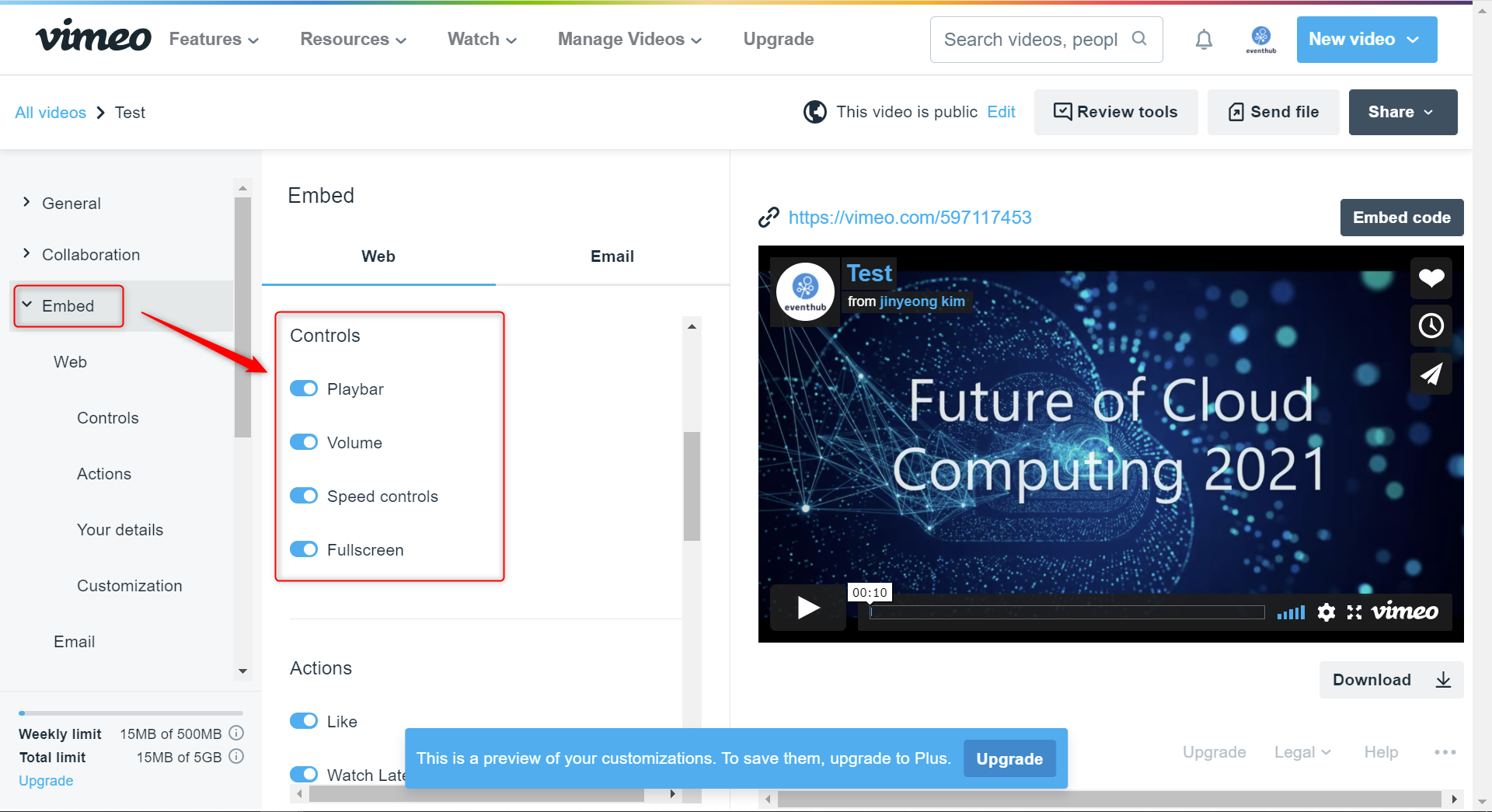
3. Go to 'Embed' > 'Controls' and then make sure that the slider for Playbar and Volume are switched to on.
2. Connecting with EventHub
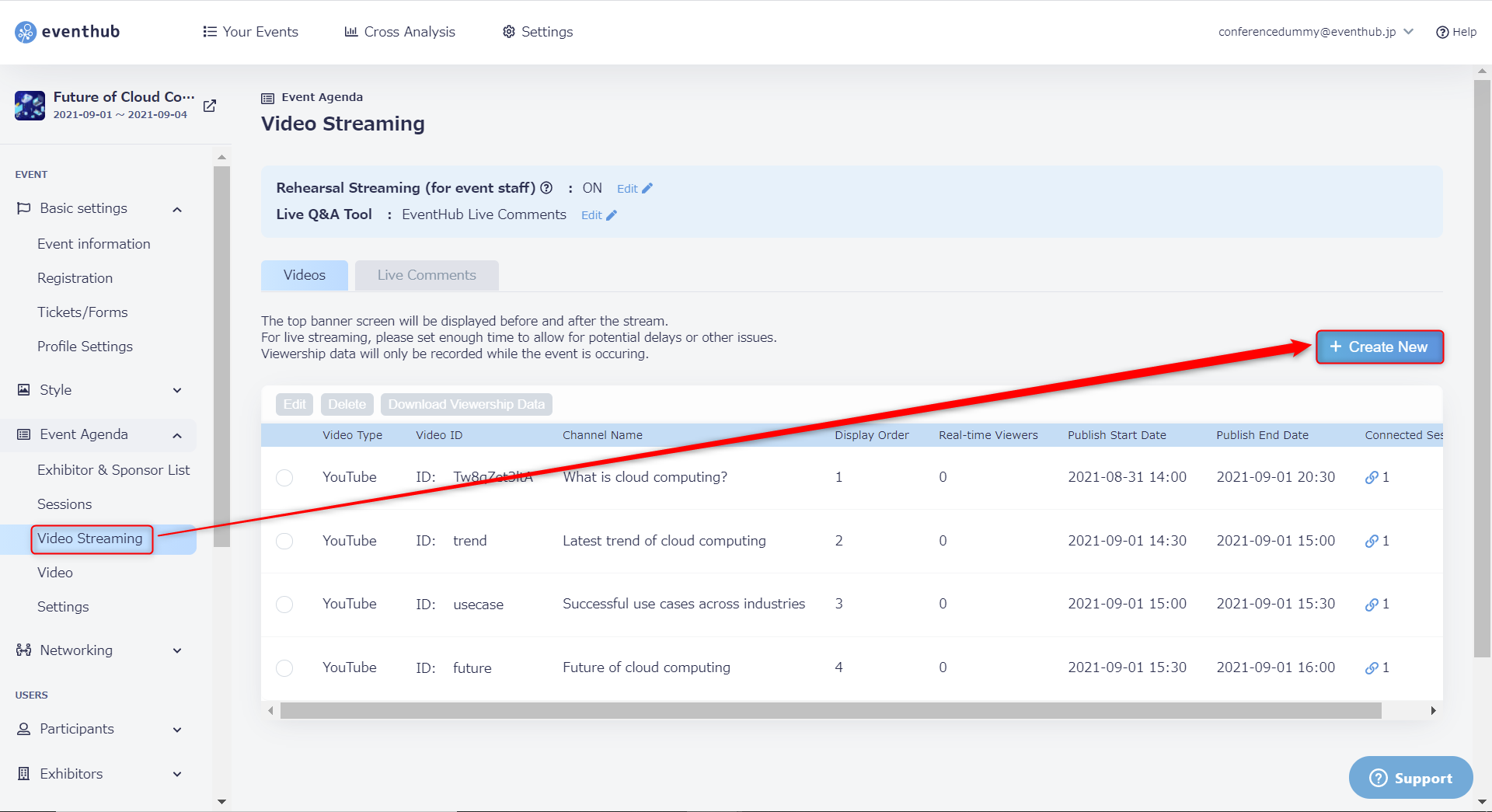
1. Under 'Event Agenda' > 'Video Streaming', click on 'Create New'.
2. Choose your 'Video Type', and enter the Vimeo URL you copied earlier. After entering all of the required information, click 'OK' to save your settings.
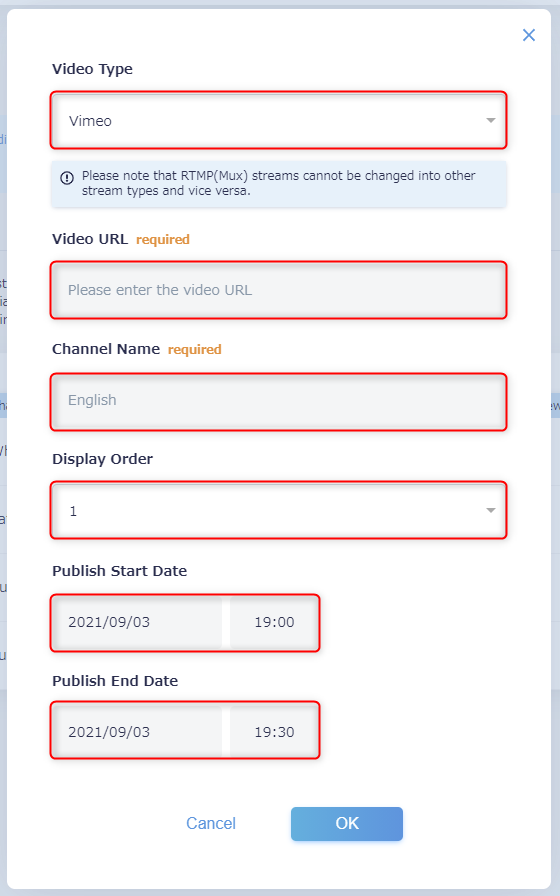
- Video Type: please choose "Vimeo".
- Video URL: Enter the video link
- Channel Name: Participants will be able to switch through channels on the main event page.
- Display Order: The order in it will be displayed on the channel list
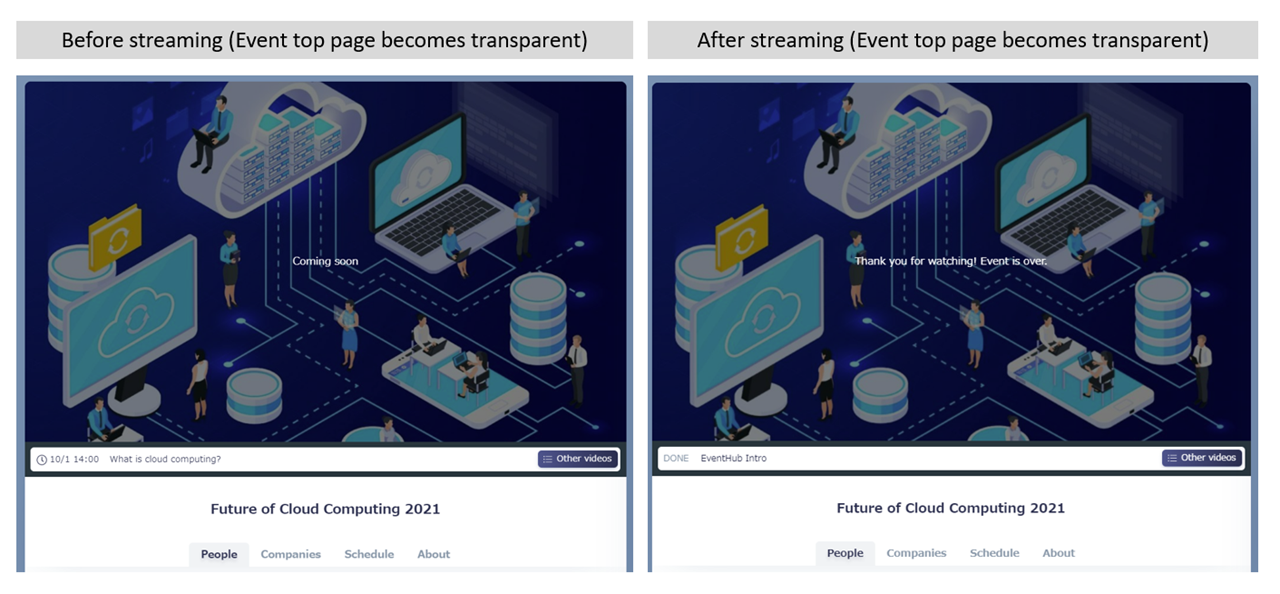
- Publish Start Date: Choose when the video will become visible on the event page (before the start date, "Coming Soon" will be shown in place of the video).
- Publish End Date: Choose when the video will no longer be visible on the event page (after streaming has ended, participants will see a message stating "Thank you for watching").
▼Clicking on 'Other videos' will show the list and titles of other sessions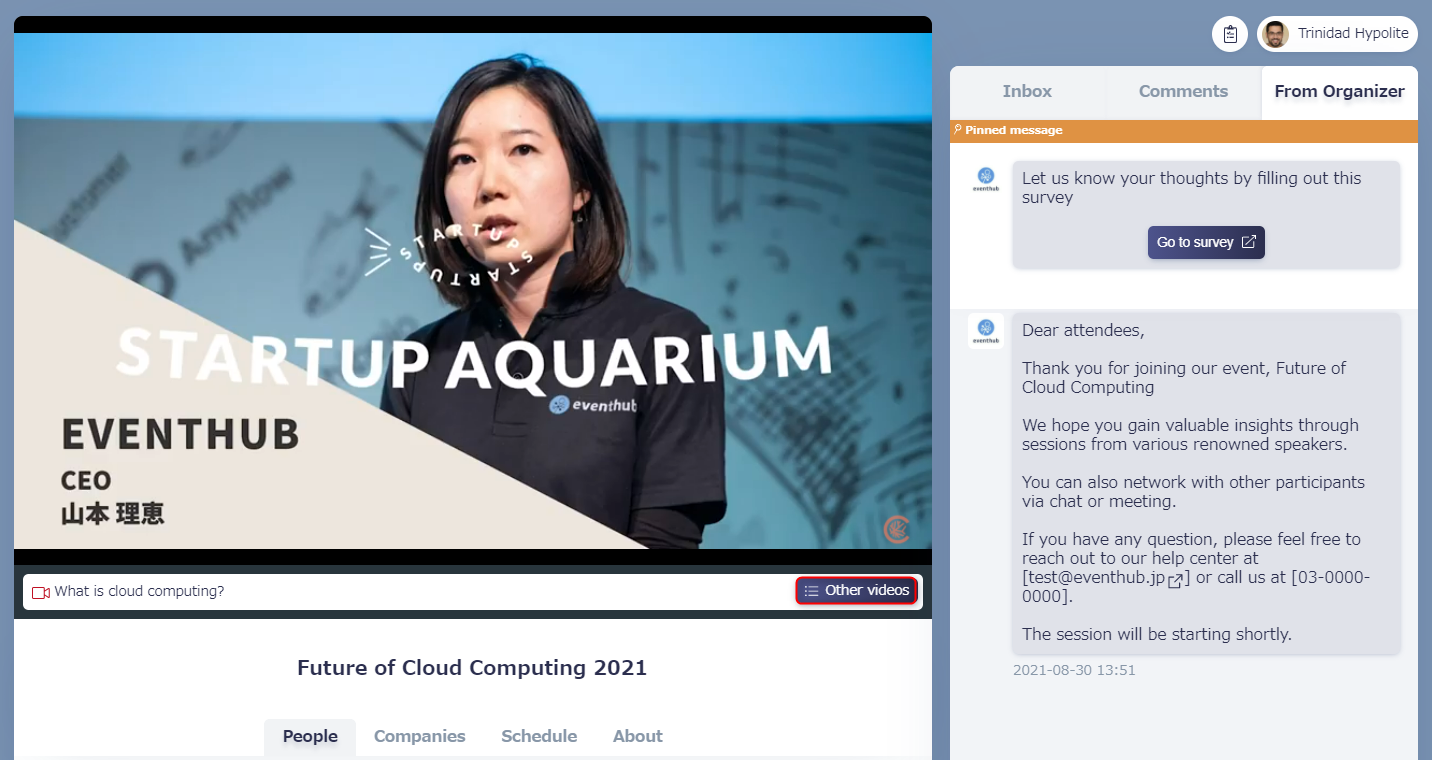
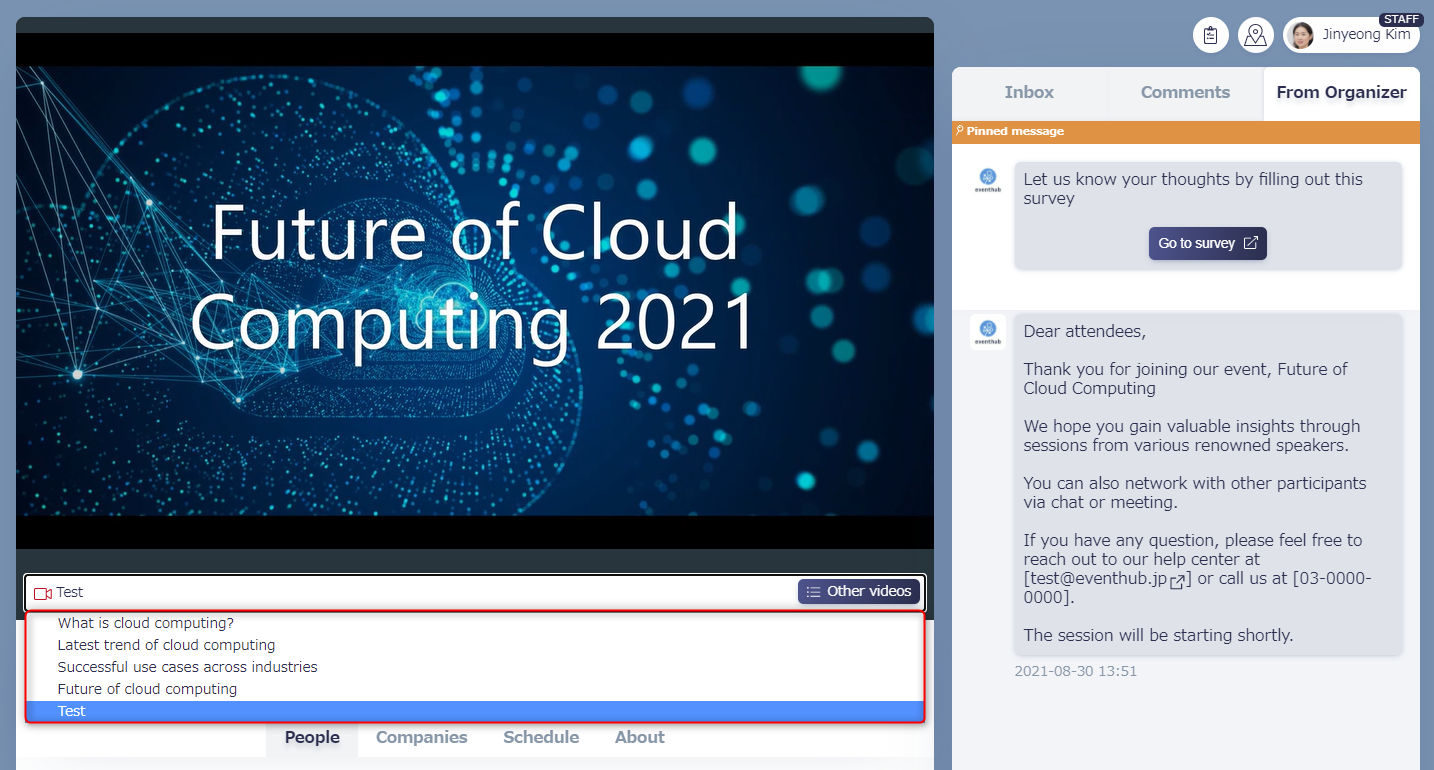
3. You can check that your video has been added successfully by clicking on 'Other videos' on the event page and checking for the video you have set from the pulldown menu.
- Our recommended video aspect ratio for both Youtube and Vimeo is wide (16:9).