Contents
1. Setting up your account for live streaming
1. When creating your Youtube account, please also apply for YouTube Live. Live streaming on YouTube takes around 24 hours to be activated, so make sure you set up your account and live streaming in advance.
Enabling YouTube Live
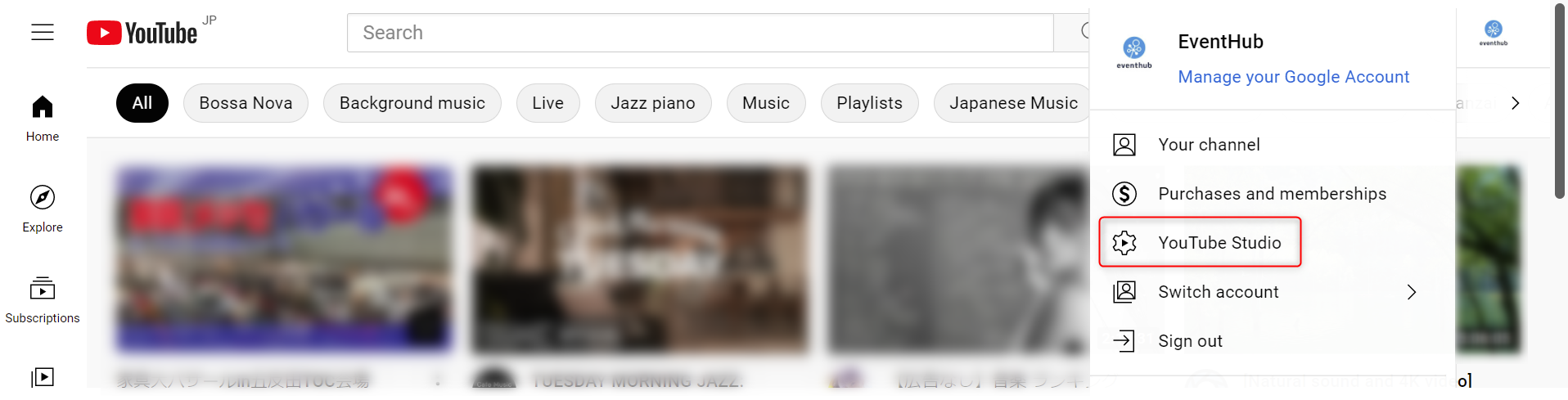
1. Click on Youtube Studio under your account name in the top right of YouTube's homepage.
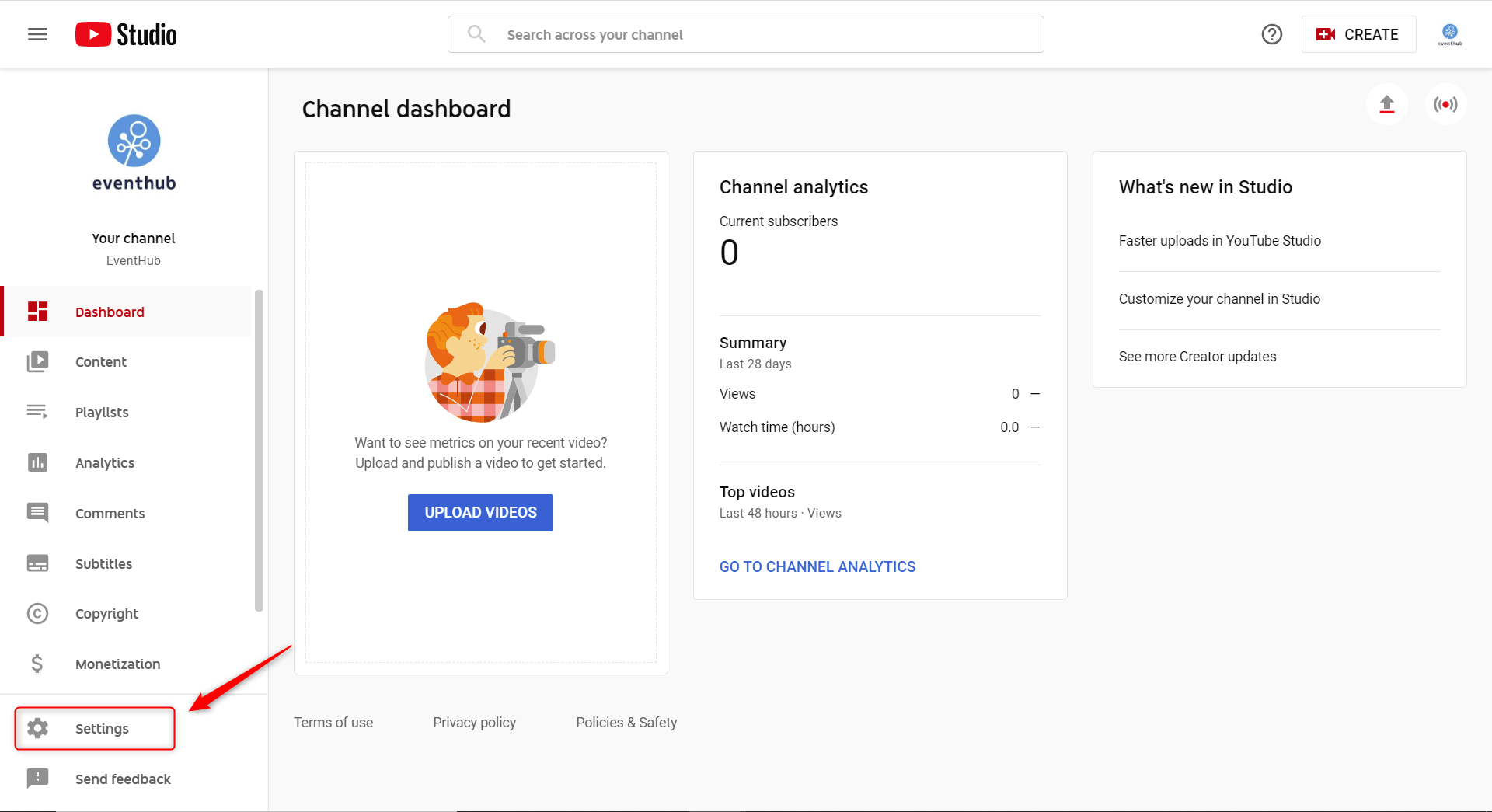
2. Then click on Settings, in the bottom left of the screen.
3. Go to Channel > Feature eligibility
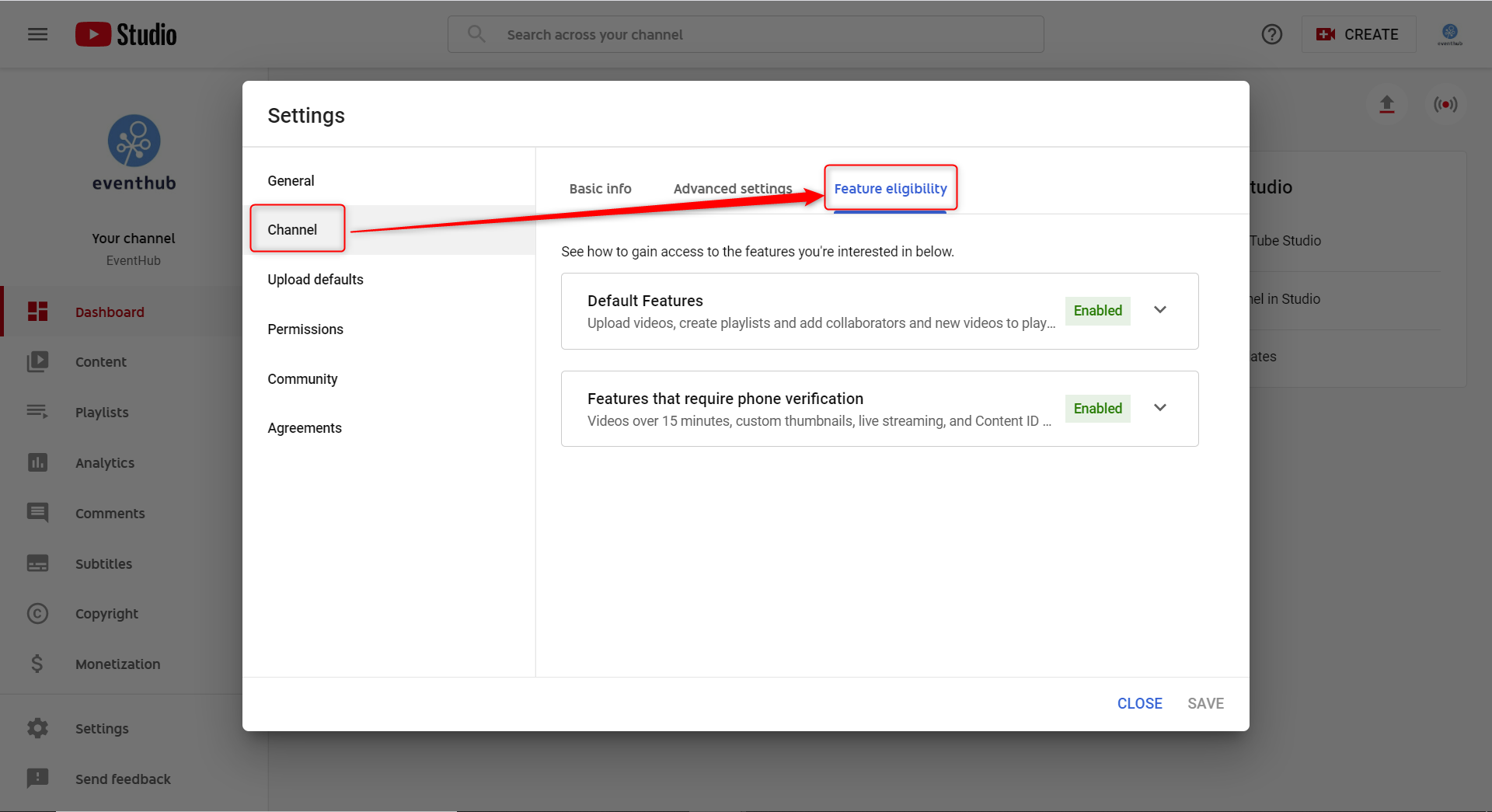
*In order to live stream, you need to ensure your account has had no streaming restrictions in the past 90 days.
4. If you'll be using features that require phone verification, click on the drop down menu and select VERIFY PHONE NUMBER.
5. Then take the following steps to verify your account:
-
- Choose your country
- Choose verification method (voice message or SMS)
- Enter your phone number
- Enter the code you received.
6. Live streaming should be available to you after your account has been verified.
7. After 24 hours, double-check that you features that require phone verification have successfully been enabled.
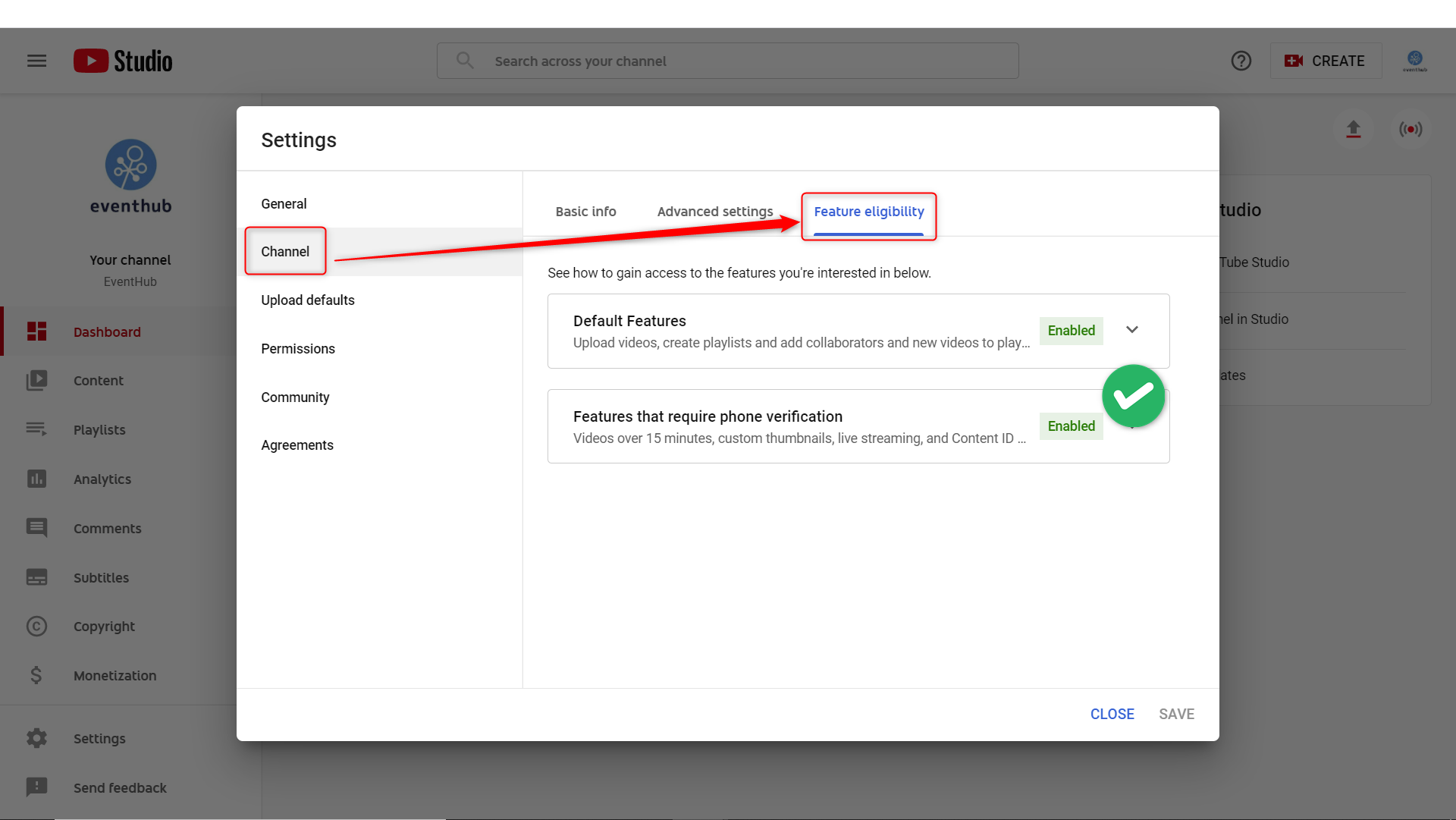
<attention> The above settings and methods are subject to change. Always refer to the official site for the most up-to-date information. </attention>
2. Create your video
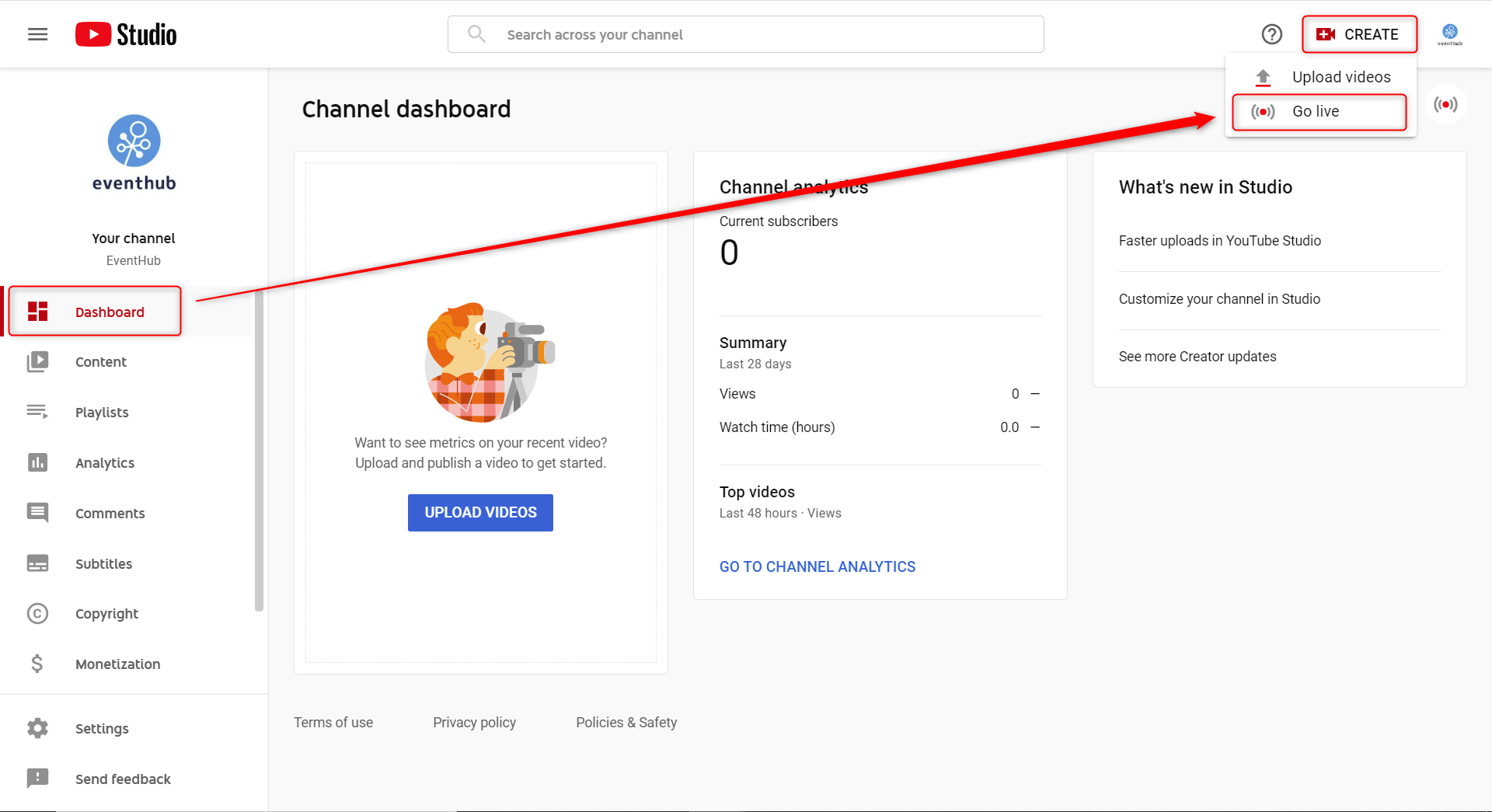
1. Open up YouTube Studio, then click on Create > Go live in the top right corner.
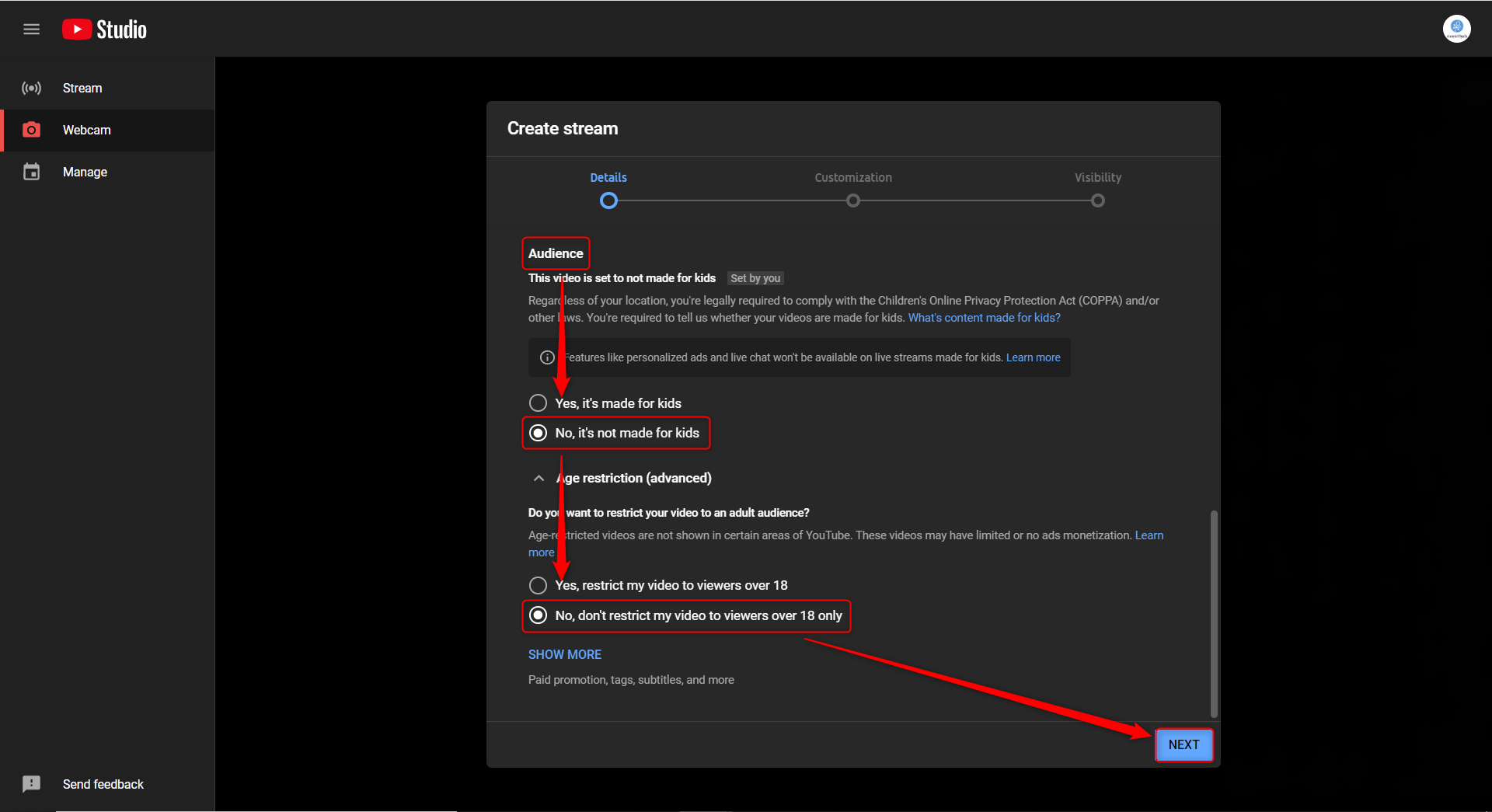
2. Enter the following information and then click Next.
- Title: Enter the name of the session or event. This name will be shown on the top left of the stream.
- Privacy: Please choose unlisted.
- Audience: Please select "No, it's not made for kids".
- Age restrictions: Please select "No, don't restrict my video to viewers over 18 only".
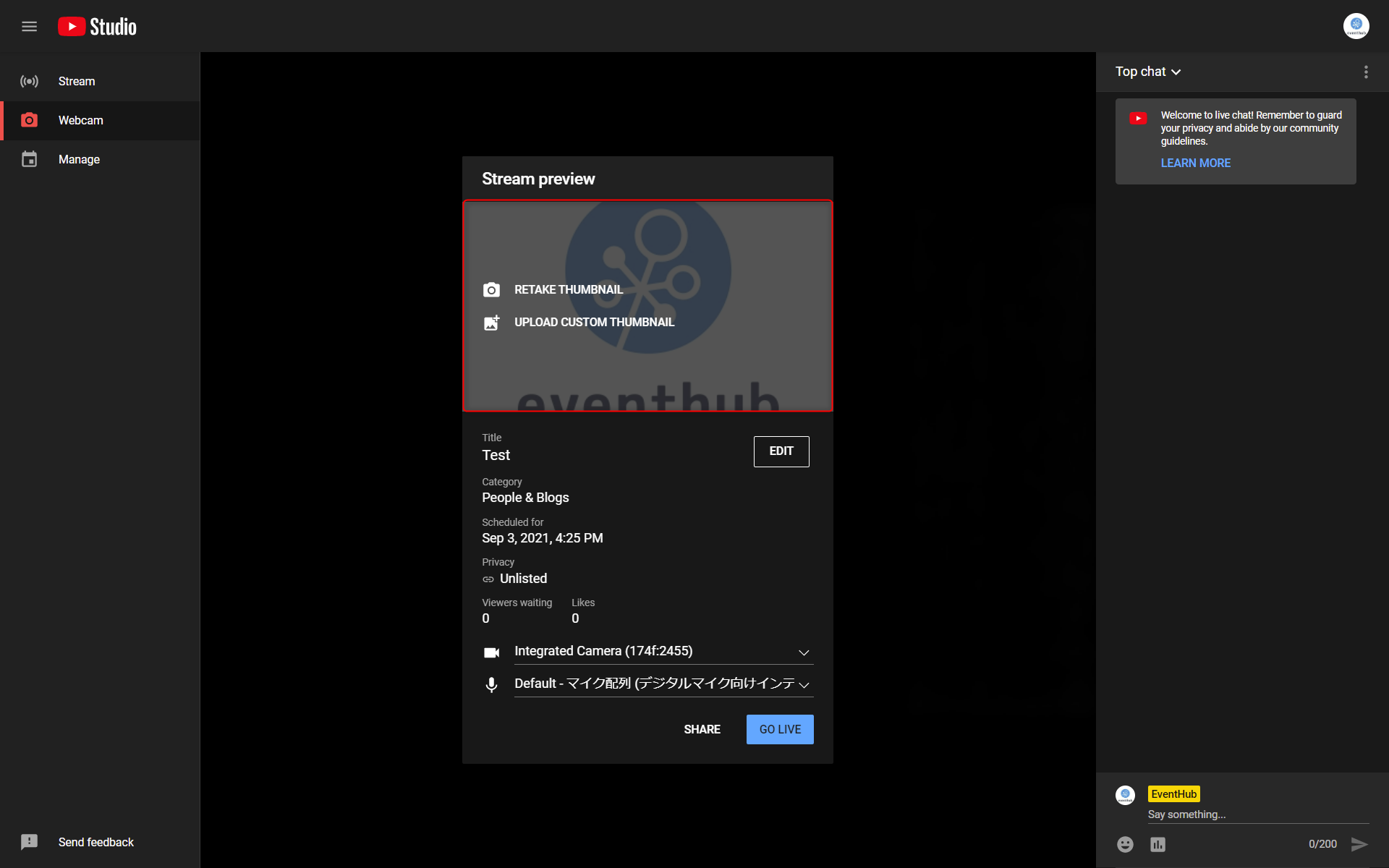
3. Click Upload custom thumbnail and choose an appropriate thumbnail image for your stream. Note that this image will be displayed on the event page before and after the stream, and will be used when the video is archived. Due to this, we recommend using the main event banner image, or one of the event images for the thumbnail.
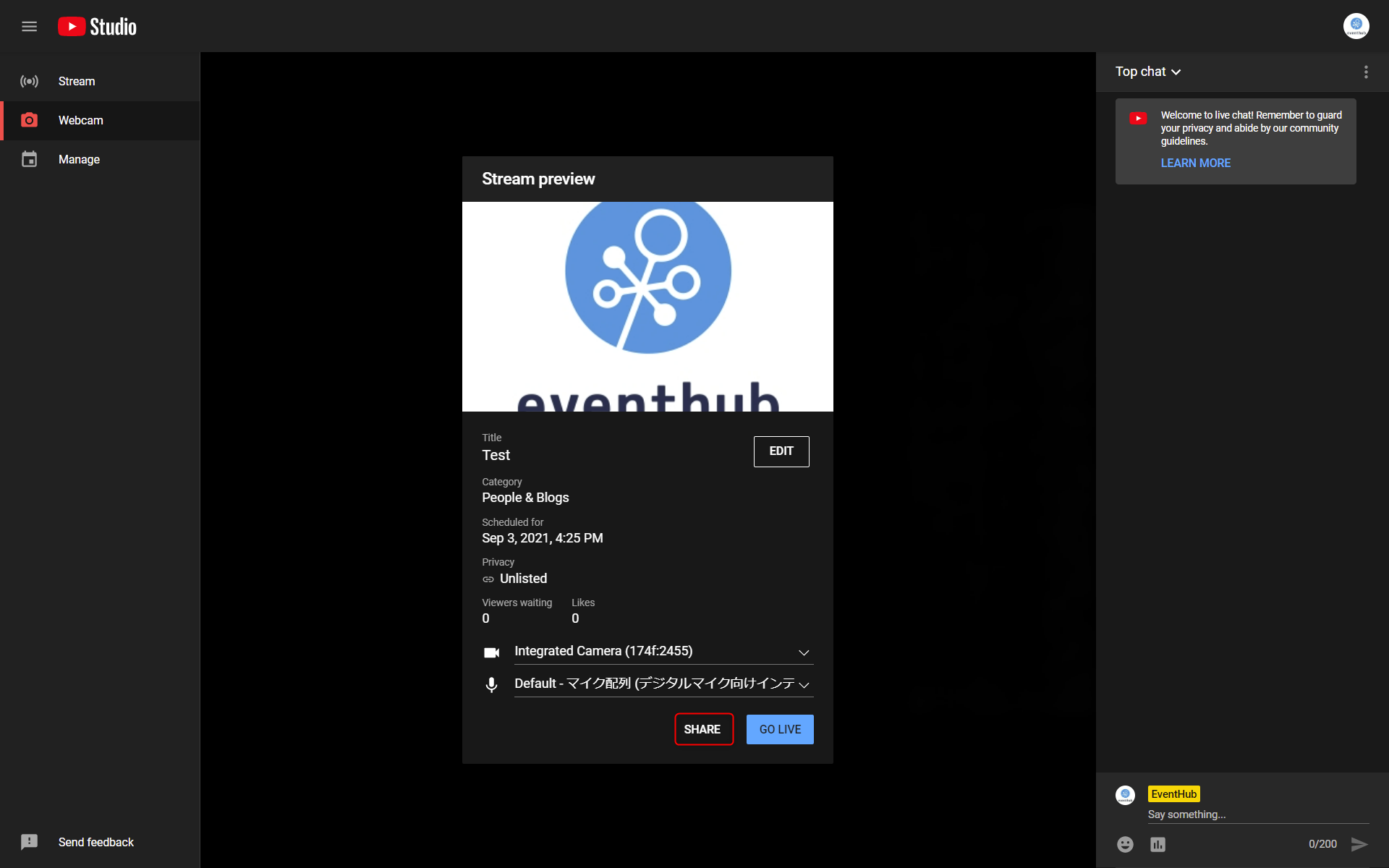
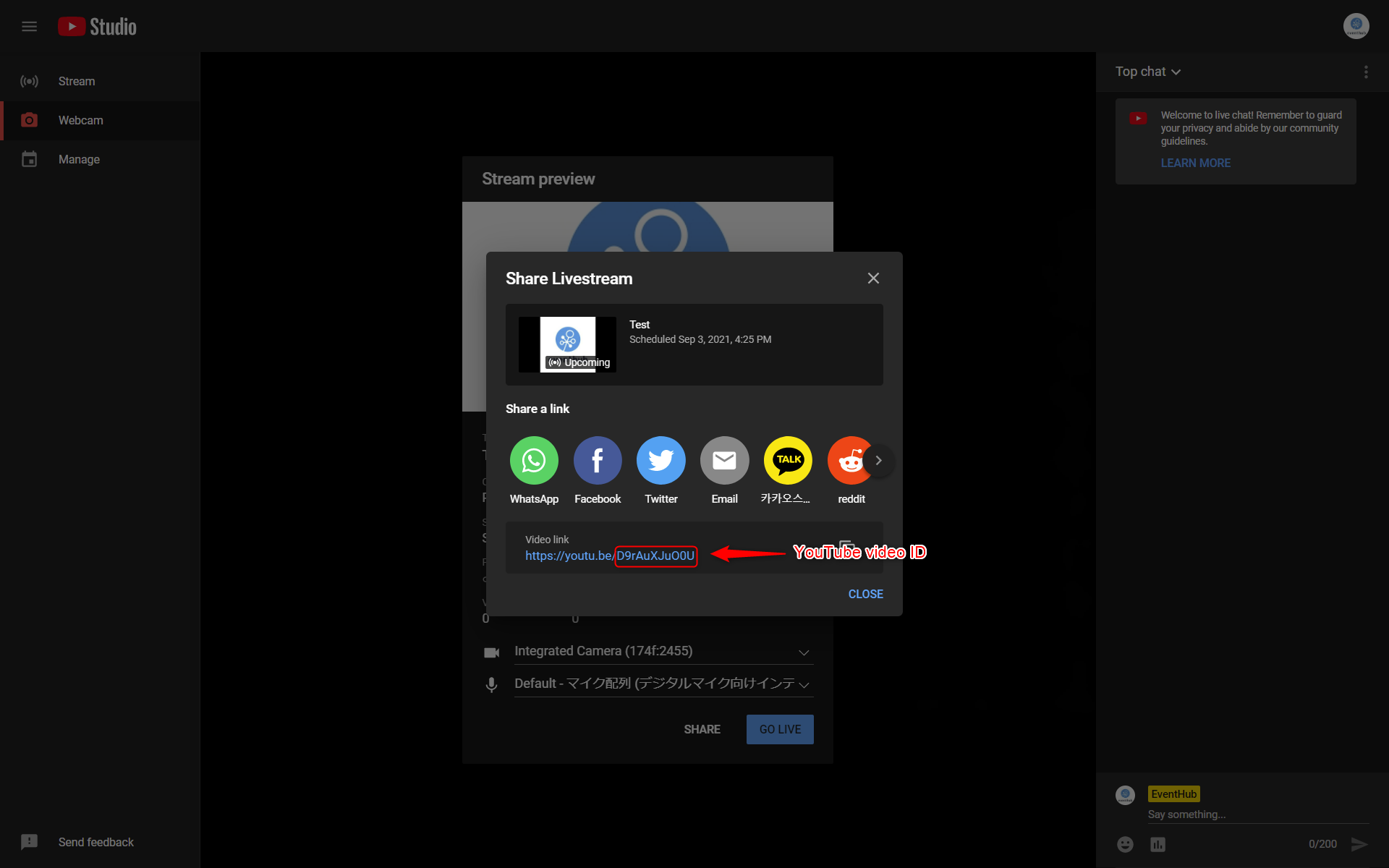
4. Click Share to get the URL for your video. The final section of the URL is the Video ID (eg. if the URL is https://youtu.be/RP3JVqrwak then the Video ID is RP3JVqrwak). Copy this URL, as you will use it later to connect the stream with EventHub.
3. Connecting with EventHub
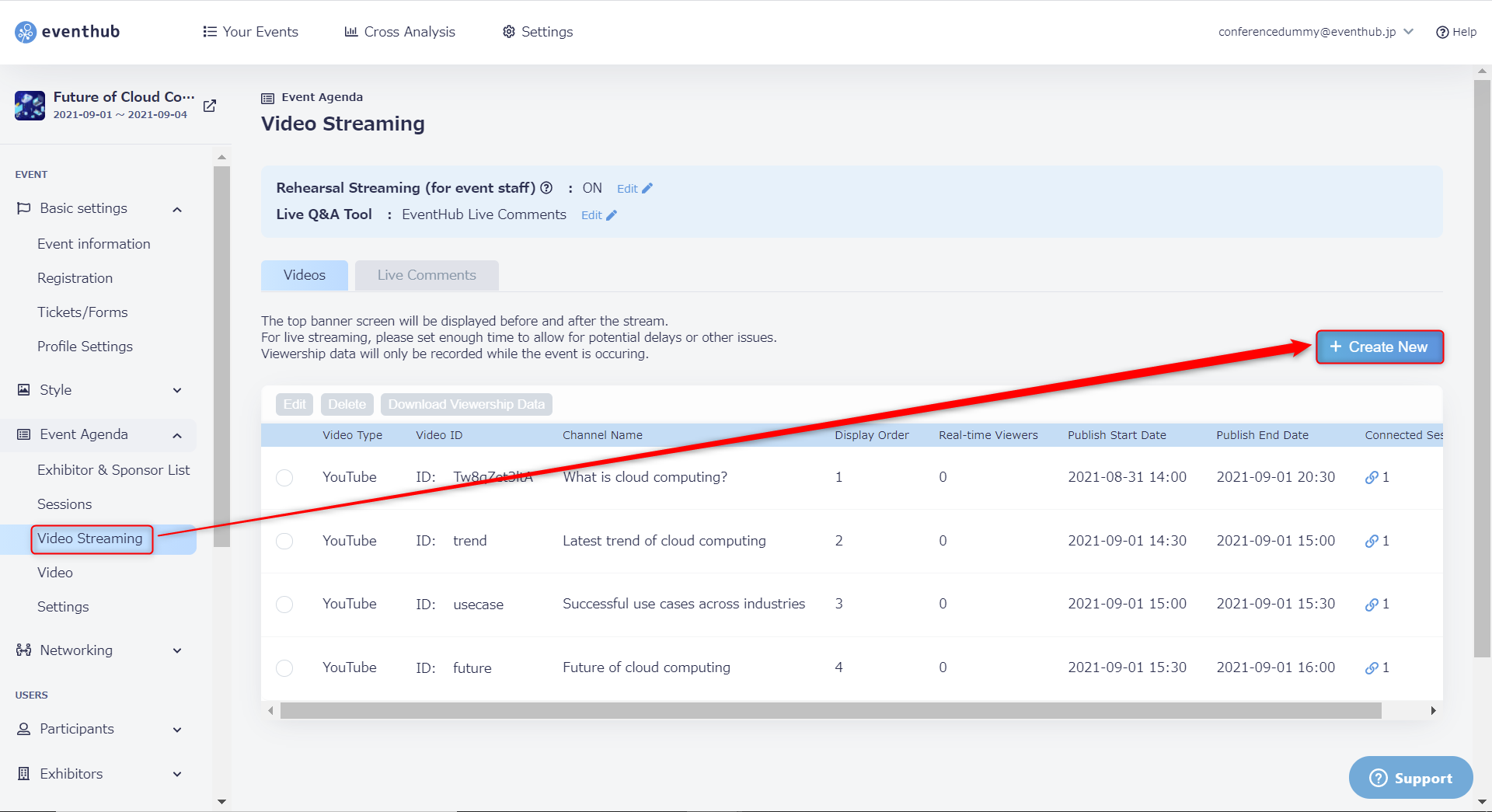
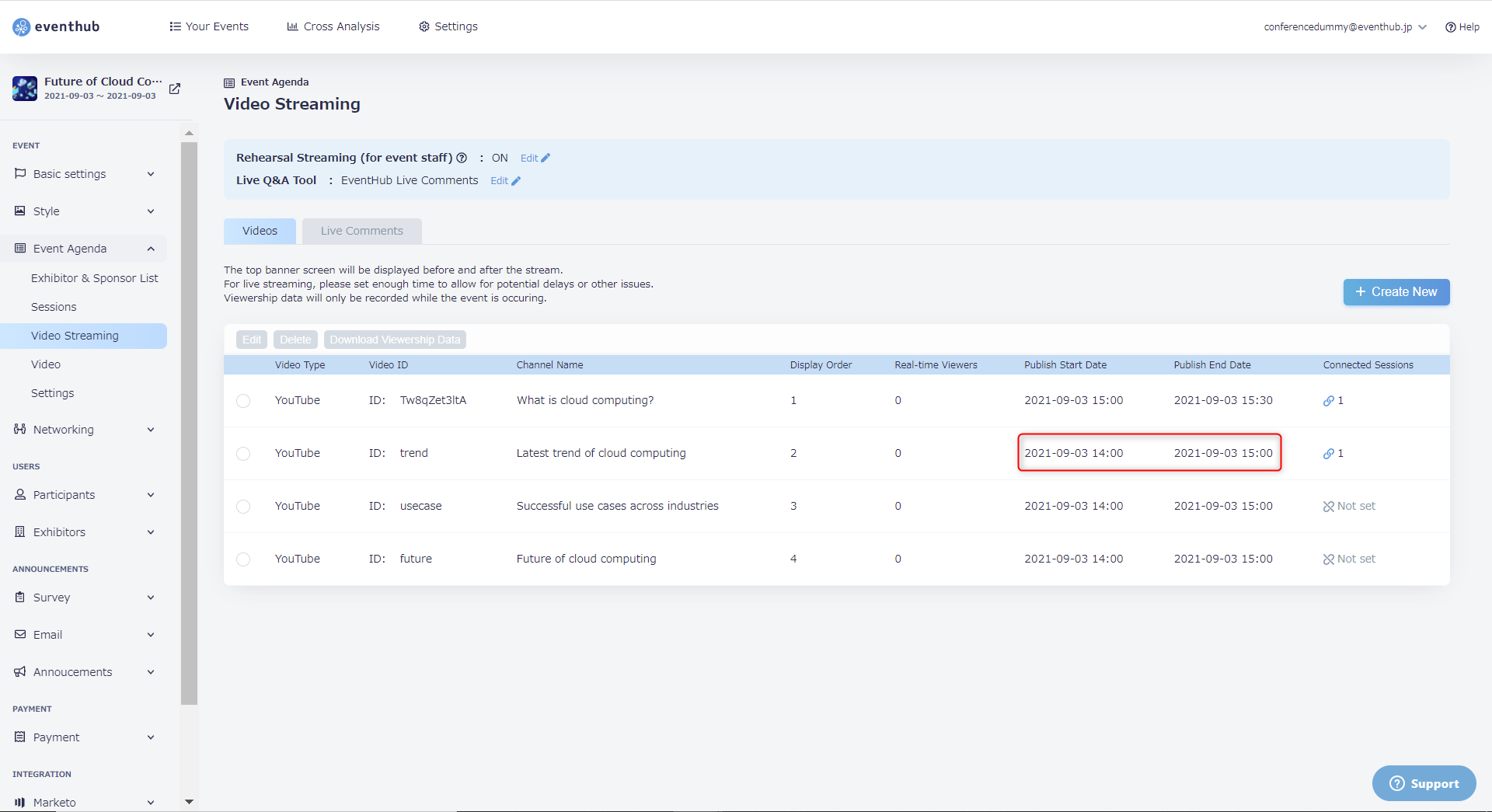
1. Under 'Event Agenda' > 'Video Streaming', click on 'Create New'.
2. Choose your 'Video Type'. and enter the video ID that you copied earlier. After entering all of the required information, click 'OK' to save your settings.
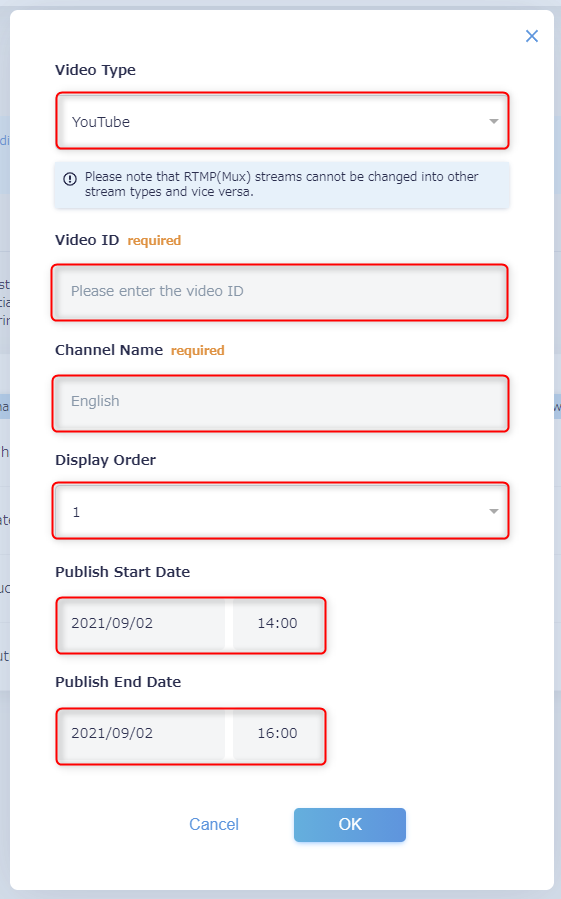
- Video Type: please choose "YouTube"
- Youtube Video ID: Enter the final section of the video URL. For example, if your video URL is https://youtu.be/g7sxg_a0sD4, your video ID will be "g7sxg_a0sD4"
- Channel Name: Participants will be able to switch through channels on the main event page.
- Display Order: The order in it will be displayed on the channel list.
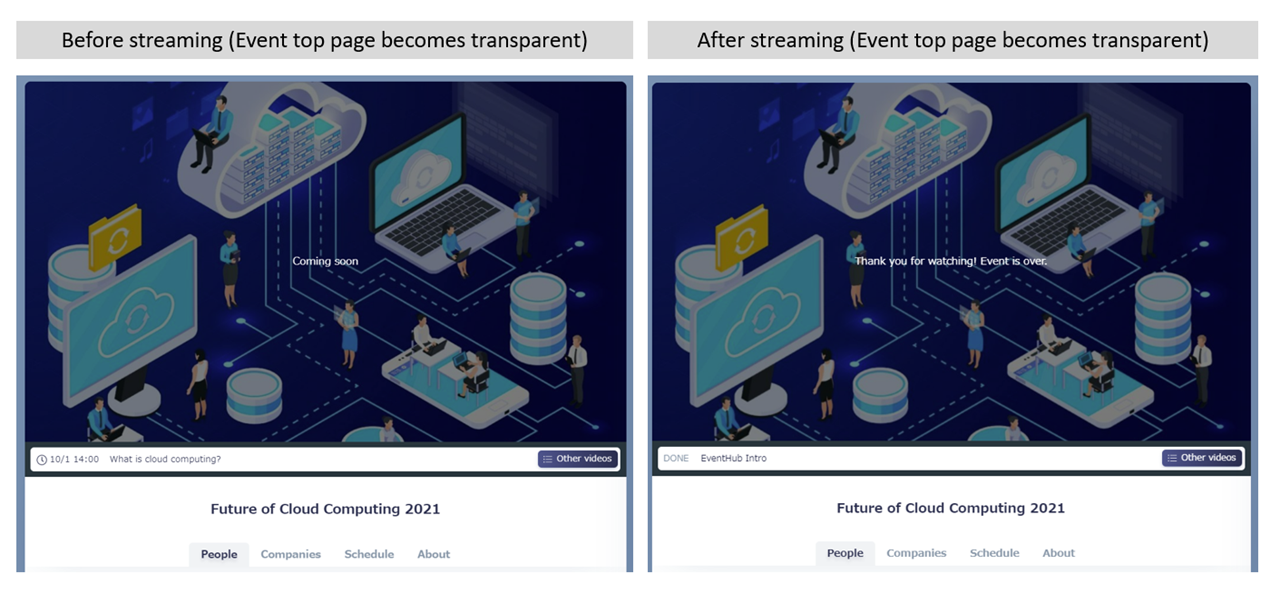
- Publish Start Date: Choose when the video will become visible on the event page (before the start date, "Coming Soon" will be shown in place of the video).
- Publish End Date: Choose when the video will no longer be visible on the event page (after streaming has ended, participants will see a message stating "Thank you for watching").
▼ Clicking on 'Other videos' will show titles of other sessions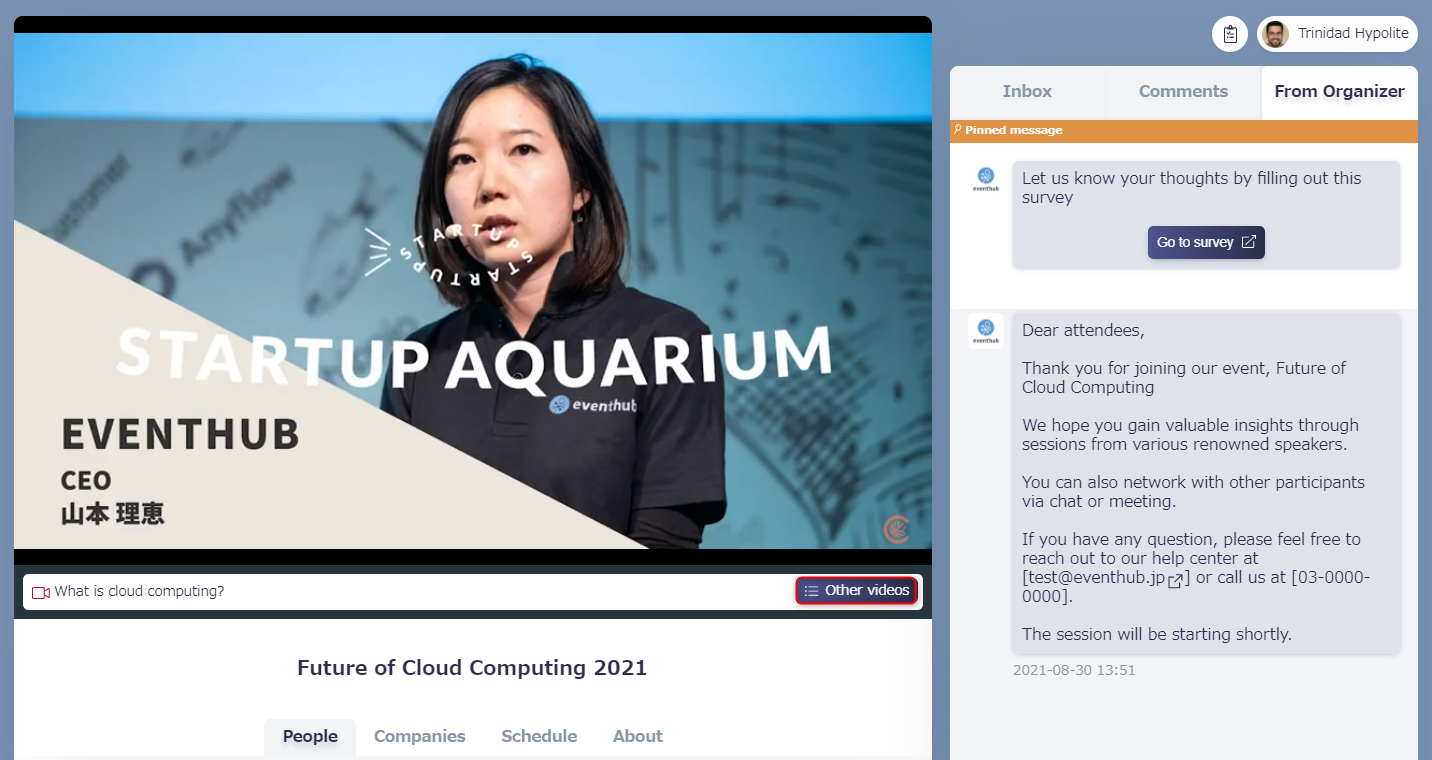
4. Start live streaming
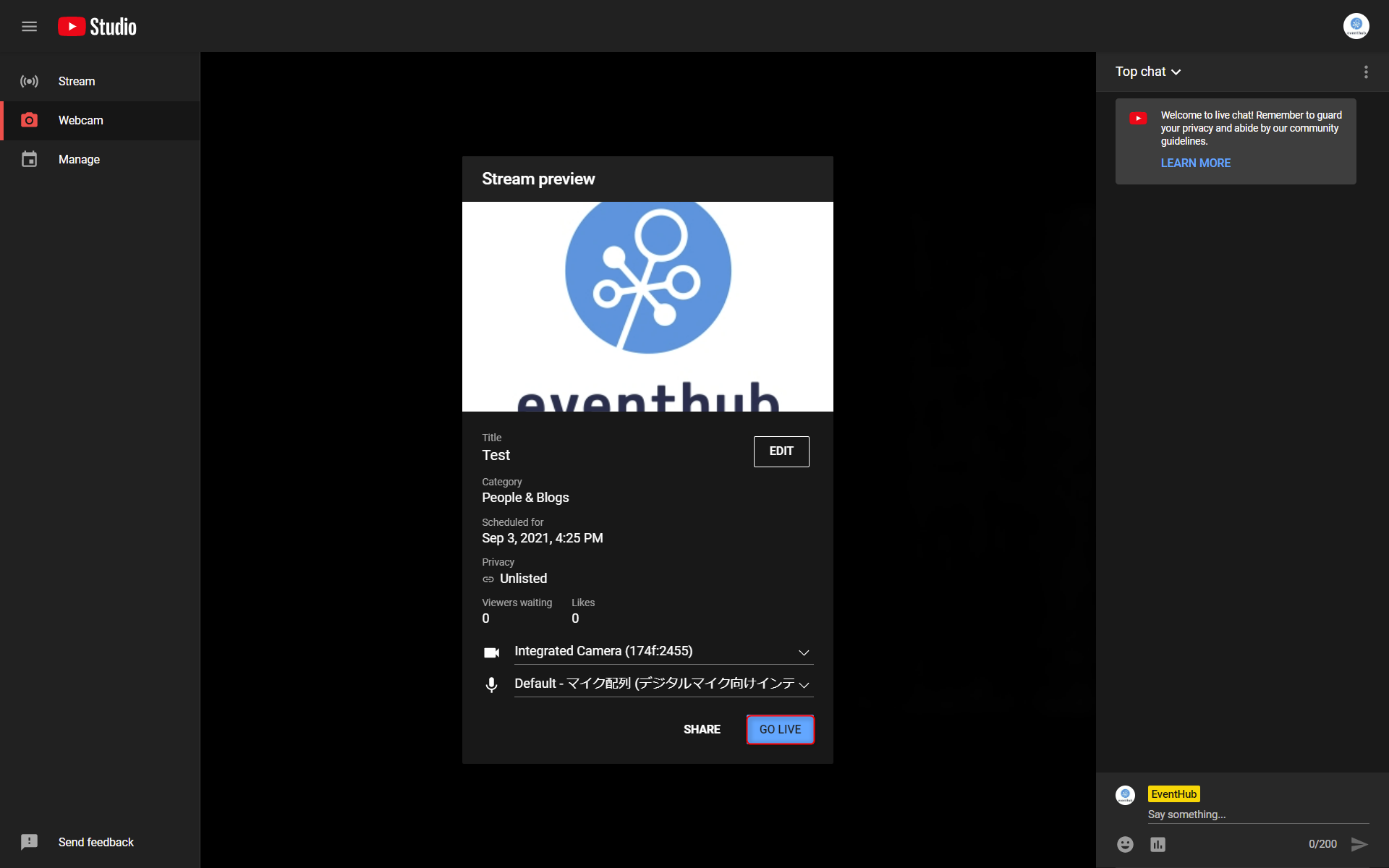
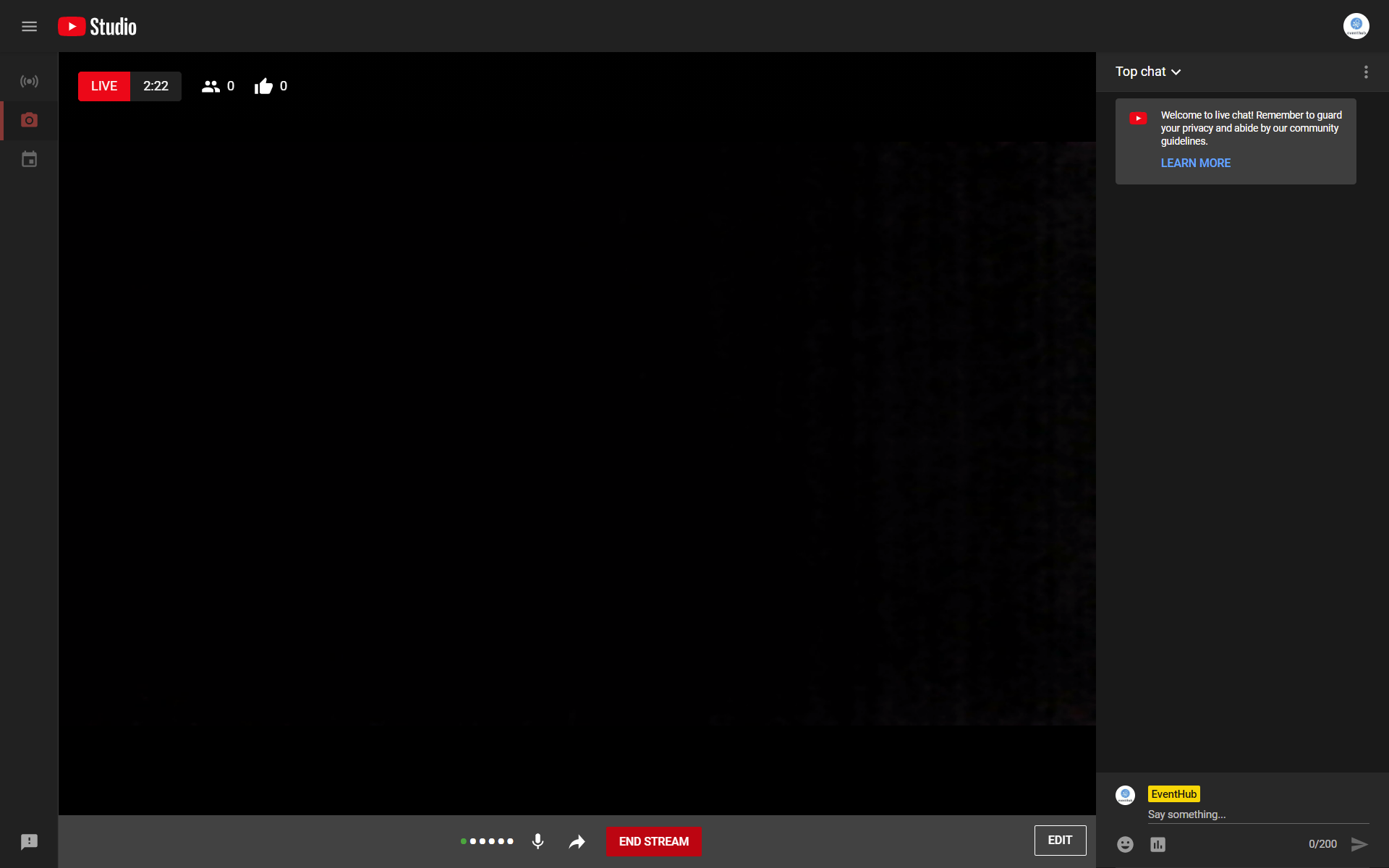
1. Return to the YouTube video, and select Go Live. Your live stream will begin.
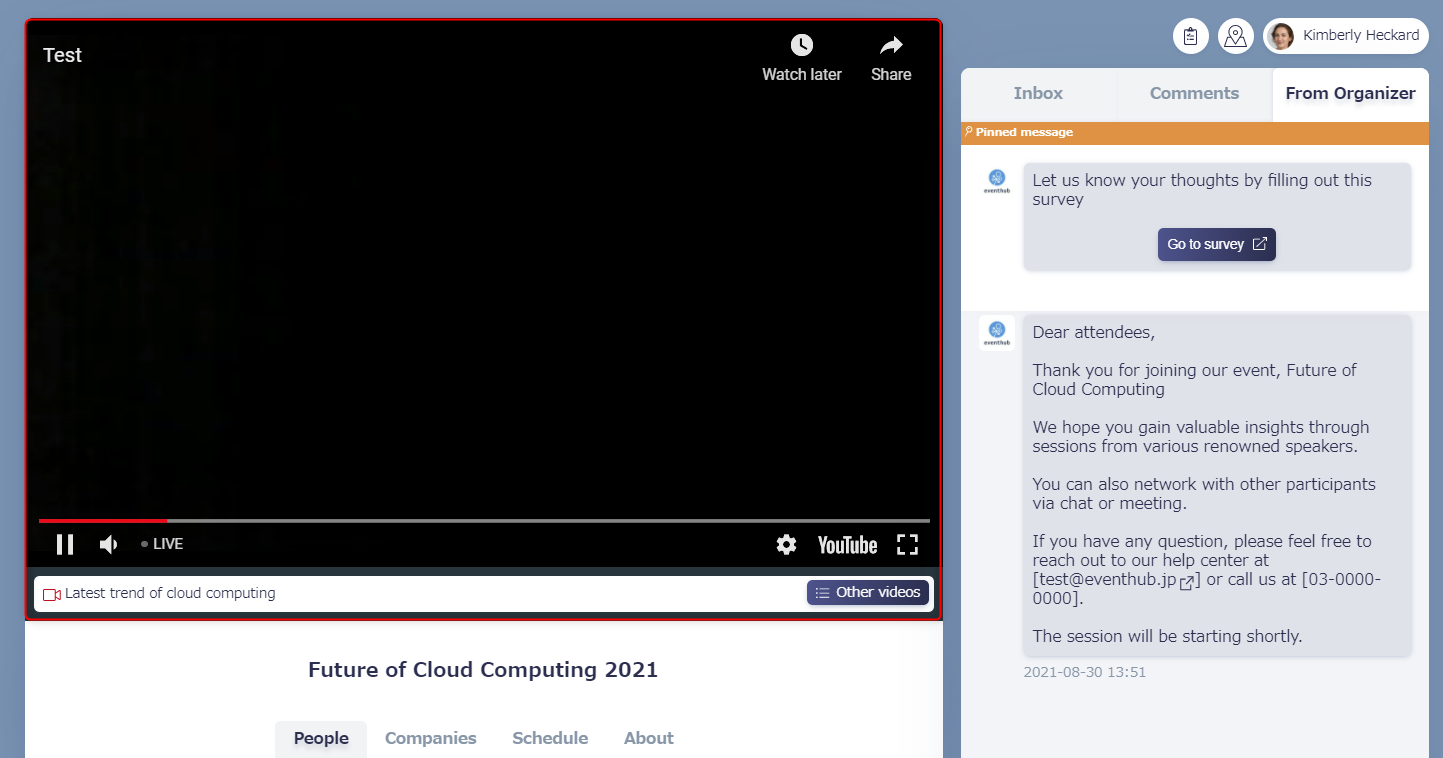
On EventHub, your video will only be streamed on the event page during the window of time you have set.
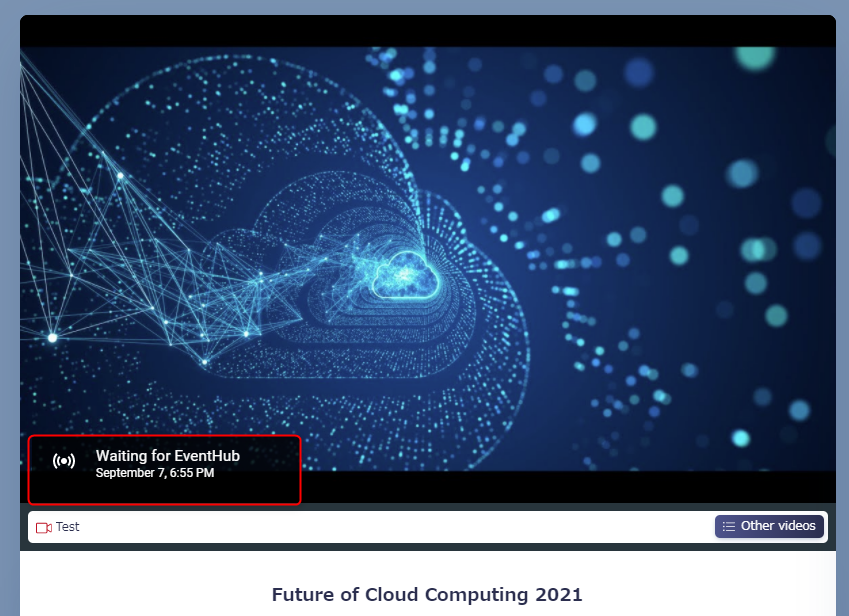
If streaming begins after the set publish start date and time, the video thumbnail will be displayed and participants will see a message stating "Waiting for {YouTube_account_name}".
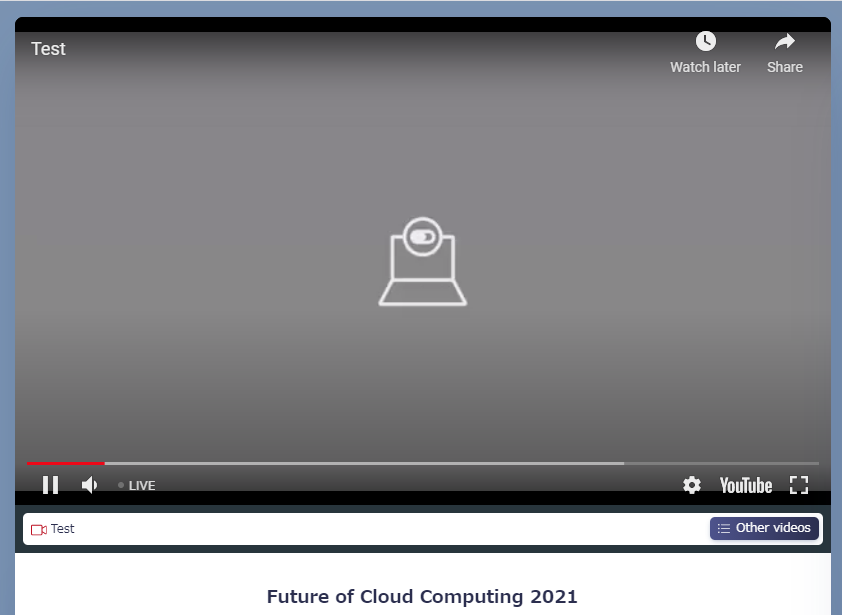
If live streaming ends before the set publish end date and time, viewer history and suggested videos will be shown. Please note that due to YouTube's requirements, suggested videos cannot be switched off. If a user refreshes their browser, the video will be paused. By clicking on the play button, the stream will start again.
Streaming will end at the exact time you set the Publish end date, so we recommend leaving some extra time at the end to be safe.
5. Other points to note
- Our recommended video aspect ratio for both Youtube and Vimeo is wide (16:9).
- You can stream up to about 10 videos simultaneously from the same account. If you would like to stream more than 10 videos at the same time, please make sure to test it out beforehand to confirm if your videos can play with no issues.