1. Uploading a video on YouTube
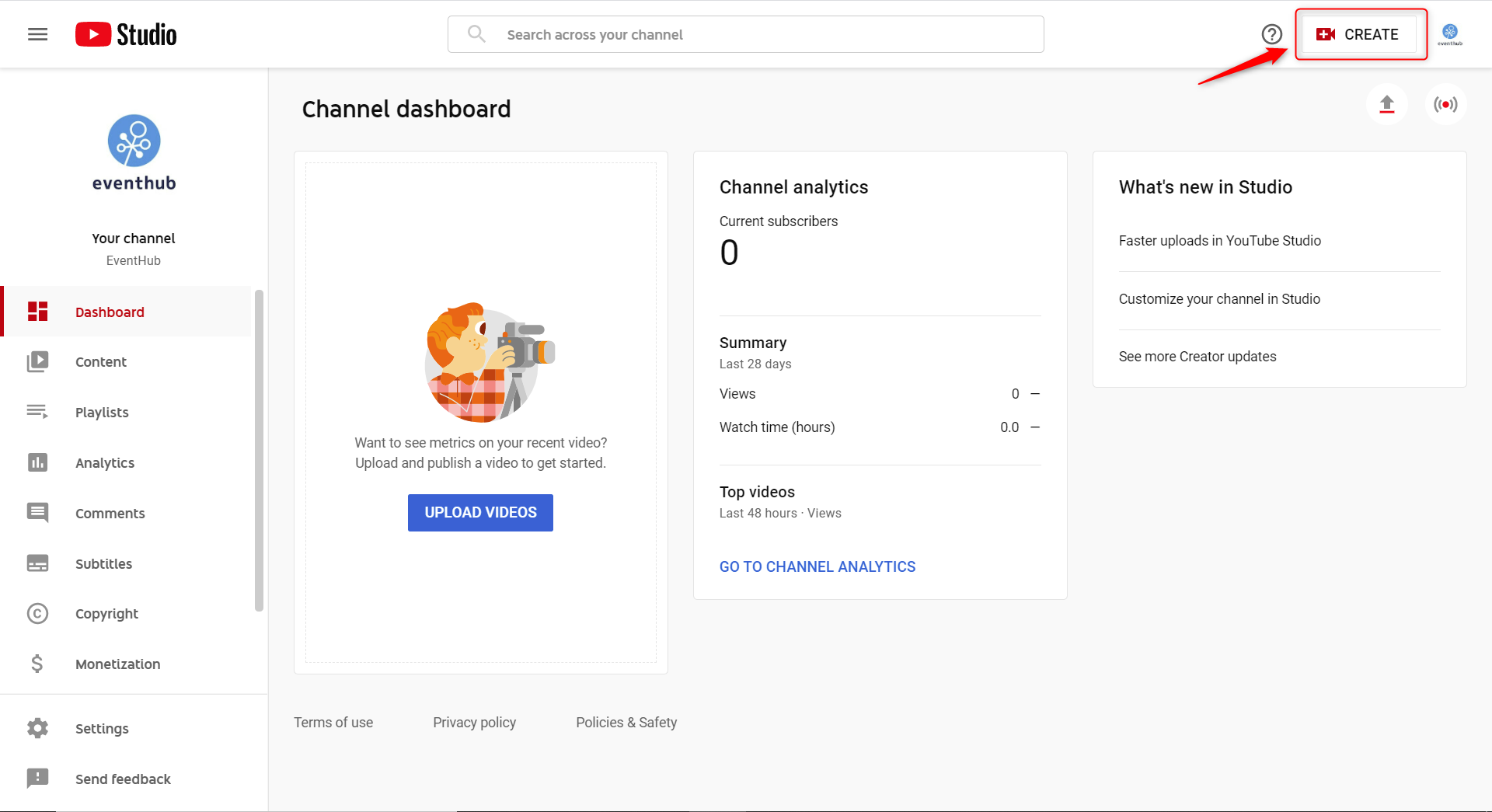
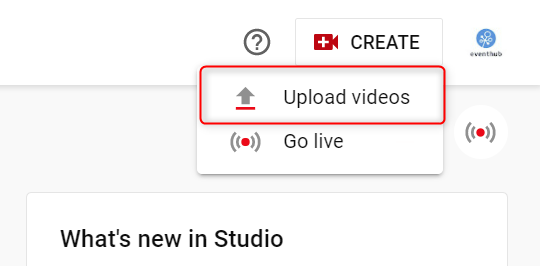
1. On the YouTube Studio, click on 'Create' > 'Upload videos' in the top right of the screen.
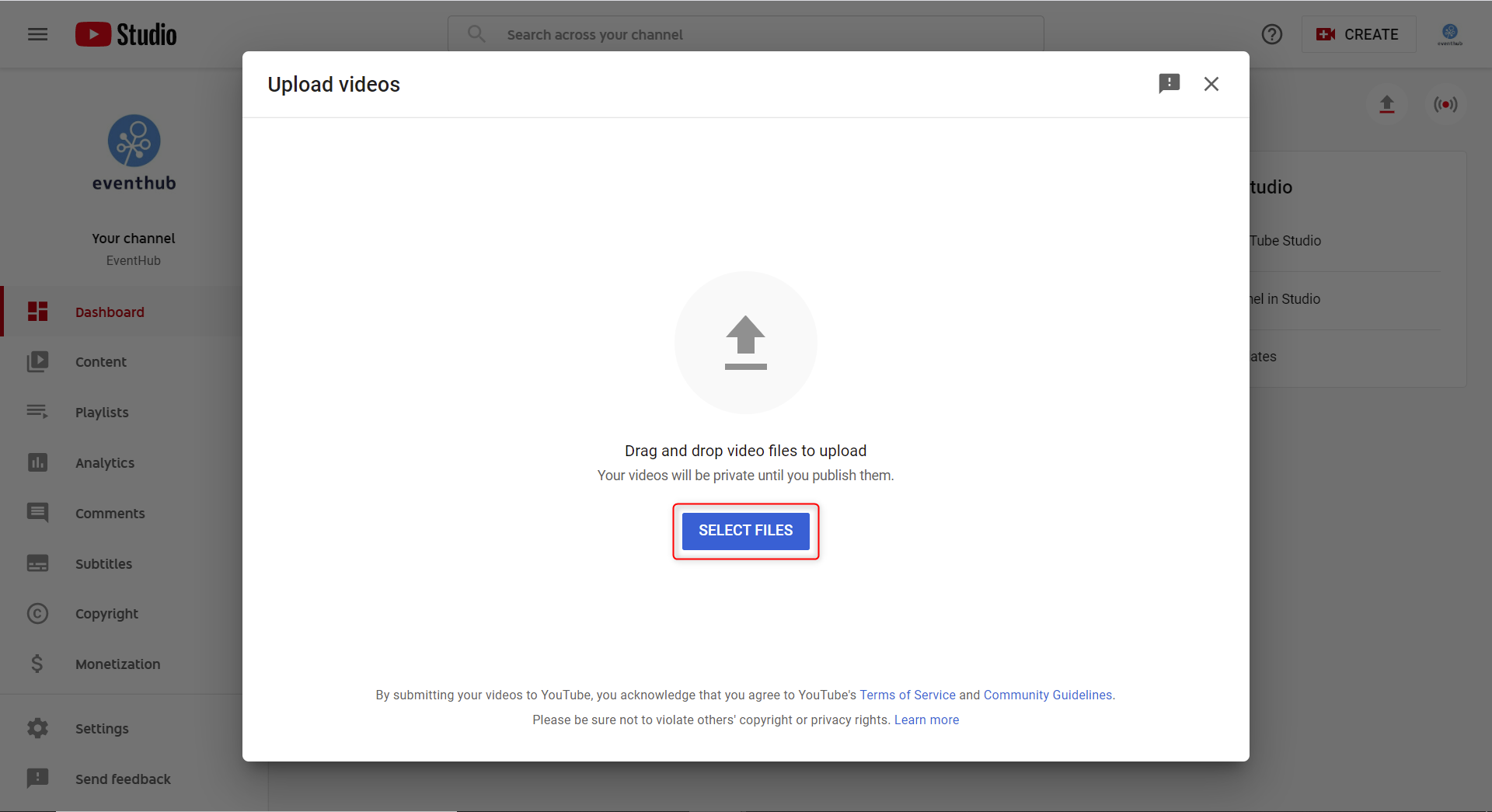
2. Click on 'Select Files' and choose the video you wish to upload.
3. Fill in the required information:
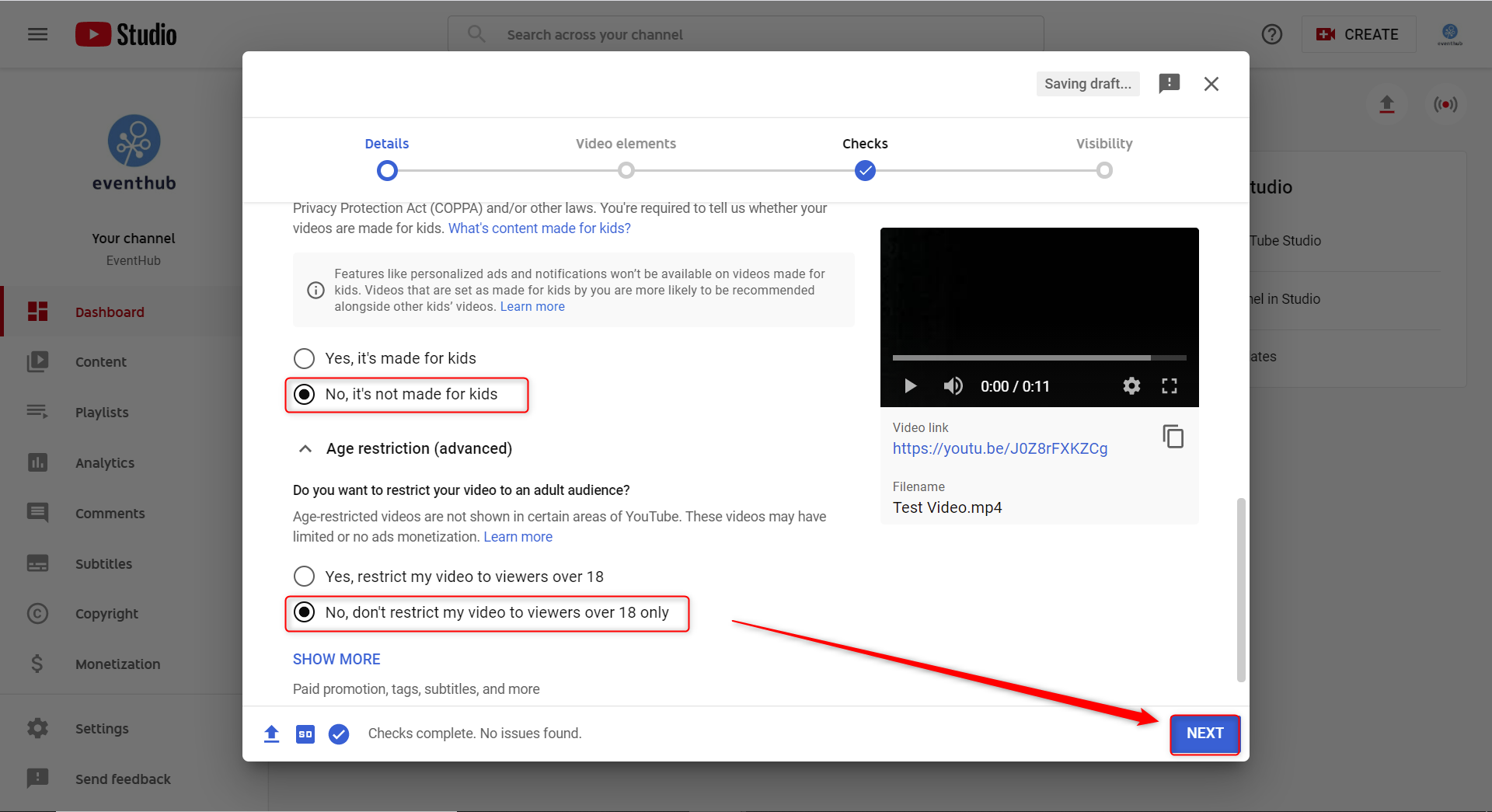
- Title: Enter the name of the session or event. This name will be shown on the top left of the stream
- Privacy: Please choose unlisted.
- Audience: Please select "No, it's not made for kids".
- Age restrictions: Please select "No, don't restrict my video to viewers over 18 only" and then click 'Next' to continue.
4. You don't have to set anything for Video elements and Checks, so please skip through these by clicking Next.
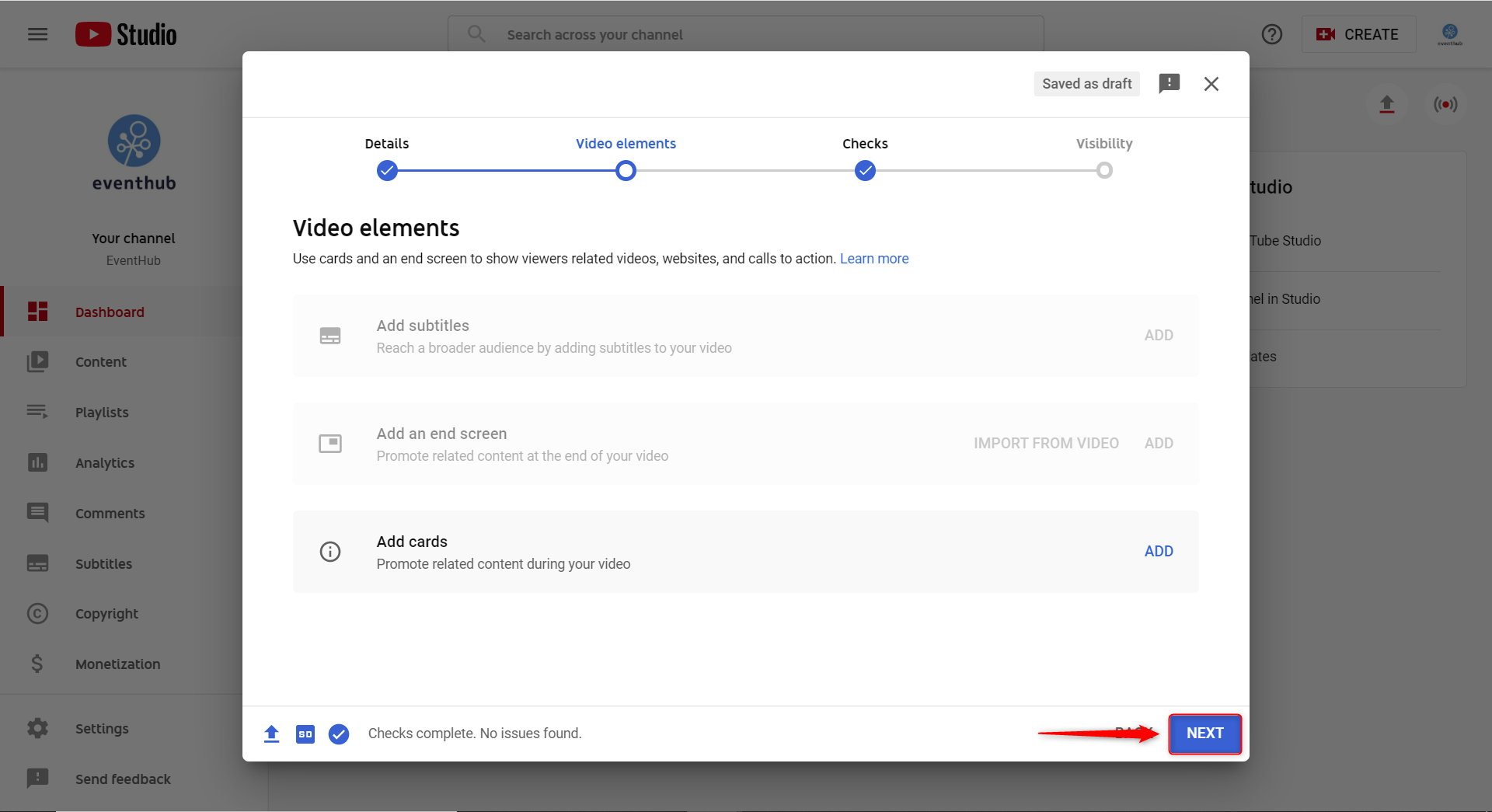
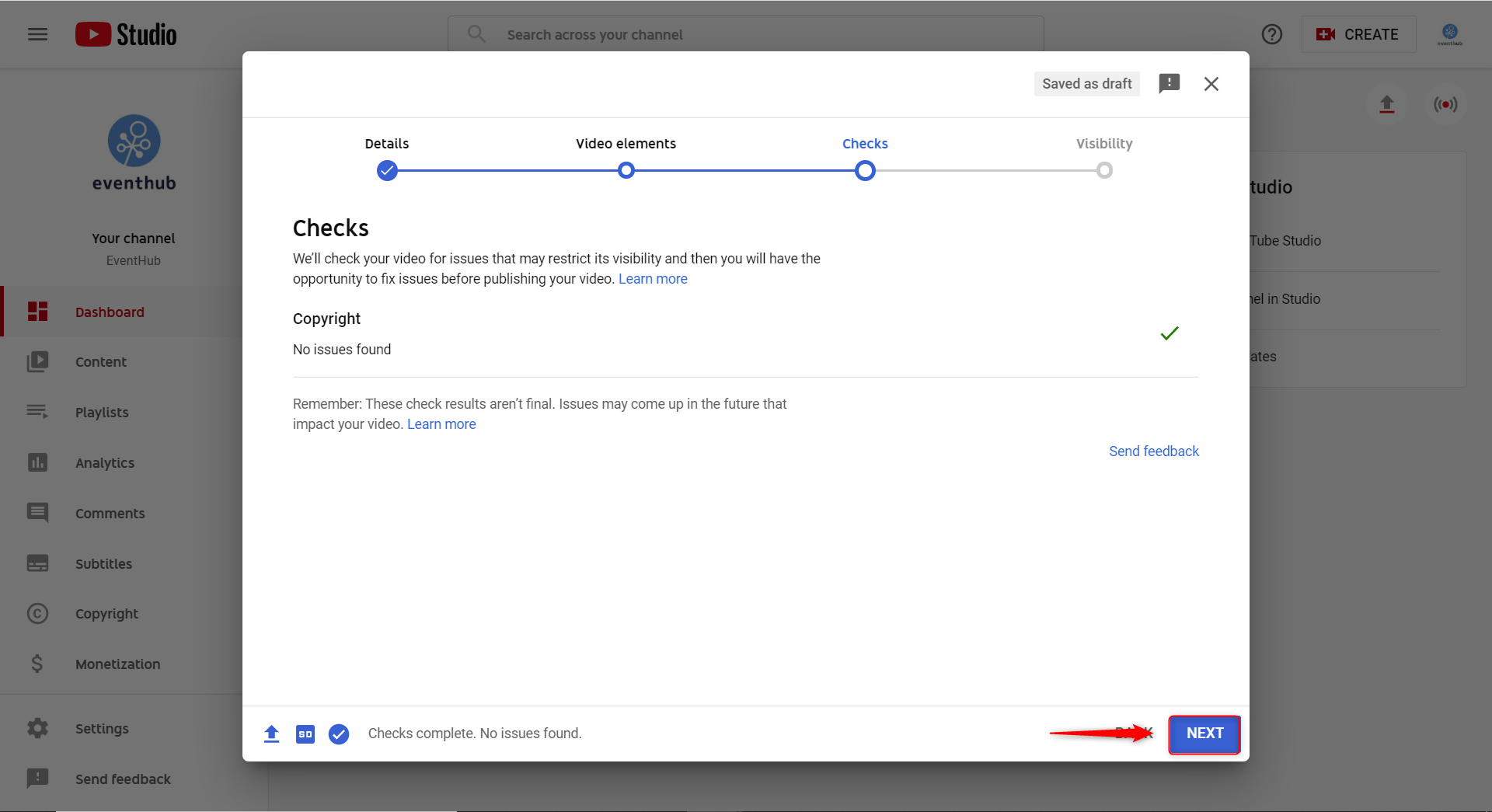
5. Choose Unlisted under Visibility and then click Save.
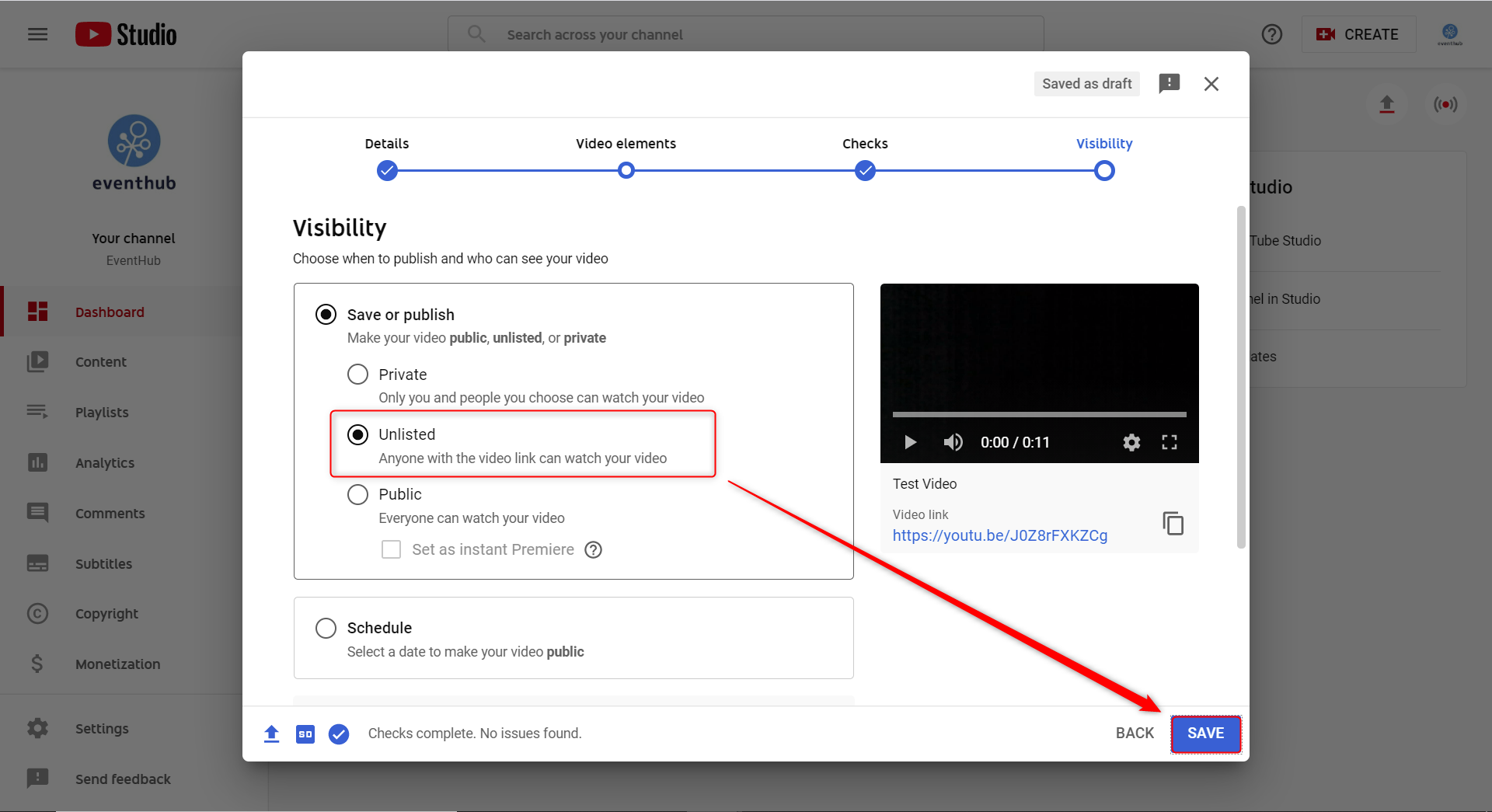
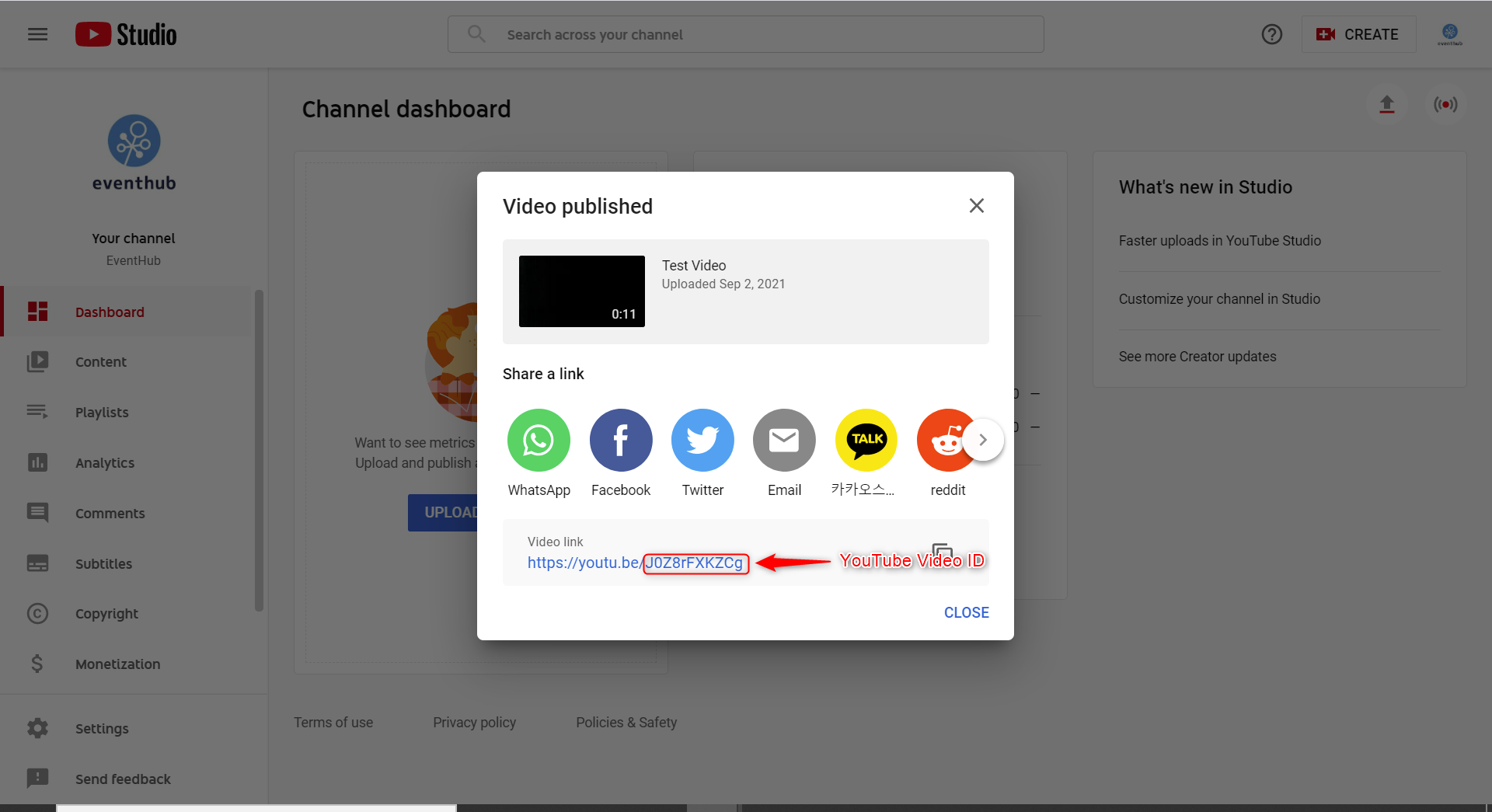
6. The code at the end of the video link is the Video ID. You will use this later to connect with EventHub, so please copy the URL.
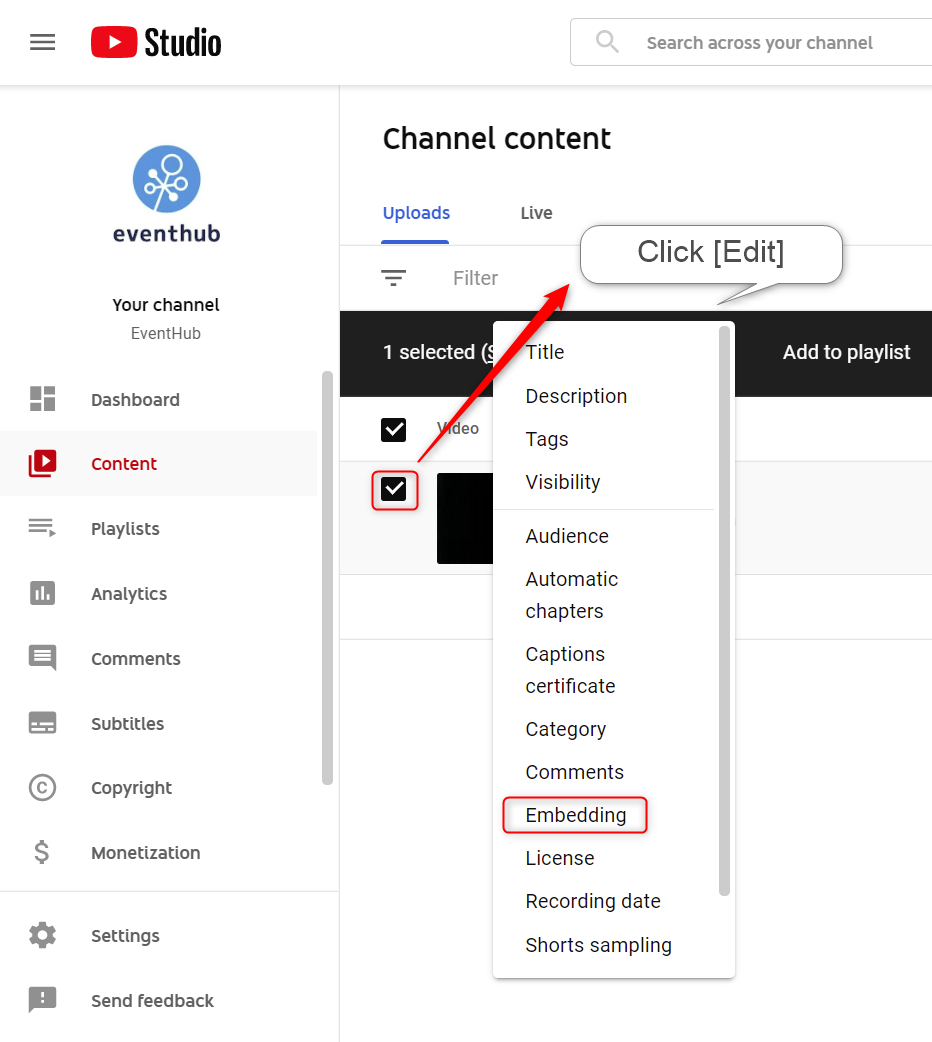
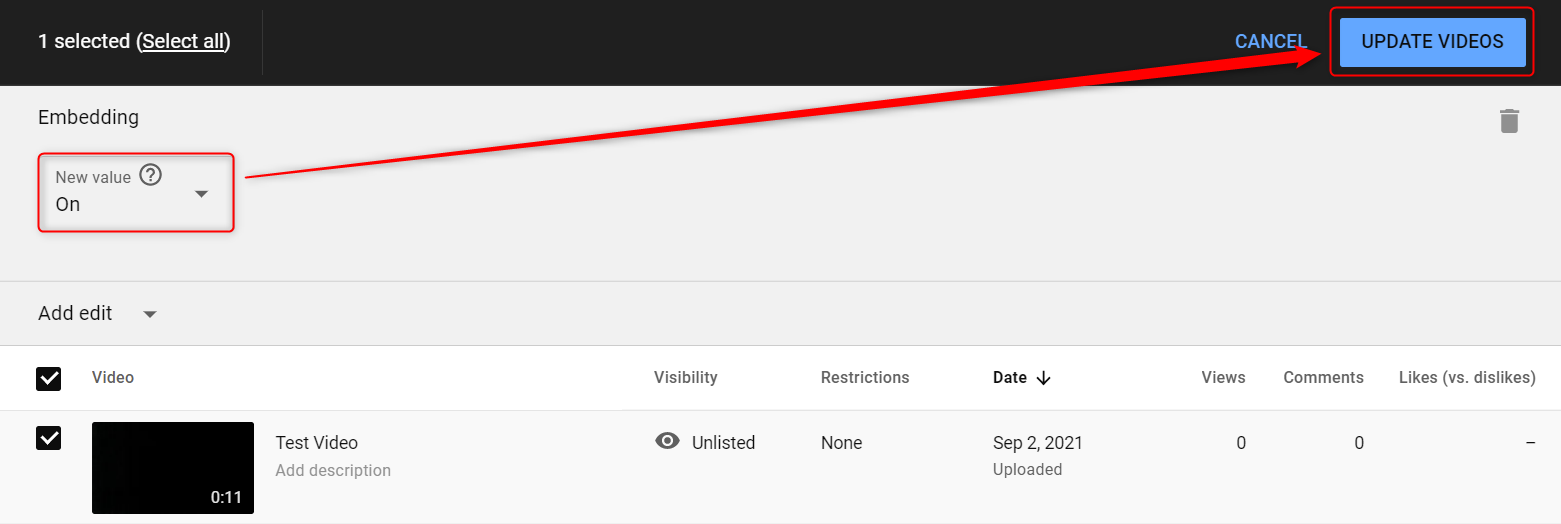
<attention> Please ensure that embedding is enabled on YouTube for the video you wish to upload.
To change your video permissions to allow embedding, please follow these steps on YouTube:
YouTube Studio > Content > Choose video > Edit > Embedding > On > Update Videos.
You will not be able to stream on EventHub without these settings. </attention>
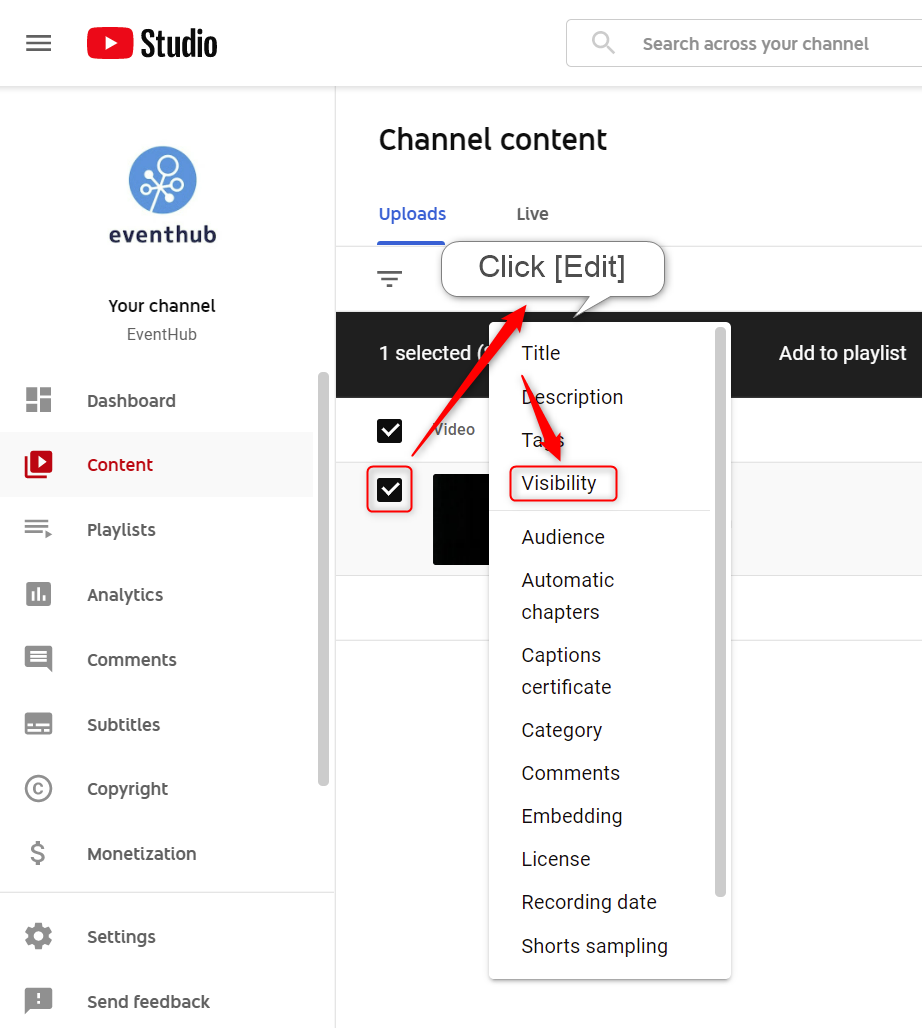
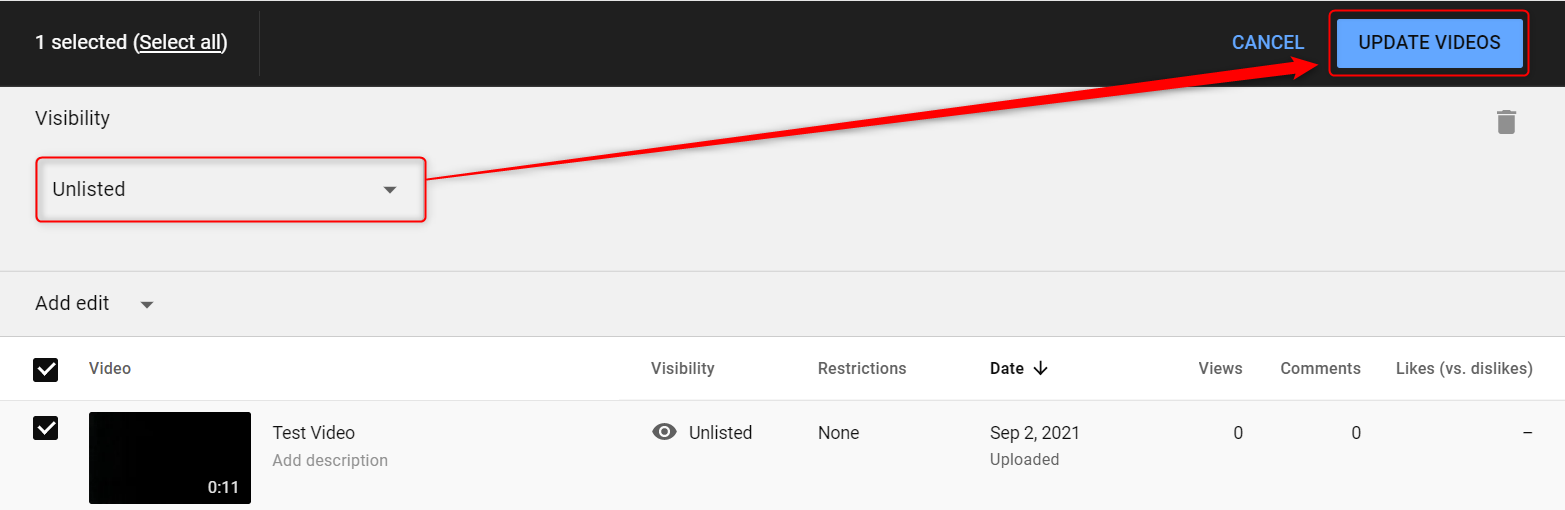
<attention> Double-check the privacy settings of your video
To do this, please follow these steps on YouTube: YouTube Studio > Content > Choose video > Edit > Visibility > Unlisted > Update Videos. If set to Unlisted, Anyone who knows the specific URL of your video will be able to view it, however the video will not appear in a search or on YouTube listings. If your video is set to 'private', you will not be able to embed it, so please avoid this. </attention>
2. Connecting with EventHub
1. Under 'Event Agenda' > 'Video Streaming', click on 'Create New'.
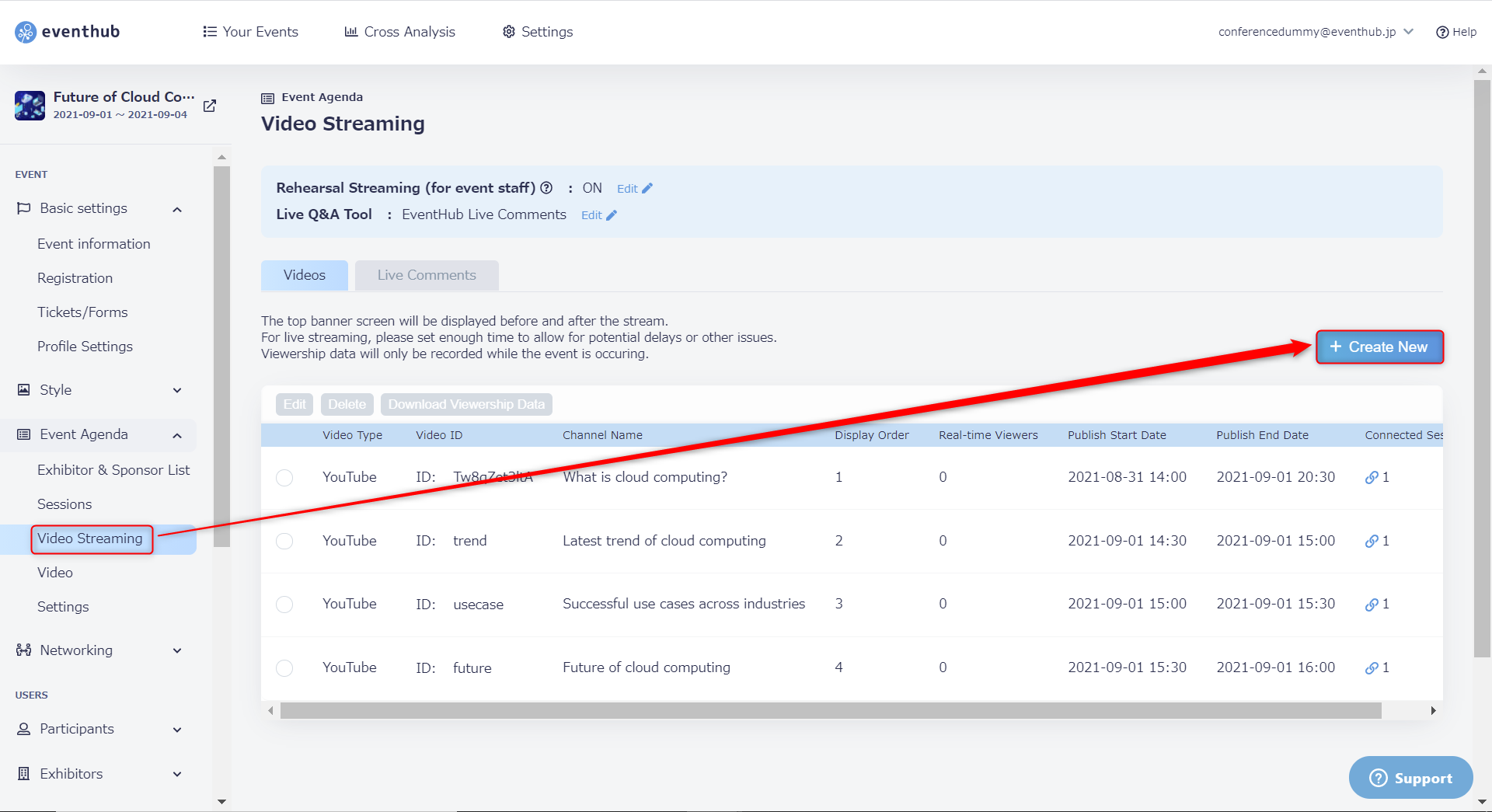
2. Choose your 'Video Type'. and enter the video ID that you copied earlier. After entering all of the required information, click 'OK' to save your settings.
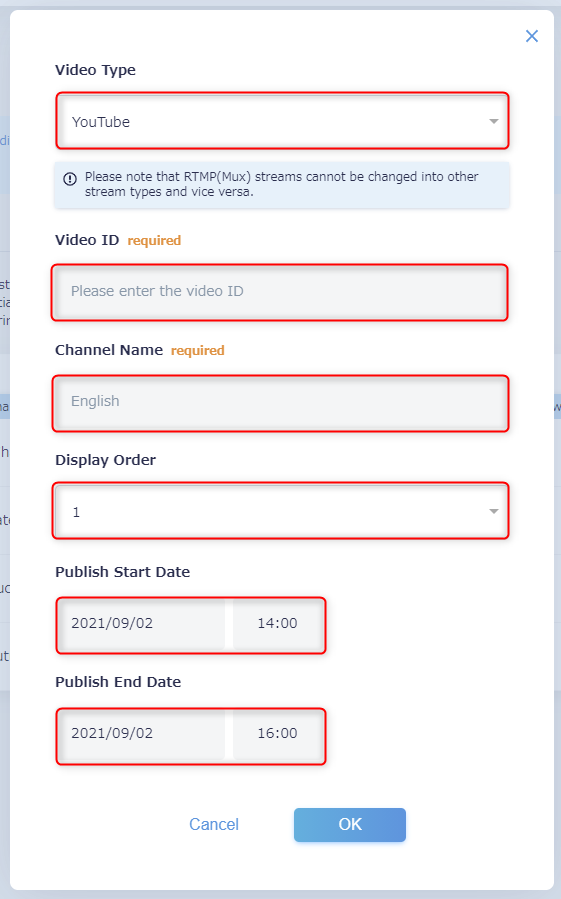
- Video Type: please choose "YouTube"
- YouTube Video ID:Enter the final section of the video URL. For example, if your video URL is
- https://youtu.be/g7sxg_a0sD4, your video ID will be "g7sxg_a0sD4"
- Channel Name: Participants will be able to switch through channels on the main event page.
- Display Order: The order in it will be displayed on the channel list
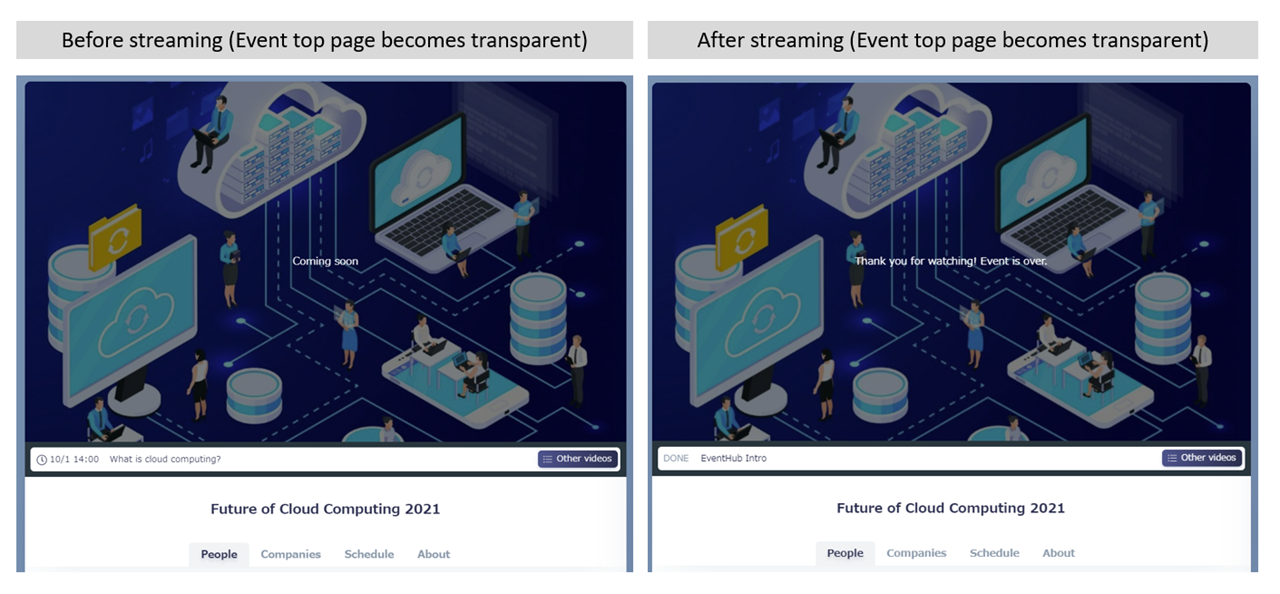
- Publish Start Date: Choose when the video will become visible on the event page (before the start date, "Coming Soon" will be shown in place of the video).
- Publish End Date: Choose when the video will no longer be visible on the event page (after streaming has ended, participants will see a message stating "Thank you for watching").
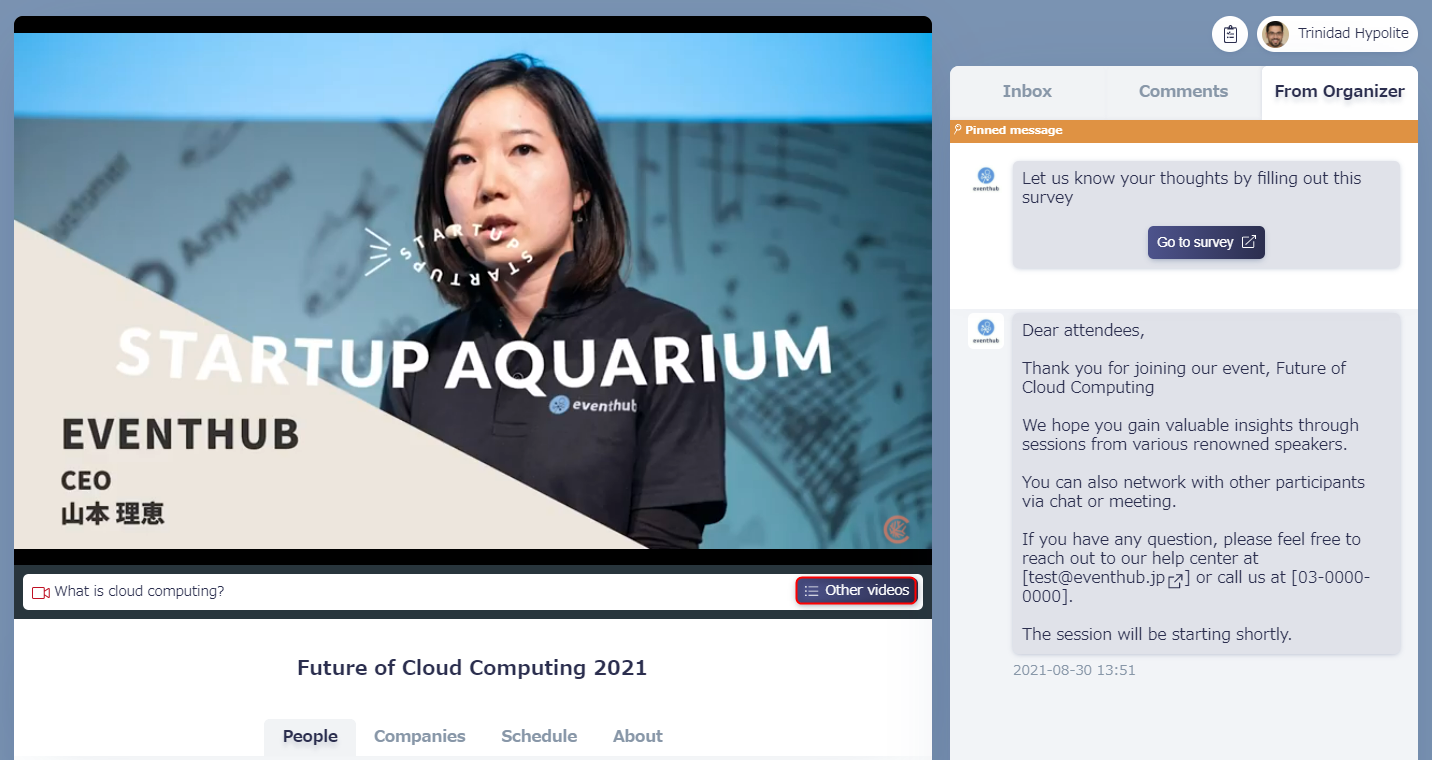
▼ Clicking on Other videos will show the list and titles of other sessions.
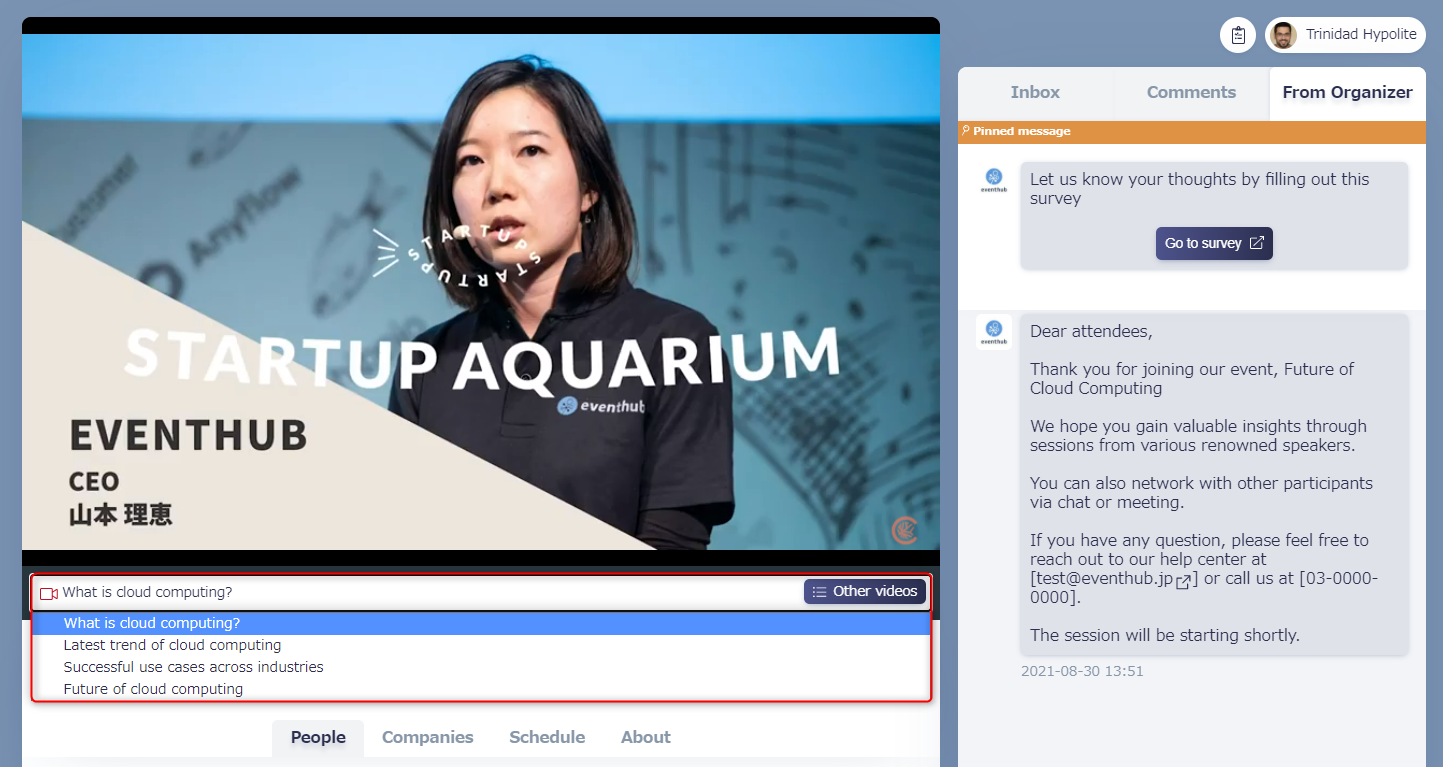
3. You can check that your video has been added successfully by clicking on 'Other videos' on the event page and checking for the video you have set from the pulldown menu.
- Our recommended video aspect ratio for both Youtube and Vimeo is wide (16:9).