The local time zone (JST, EST, etc.) will be displayed for schedules and appointments.
However, please note that for the cases mentioned below, UTC/GMT will be displayed:
- If you are using Internet Explorer as your browser, UTC will always be displayed. ex) UTC+9
- If you have changed the time zone or language settings on your device and the settings do not match your actual location, the time zone will be displayed in GMT. ex) GMT+9
1. Displayed areas
・Sessions
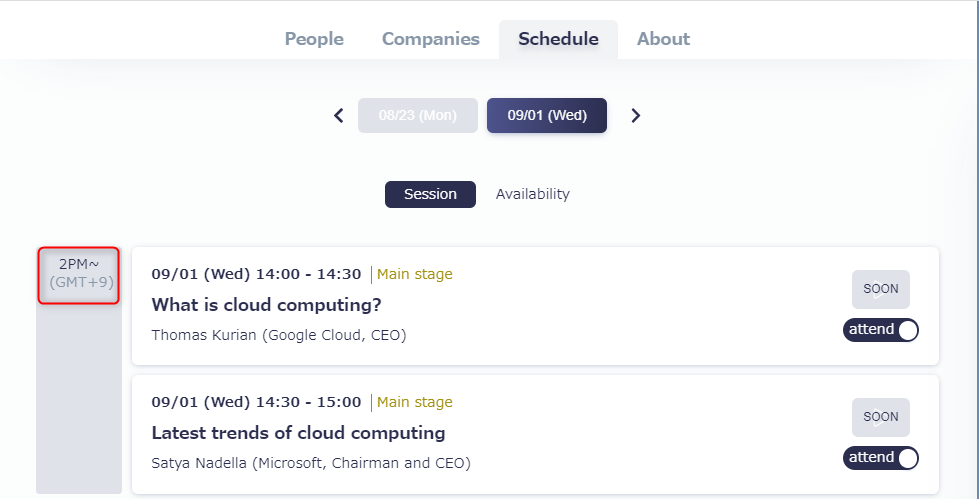
・Profile & Schedule
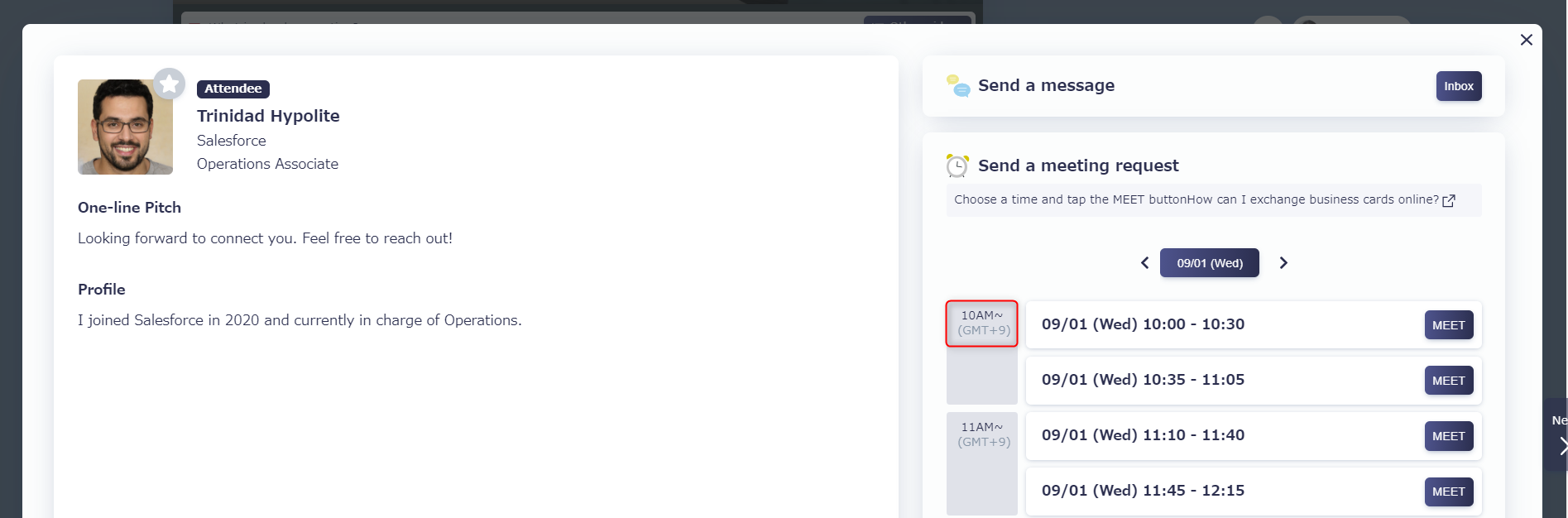
・Appointments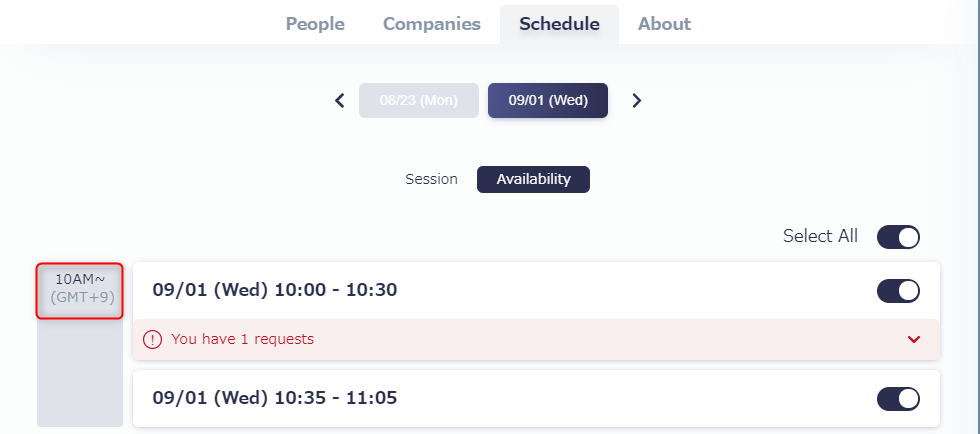
・Requested times within chat messages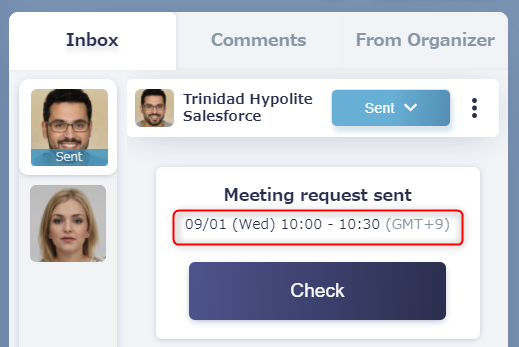
In addition, the time zone will be indicated on chats concerning approval requests, cancel requests, and re-suggested times.
2. How to change time zones
When creating a new event, you can select the organizer's city as the time zone: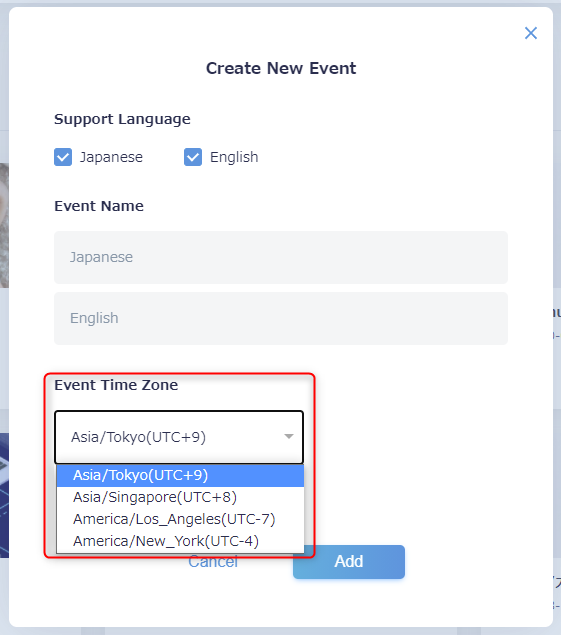
3. Please note:
In general, the local time zone will be displayed. However, for the following items either UTC or the organizer's city's time zone that was set when the event was created will be displayed.
・Analytics > Daily Report > Date - UTC
・Analytics > Matching Status > Meeting Date/Time - Host's time zone
・Analytics > Matching Room Usage - Host's time zone
If you live in a country with a regional time difference, the time zone of your device will automatically be displayed.