We recommend using EventHub's survey feature in order to collect opinions and feedback on how your event went. The result of the survey will be automatically linked with the individual participants' information, even if they submit it anonymously. Note that the survey function can only be used until the event closing date and time.
Contents
1. Create a survey
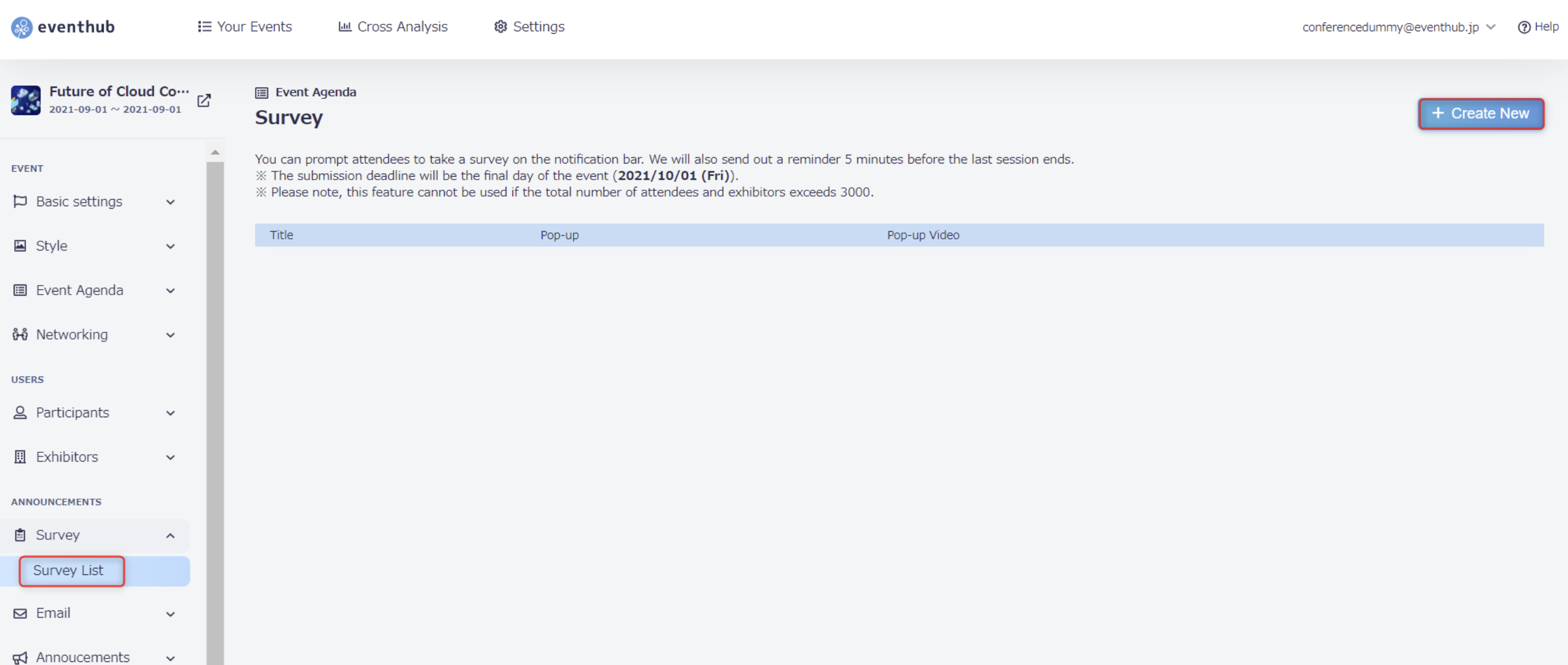
On the admin page, click 'Surveys' > 'Survey List', then click 'Create New'.
You can create multiple surveys and collect information based on participant type. You may edit your survey settings after it has already been created and distributed. However, please note that if you do delete a survey or a survey field, all of its corresponding answers will also deleted. The deadline for participants to submit surveys will be set to the date and time the event closes.
Fill in the following: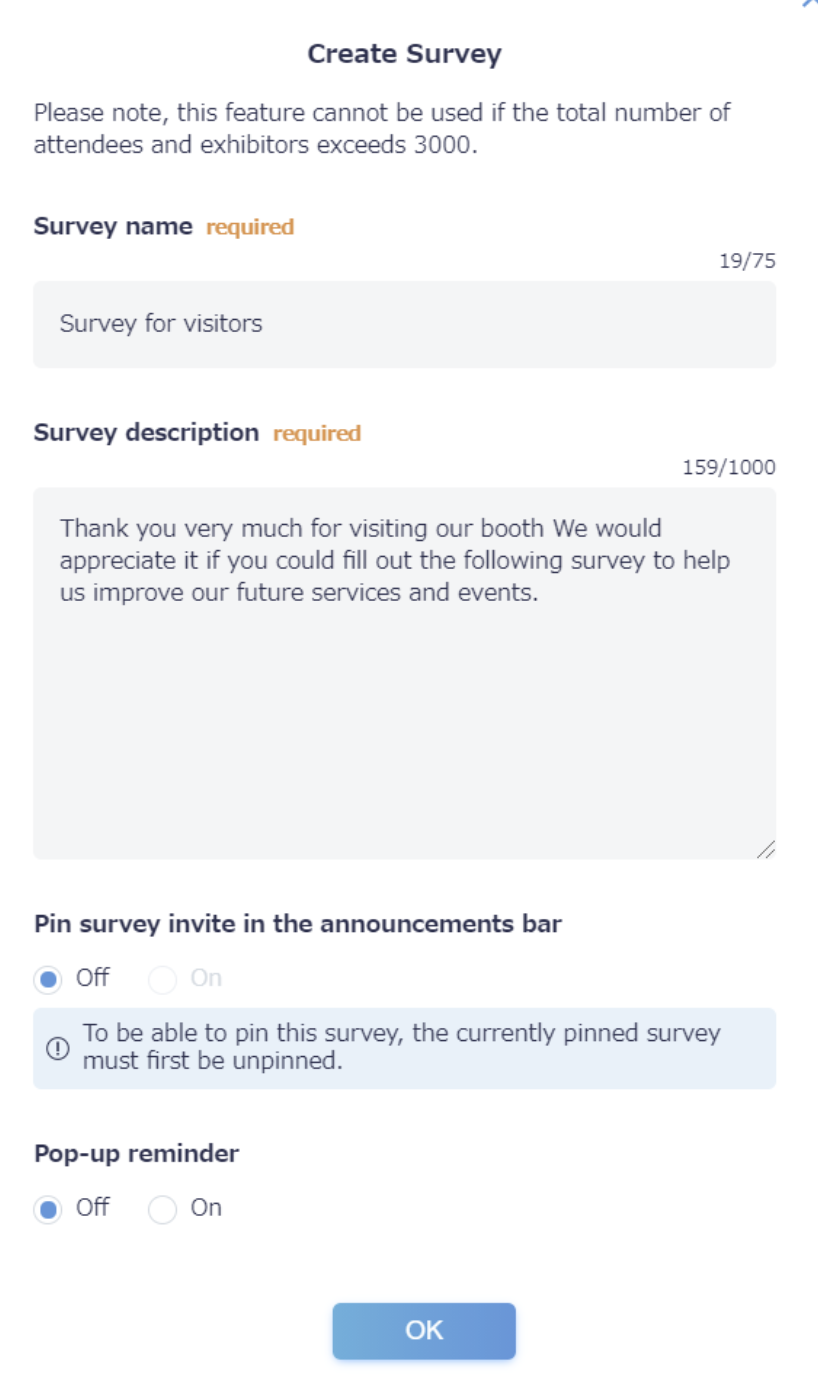
| Fileds | Details |
| Survey name | 50 characters maximum |
| Survey description | 500 characters maximum |
|
Pin survey invite in the announcements bar |
on/off |
|
Pop-up reminder |
on/off |
<attention>You cannot create multiple surveys with the same name.</attention>
Now that your survey has been created, click on 'Create New' to add a question field.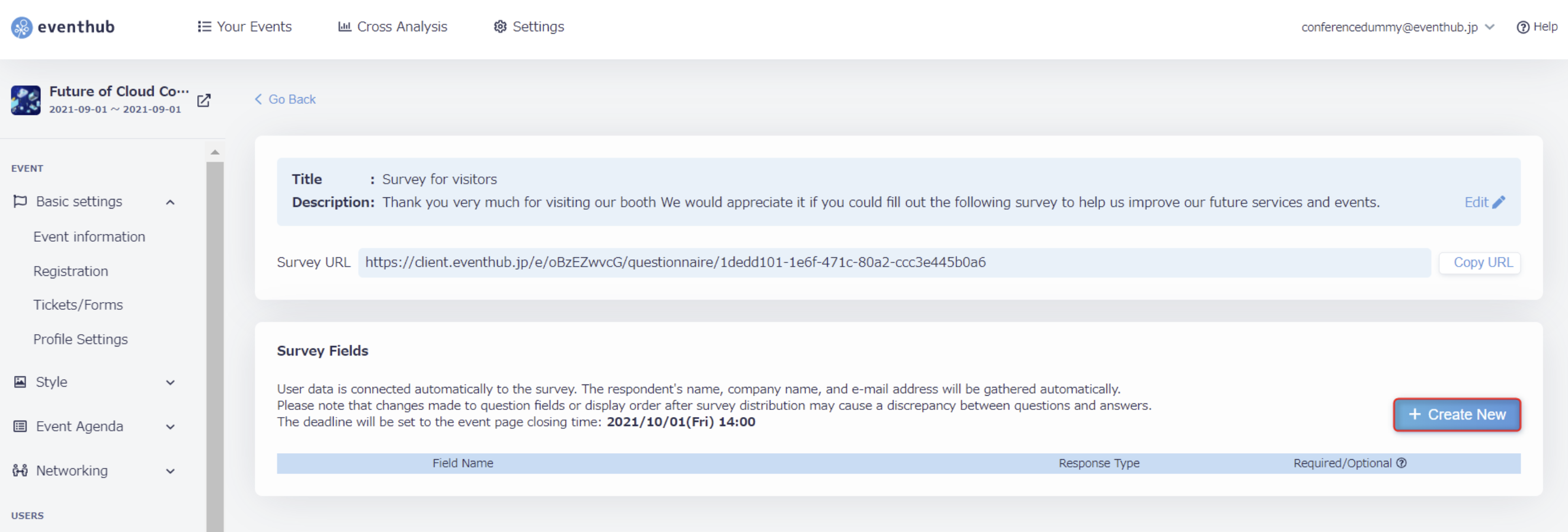
You can create up to 30 fields, each with up to 30 separate answer choices each. You don't need to ask for personal information (such as name, email address, etc.) as the survey's response will be linked automatically with the participant's registered information.
Fill in the following: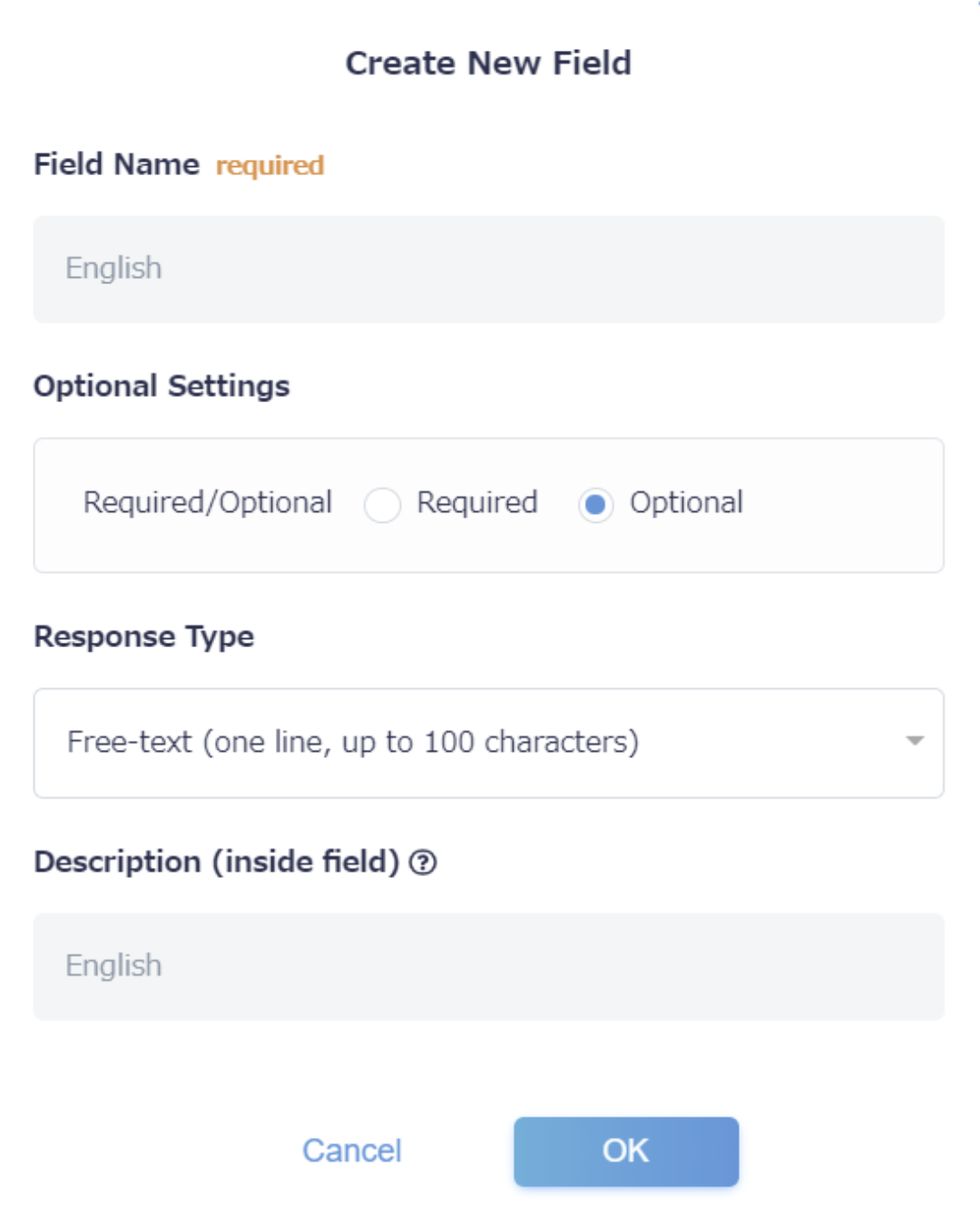
| Fileds | Details |
| Field name | 35 characters maximum |
| Optional settings | Is this a required or optional field? |
| Response type | - Free text (one line, up to 100 characters). - Free-text (multiple rows, up to 2000 characters). - Checkbox (multiple-choice, up to 100 characters). - Pulldown (single-choice, up to 100 characters). - Radio button (single-choice, up to 100 characters). |
| Description (inside field) | A descriptive text that will be displayed inside the field before the participant answers. This text is limited to 255 characters. |
<attention>The response type cannot be changed once created.</attention>
2. Share your survey
Once your survey has been created, you can share it with participants by clicking 'Go back' and copying the URL on the survey page.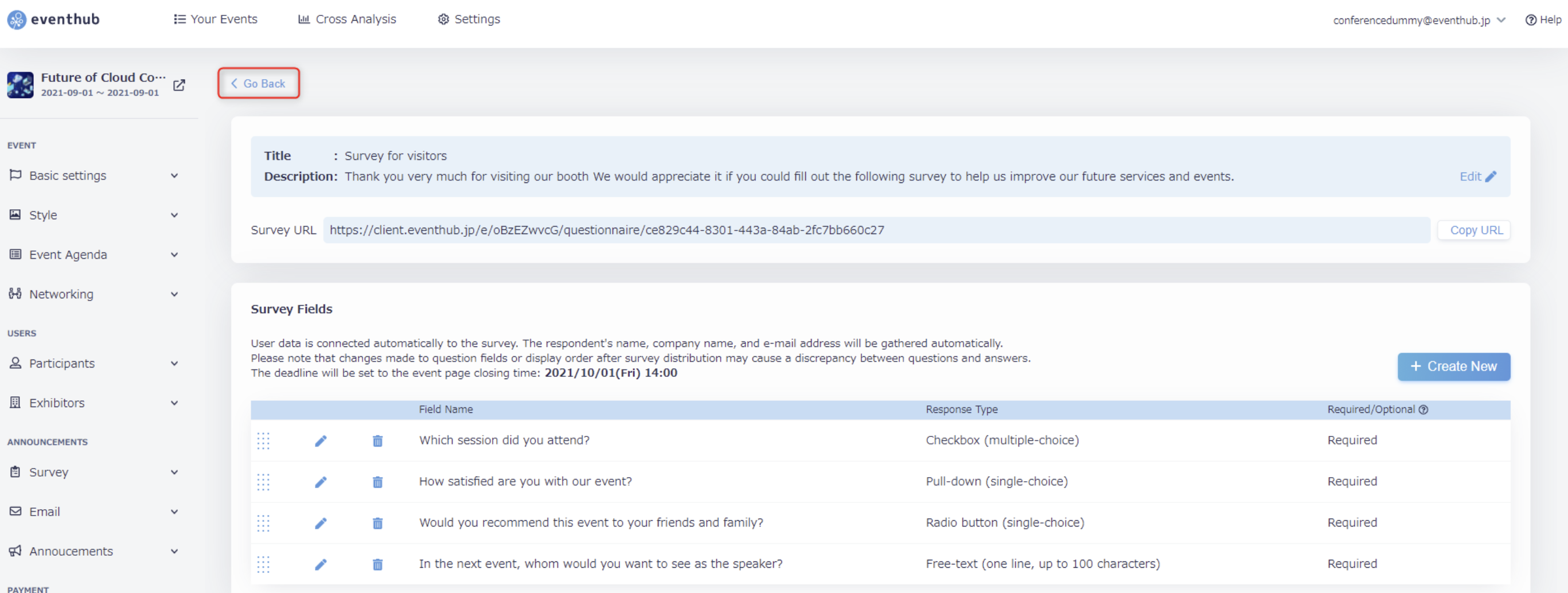
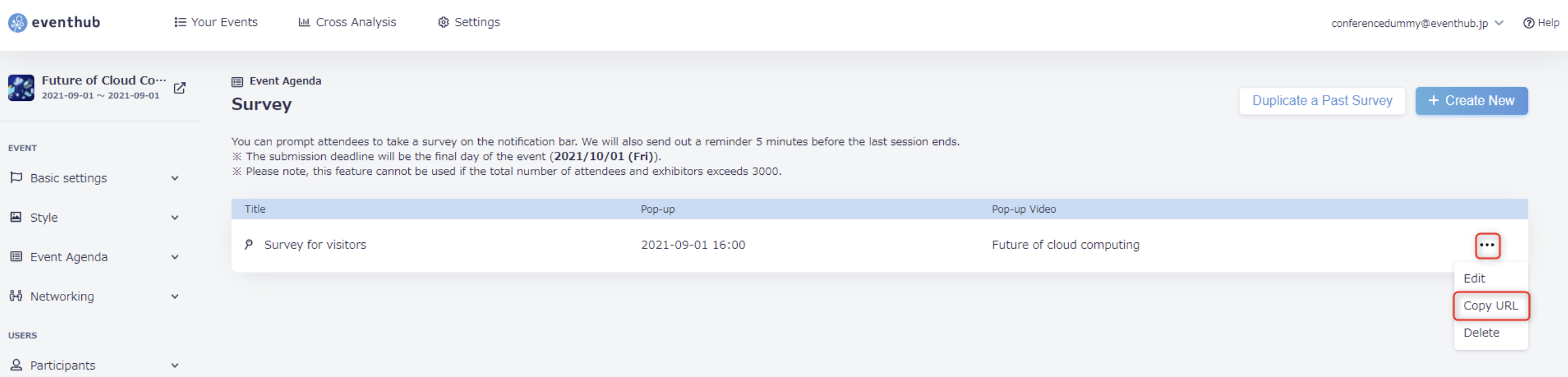
Please follow the URL to answer the survey. You will need to log in.
Participants may submit only one survey each. Once submitted, participants may not edit or resubmit their answers.
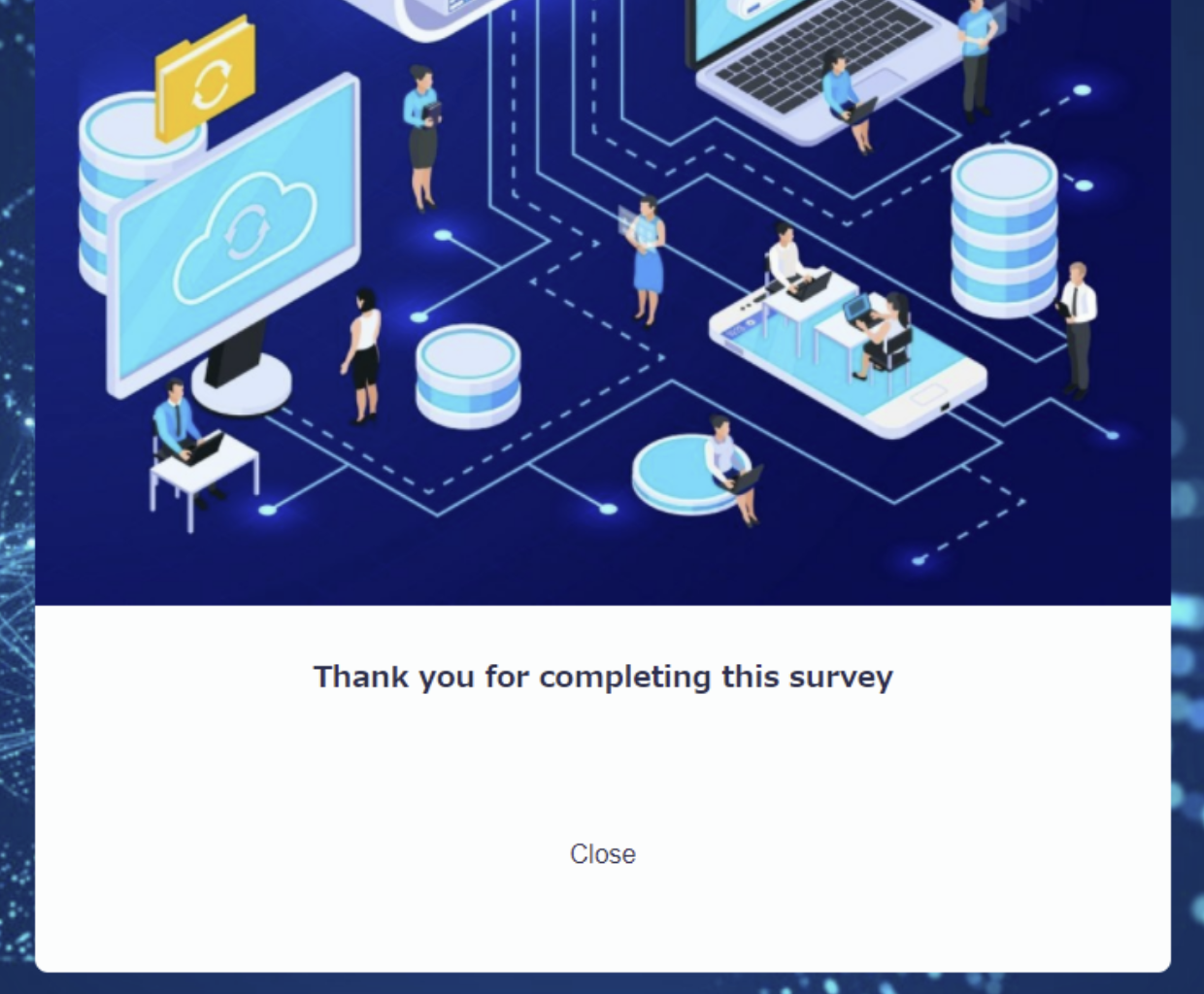
Once the survey has been submitted, the user will be directed to the thank you page as seen below. The wording on this page cannot be edited.
▼Survey page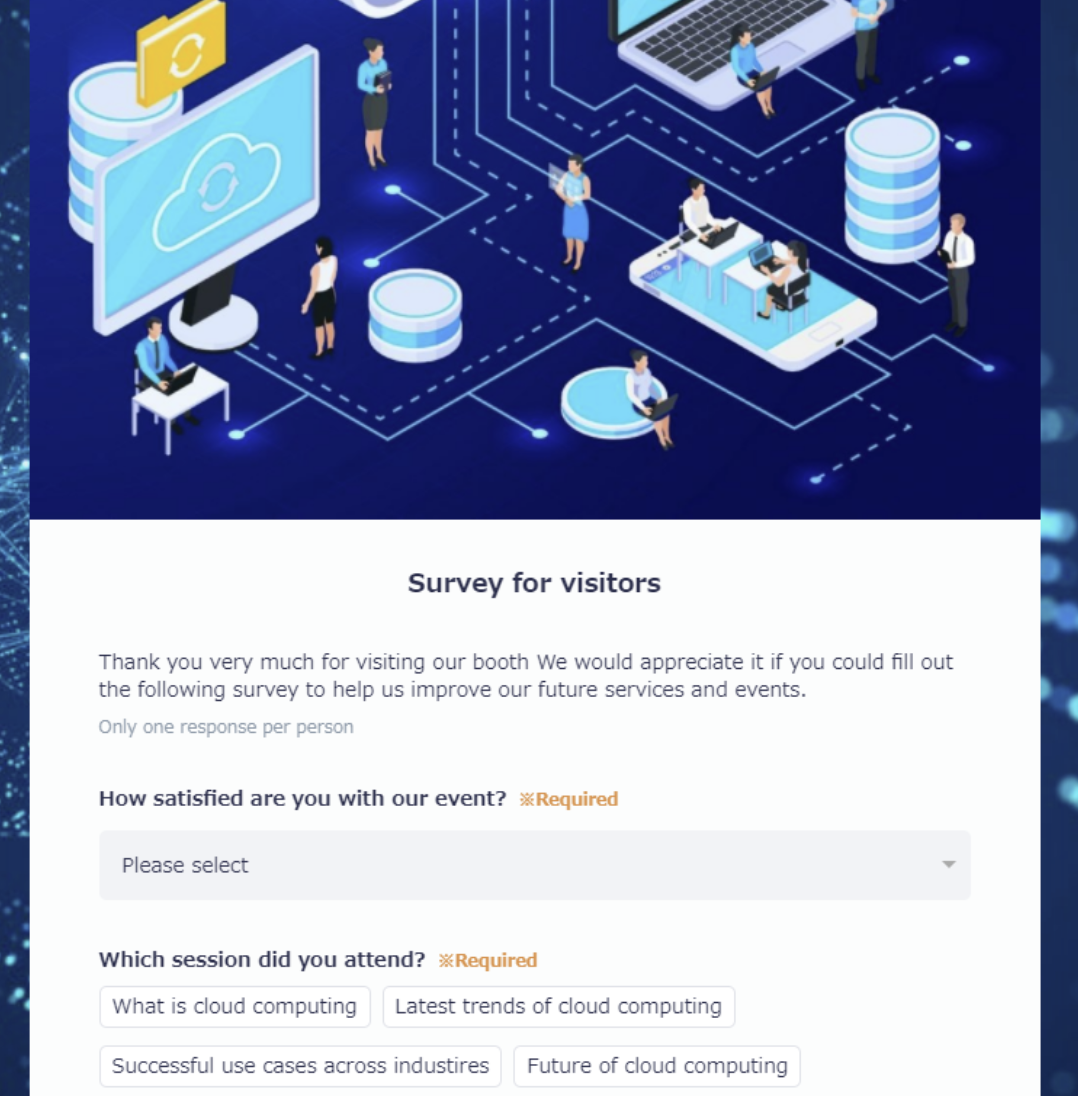
▼Page after completing survey